Move the lead records. Plan the rest of the handoff.
This is a reviewed CSV import into CLP, with a preset for Follow Up Boss column names. Your team chooses the file, destinations and import options. It does not connect the two systems or keep them in sync.
Lead records
Check the details you can map
Names, contact methods, source, tags and supported lead fields can be reviewed before saving. Owners and stages must match choices in your CLP workspace.
Open work and history
Keep the next commitment visible
Calls and Texts columns can be retained as text in an imported note. They do not become CLP call records or message threads. Tasks, appointments, recordings, files and active follow-up plans need a separate archive or recreation plan.
Export the file you actually want to move
- Open People → All People in Follow Up Boss. Filter to the contacts you intend to move, then select them.
- Choose Export and enable Export all columns before confirming. The smaller visible-column export can omit additional contact details and other context.
- Download the CSV and keep an untouched copy. Exporting does not remove the contacts from Follow Up Boss.
The owner can export; other users need Can Export access. Follow Up Boss’s full export includes limited recent calls, texts and notes, but does not export emails or call recordings. Review its current guide before relying on an archive.
Source: Follow Up Boss’s official contact export guide. Check the current article if your account’s controls differ.
Work from a copy for cleanup. Preserve the original export, keep ZIP codes and phone numbers as text, and include only records your team is authorized to transfer.
Review the Follow Up Boss field preset
These headers come from CLP’s existing Follow Up Boss preset. Review every destination against your file, especially property details, extra contact methods and the difference between Stage and Deal Stage.
Address 1 columns describe the contact’s mailing address. Property Address and its city, state and ZIP columns are separate. Check both on the saved lead rather than assuming they refer to the same place.
| Source column names | CLP destination |
|---|---|
| First Name | First name |
| Last Name | Last name |
| Name | Full name |
| Email 1 · Email · Primary Email | |
| Email 2 · Email 3 · Email 4 · Email 5 · Email 6 | Other email |
| Phone 1 · Phone · Primary Phone | Phone |
| Phone 2 · Phone 3 · Phone 4 · Phone 5 · Phone 6 | Other phone |
| Company | Company |
| Address 1 - Street · Address · Street Address | Mailing address |
| Address 1 - City · City | City |
| Address 1 - State · State | State |
| Address 1 - Zip · Zip · Zip Code | ZIP code |
| Property Address · Listing Address | Property address |
| Property City | Property city |
| Property State | Property state |
| Property Post Code · Property Zip · Property Zip Code | Property ZIP code |
| Stage | Stage |
| Lead Source · Source | Source |
| Assigned To · Assigned Agent · Assigned User · Agent | Owner |
| Tags | Tags |
| Background · Notes · Message · Description | Notes |
| Deal Price · Price | Deal value |
| Birthday · Birth Date | Birthday |
| Date Added · Created | Date added |
| Last Assigned · Is Contacted · Timeframe · Listing Price · Calls · Texts · Deal Stage · Deal Close Date · Lender · Last Activity · Custom Fields | Keep in the imported note |
The Follow Up Boss preset keeps unmatched columns with values in an Imported from Follow Up Boss note, subject to importer limits and validation. Review the mapping and Problems file; a note is not a structured field or a restored conversation.
A custom field must already exist in CLP before you map to it. Check the preview and Problems file for values that could not be read or retained. A supported field does not mean every source value will fit.
Before any outreach
Bring the restrictions with the contact
Check the source’s actual contact restrictions separately from tags, stages and activity. If the export does not carry them clearly, prepare explicit Do not contact, Do not text and Do not email columns before importing. A tag is not evidence of permission to send.
- A positive Do not contact value disables email and texting. Do not text and Do not email restrict their respective channels.
- Recognized phone do-not-call columns restrict texting in the importer. Call blocking requires a separate review of your workspace’s calling restrictions.
- Restrictions can tighten an existing lead’s contact settings even when you choose Skip them. An import must not be treated as renewed consent.
- Use a restricted-contact row in the pilot, inspect its saved settings, and keep campaigns and automations off until your team has checked its contact permissions and sending setup.
Preview five representative rows before saving
Pick a separate five-row file: an ordinary lead, a lead with property details, a known duplicate, an owner or stage that needs a decision, and a restricted-contact example. You can use fictional data while learning the controls; use authorized records for an actual move.
- Open the importer below and confirm the intended CLP workspace and Follow Up Boss preset. Choose your pilot CSV and review every mapped or excluded column.
- Choose how to handle existing leads: Skip them, Fill in empty fields, or Overwrite with the file. Matching uses email first, then phone. Blank cells do not erase existing values; tags and notes are added in the update modes.
- Review owners and stages. Owner matching tries teammate email before name; unfamiliar people need an explicit fallback. Resolve unfamiliar stages to a CLP stage or keep the old stage as a tag. Check whether you chose to create deals.
- Press Preview the import. Reconcile new, updated, skipped and error counts; inspect the sample records and any owner or stage choices. Five rows need not mean five new leads.
- Confirm the import only after those checks. Open representative saved records and review names, addresses, owner, stage and contact restrictions. In Past imports, download Problems and account for any skipped or excluded values.
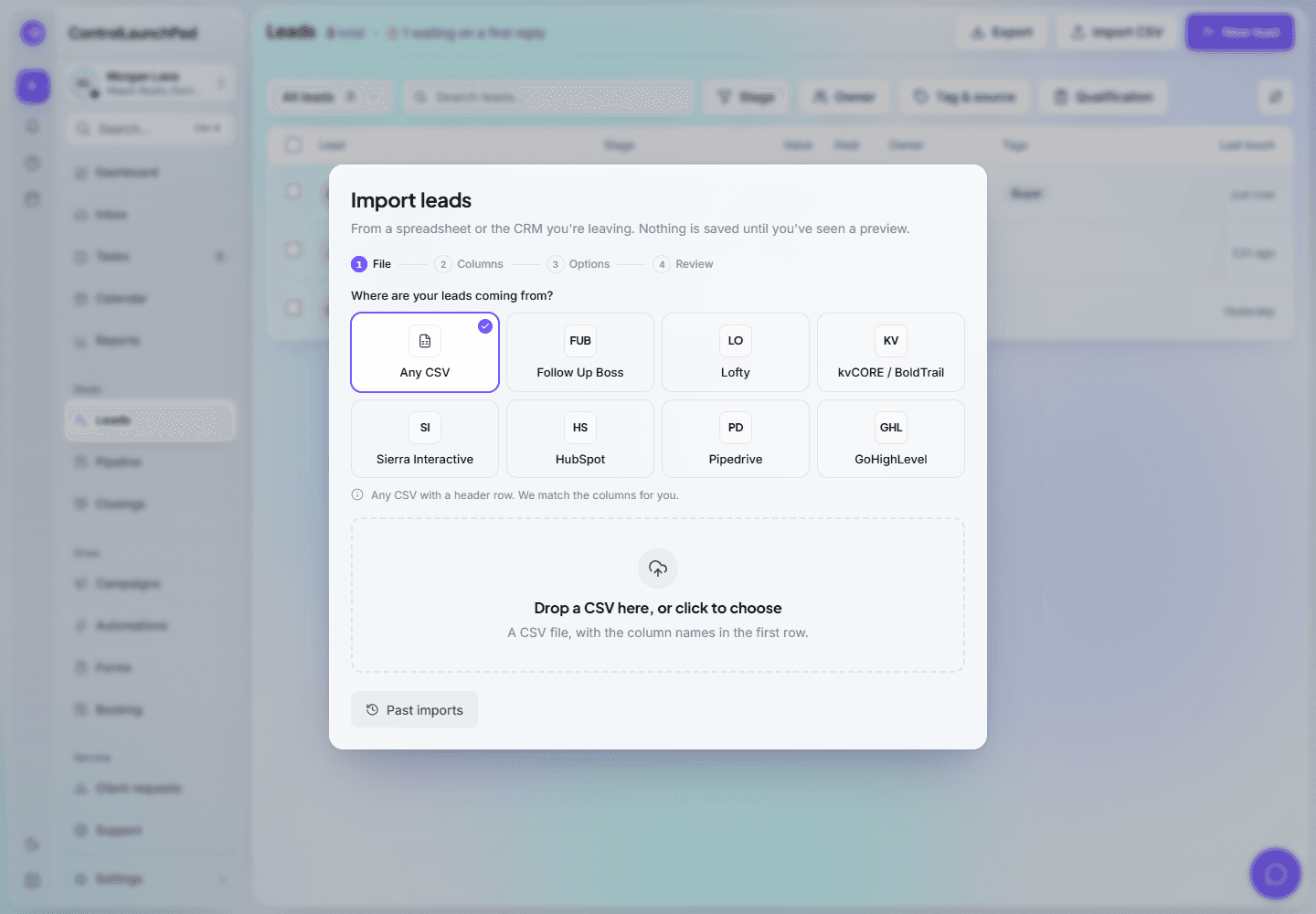
Sign in if prompted. Opening the importer does not save leads or send messages. Review the file and preview before confirming; imports do not automatically enroll leads in campaigns or start automations.
Know what the 24-hour undo can reverse
In Past imports, Undo import is available for 24 hours after the import finishes, subject to your permissions. It deletes leads that import created, together with their associated records. Leads merged with another record are retained.
Updates to leads that already existed are not rolled back. Keep the untouched export and record your update choices before a pilot or full batch. If you need help correcting existing records, stop and review the affected records before importing again.
Agree when the team changes over
- Name the person who approves the pilot and resolves its mapping or access problems.
- Account for urgent tasks, future appointments, source history and files before changing intake.
- Choose one system for new inquiries and active follow-up, with a specific switch time and someone checking both sides.
- Verify provider connections and any messages separately. A saved lead is not proof that email, texting or booking is ready.
Use the existing migration checklist to assign the rest of the move. Its CSV is a project worksheet, not a lead file for the importer.
Questions before you switch
Does opening the importer move anything or send messages?
No. The link opens CLP’s importer with the source preset selected. You still choose a file, review the mapping and preview, and deliberately confirm the import. Imported leads do not automatically start campaigns or automations.
Do the Calls and Texts columns become live conversations?
No. The Follow Up Boss preset can keep exported Calls and Texts values in an imported note. They remain historical text, not CLP message threads, call records or recordings. Keep access to the source history and separately recreate open work your team still needs.
What happens to leads already in CLP?
CLP matches by email first, then phone. Choose Skip them, Fill in empty fields or Overwrite with the file before previewing. Imported restrictions can still turn email or texting off for an existing lead in Skip mode. Check at least one matched lead in your pilot.
Can I undo a pilot import?
Undo import is available in Past imports for 24 hours after an import finishes, subject to your permissions. It removes the leads that import created and their associated records. It does not reverse updates to existing leads, and leads merged with another record are kept. Preserve your source export and review updates carefully.
Do I need a CLP account to use this guide?
The guide and migration checklist are public. To use the importer you need a CLP workspace and permission to import leads. Sign in when prompted, then review the selected workspace and source preset before choosing a file.