How a CLP automation works
A trigger is the event that starts the rule. A condition tests something about the lead or their deal and chooses a path. An action does the work, such as assigning the lead, creating a task or sending an eligible message.
- Build and review rules in Automations with permission to manage them. You can use the visual builder on every plan within that plan’s allowance.
- Use your own live forms, stages, booking pages and eligible teammates when adapting the examples. Review both the selected trigger and each step before switching a rule on.
- Start with an internal task or tag on a controlled test lead, then inspect its run history. Review sender readiness and recipient eligibility separately before enabling outreach.
Watch a seller inquiry automation run
See a fictional seller inquiry become an assigned CRM lead and a callback task due today, with both actions confirmed in Runs.
The video is not loaded. Load its controls when you are ready; playback remains under your control.
Fictional seller details in a separate local workspace. Recorded with the real CLP engine. No messages are sent or external providers connected.
Read the automation demo transcript
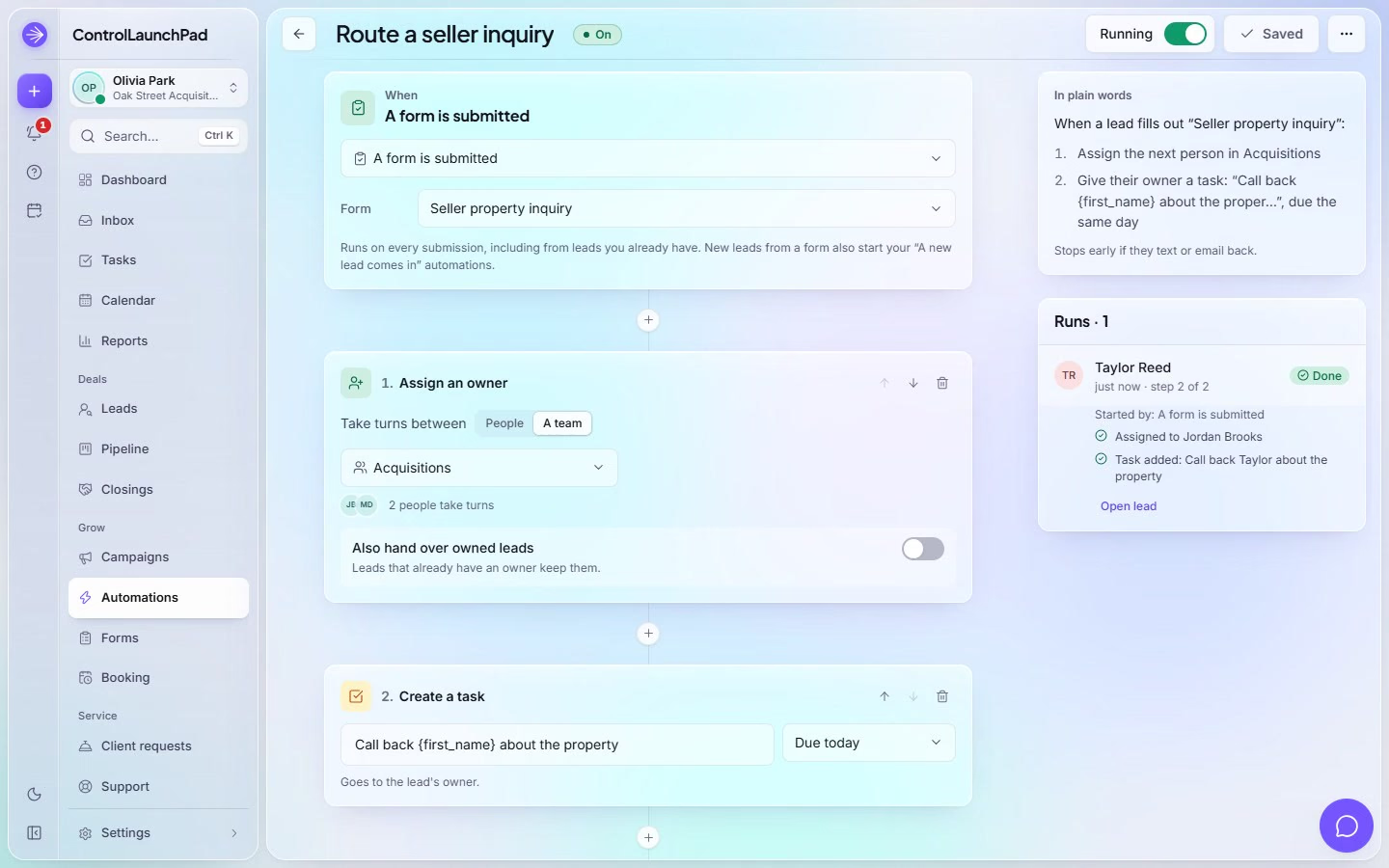
A seller inquiry starts this rule: assign an eligible acquisitions teammate, then create a callback task.
This separate local workspace uses fictional seller details. We fill in and submit the real public property inquiry form.
CLP saves the submission and runs the automation in the background. No email or text is sent.
The new seller lead belongs to Jordan Brooks, an eligible member of the selected Acquisitions team.
The callback task is due today and assigned to the same lead owner. Open the seller lead from the task when you are ready to follow up.
The completed Runs history confirms both steps: assignment and callback task creation. These are real results from the local CLP engine.
Choose the next task with If / else
Can CLP create different tasks based on a seller lead’s tag? Yes. After the selected form is submitted, an If / else step can check the lead’s current tags and choose the matching task.
In this example, the team adds the Ready for visit tag after reviewing a seller’s details. The rule reads that tag when it reaches the condition.
Review seller intake by readiness
- Starts with
- A form is submitted for the selected live seller form.
- Checks
- Tags has Ready for visit.
- Chooses
- Yes: a property-visit review task. No: a task to clarify the property details before booking.
Set up both paths
- Choose A form is submitted and select your published seller form.
- Add If / else. Choose the Tags field, has and Ready for visit. This example uses one condition. If you add more checks, choose whether All or Any must match.
- On the Yes path, add Create a task: Prepare property visit review, due today.
- On the No path, add Create a task: Clarify property details before booking, due today. Both tasks use the lead owner or the usual fallback.
- Review your other enabled rules and form confirmations, then test the selected rule once with each of two different controlled leads: one with the tag and one without it.
- Open each lead in Runs, read the Yes or No note and verify the actual task. These are internal review tasks; arrange any appointment separately.
The same form automation can start only once per lead within 24 hours. Changing a tag later does not change a branch already chosen. Use a different controlled lead for the second test.
Two real test outcomes
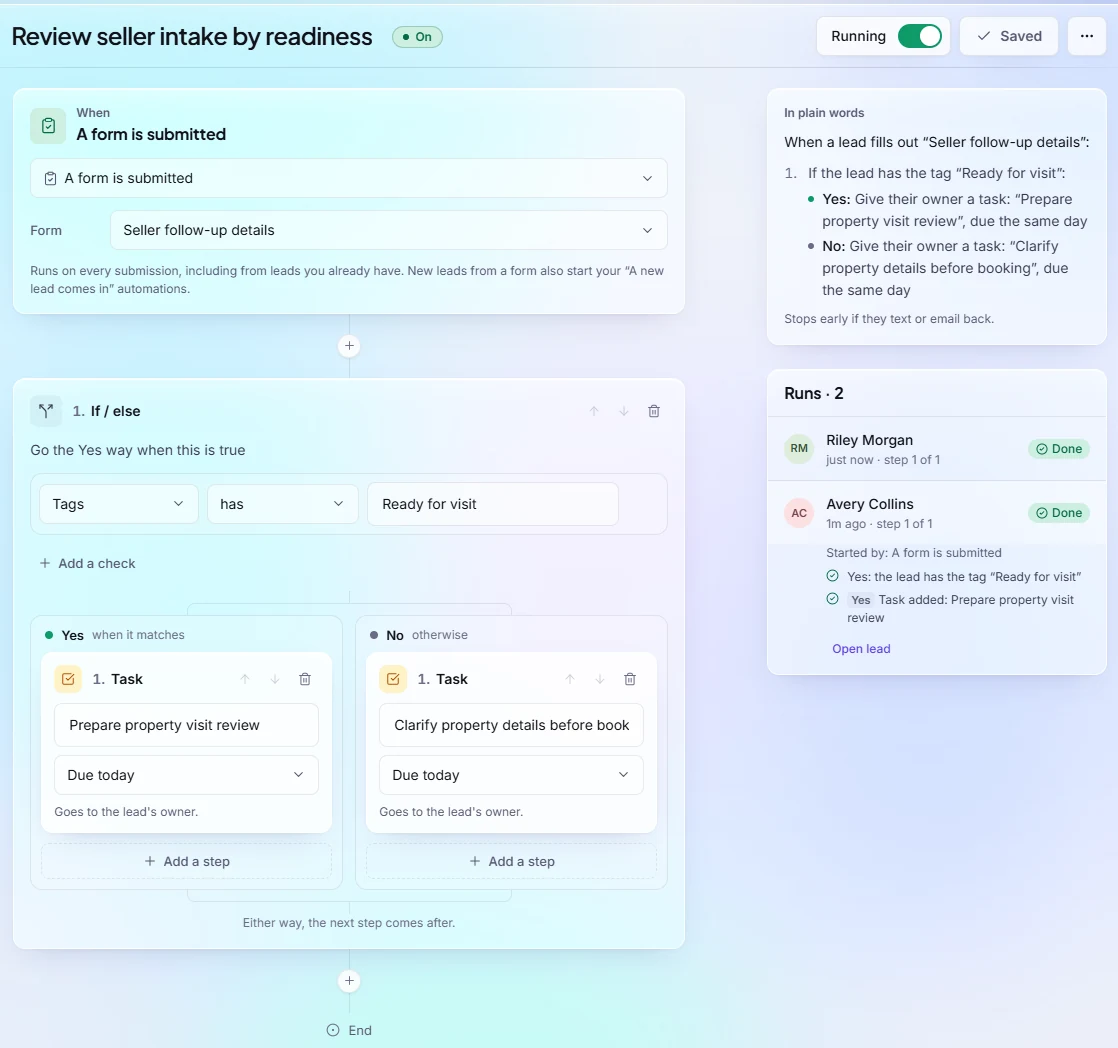
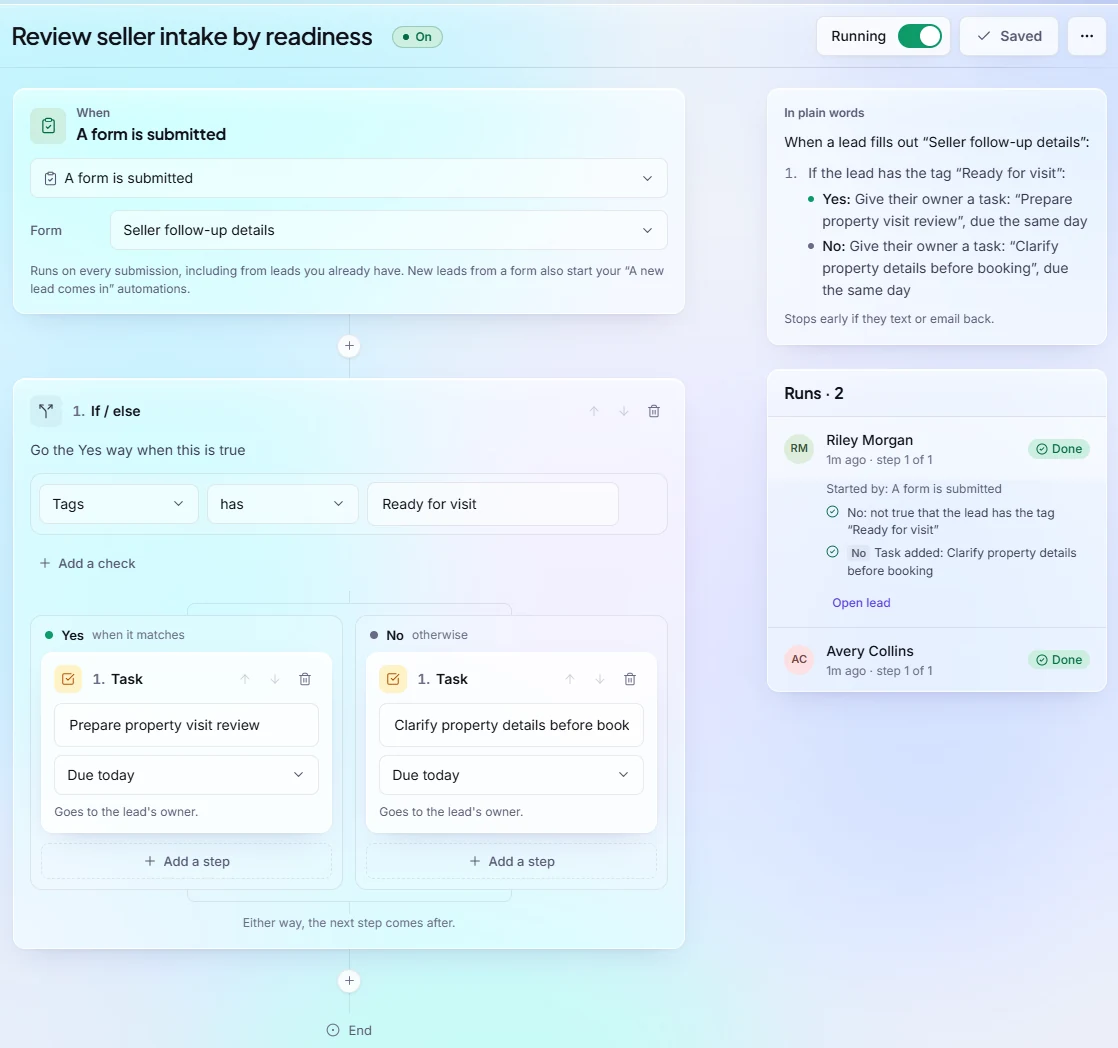
These screenshots show a separate local workspace with fictional leads. Each form submission ran through the real CLP automation engine and created only its selected task.
Yes: ready for a visit review
- Fictional lead
- Avery Collins
- Tag check
- Has Ready for visit
- Task created
- Prepare property visit review
- Run outcome
- Done · Yes path
No: clarify the intake details
- Fictional lead
- Riley Morgan
- Tag check
- Does not have Ready for visit
- Task created
- Clarify property details before booking
- Run outcome
- Done · No path
Plan this rule in the blank worksheet Check an unexpected result
Four examples for acquisition teams
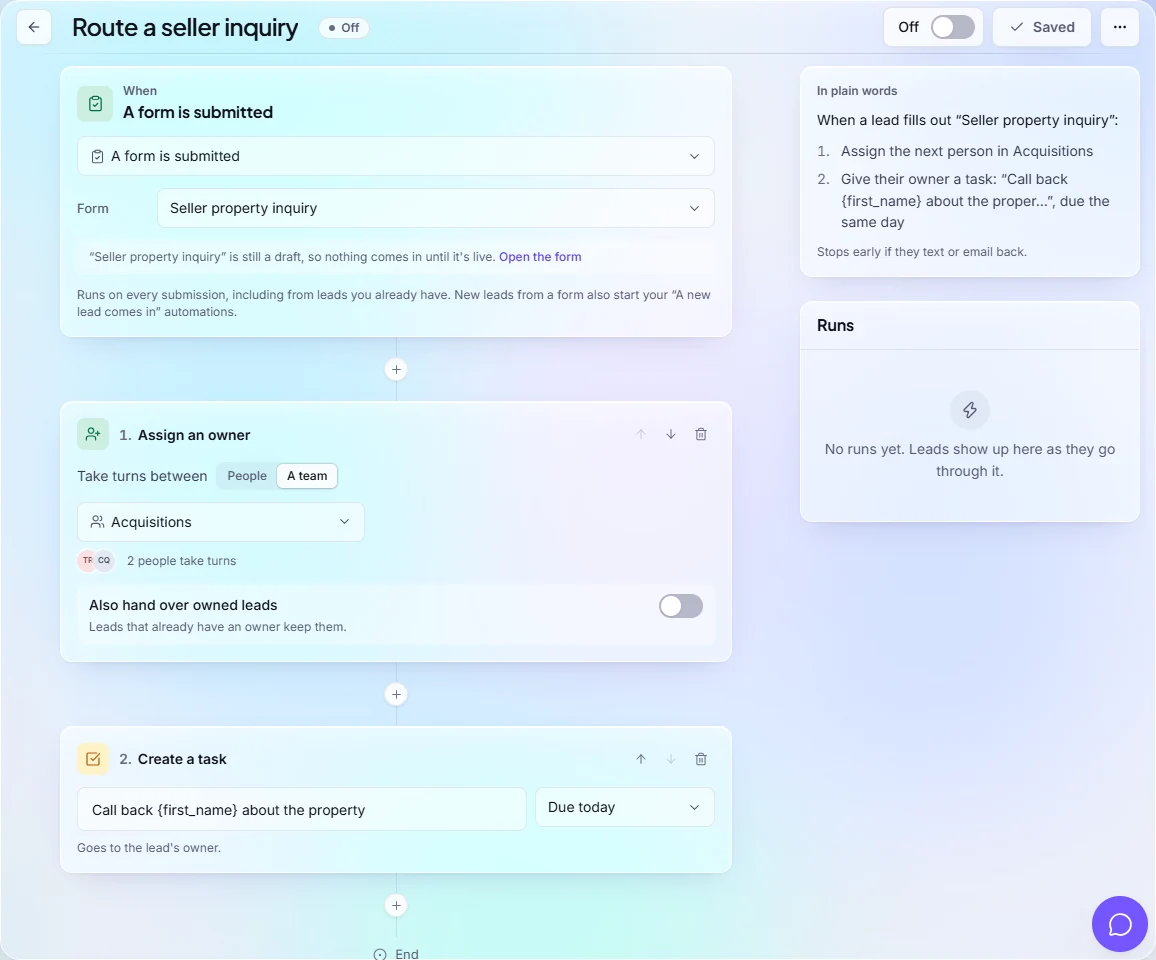
These screenshots show the CLP interface with fictional leads and switched-off rules. You can use the steps to set up a rule in your own workspace.
Route a seller inquiry to your acquisition team
Can CLP assign new seller form inquiries to my team? Yes. Start from a specific seller form, rotate unassigned leads among eligible acquisition teammates and create a callback task for the owner.
- What starts it
- A form is submitted for the live Seller property inquiry form.
- What to check
- Use a team with active teammates who can edit leads. Keep “Also hand over owned leads” off so returning sellers retain their owner.
- How to set it up
- Add Assign an owner and choose the Acquisitions team.
- Add Create a task after assignment so the lead owner gets the callback.
- What happens
- In this fictional example, the next eligible acquisition teammate takes the unassigned lead and receives a callback task.
- When it skips or stops
- Submissions to another form do not start this rule. If nobody can take leads, the assignment step skips. A separate task step can still use the current owner or its fallback. A returning lead can submit again, so review existing callback tasks before contacting them.
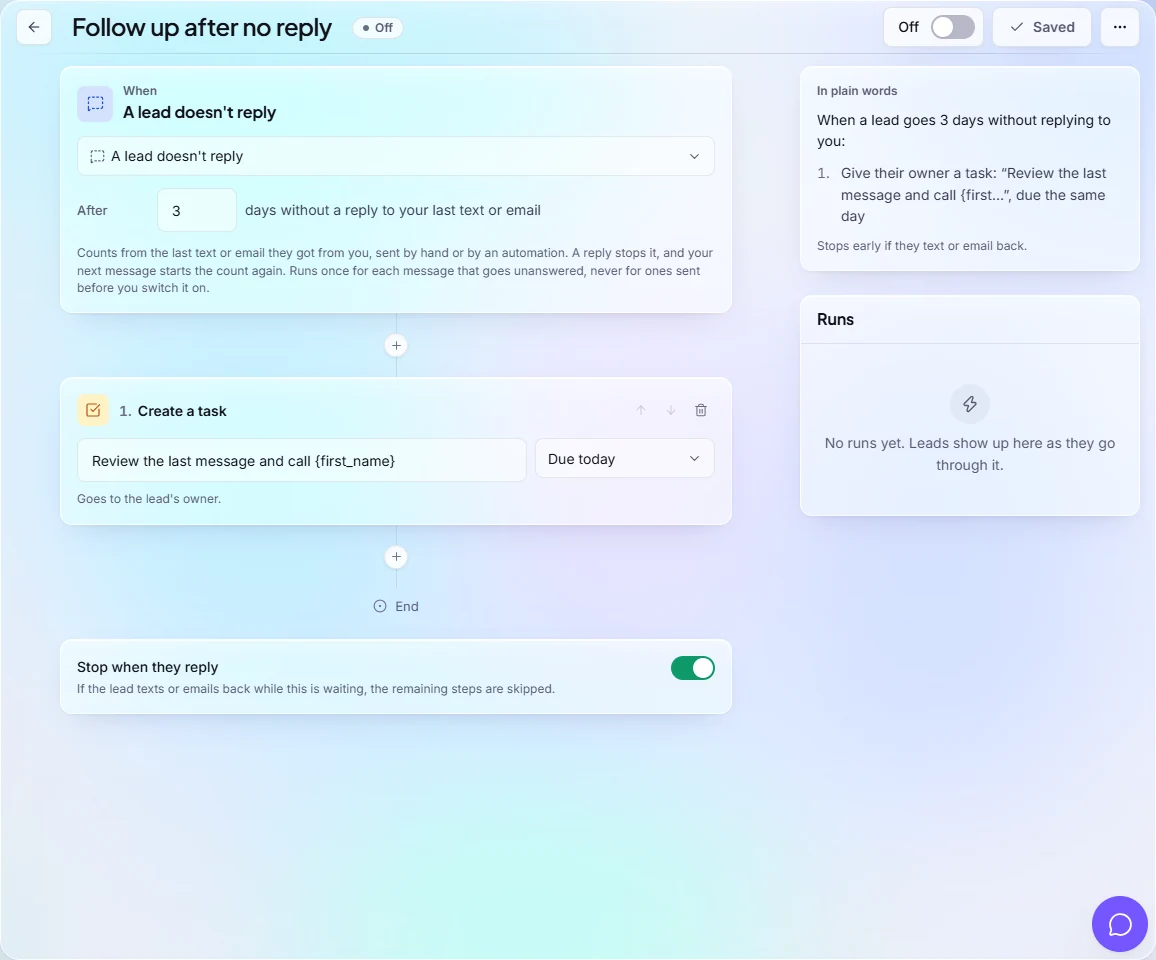
Create a callback task when a seller hasn’t replied
Can CLP remind my team when a seller hasn’t replied? Yes. Use the no-reply trigger to create an owner task once an outbound text or email has been unanswered for a set number of days.
- What starts it
- A lead doesn’t reply to the latest text or email for 3 days.
- What to check
- Use the no-reply trigger when there was an outbound message. Use the goes-quiet trigger to watch broader inactivity on leads with open deals.
- How to set it up
- Set the no-reply trigger to 3 days.
- Add Create a task for the owner to review the conversation and make the callback if appropriate.
- What happens
- The owner sees a task after the unanswered period and can check the conversation before deciding on the next contact.
- When it skips or stops
- A genuine text or email reply before the timer qualifies prevents the run. An automatic email reply does not count as the seller’s answer. Review the existing task if the seller replies after it was created.
Flag an offer that hasn’t moved
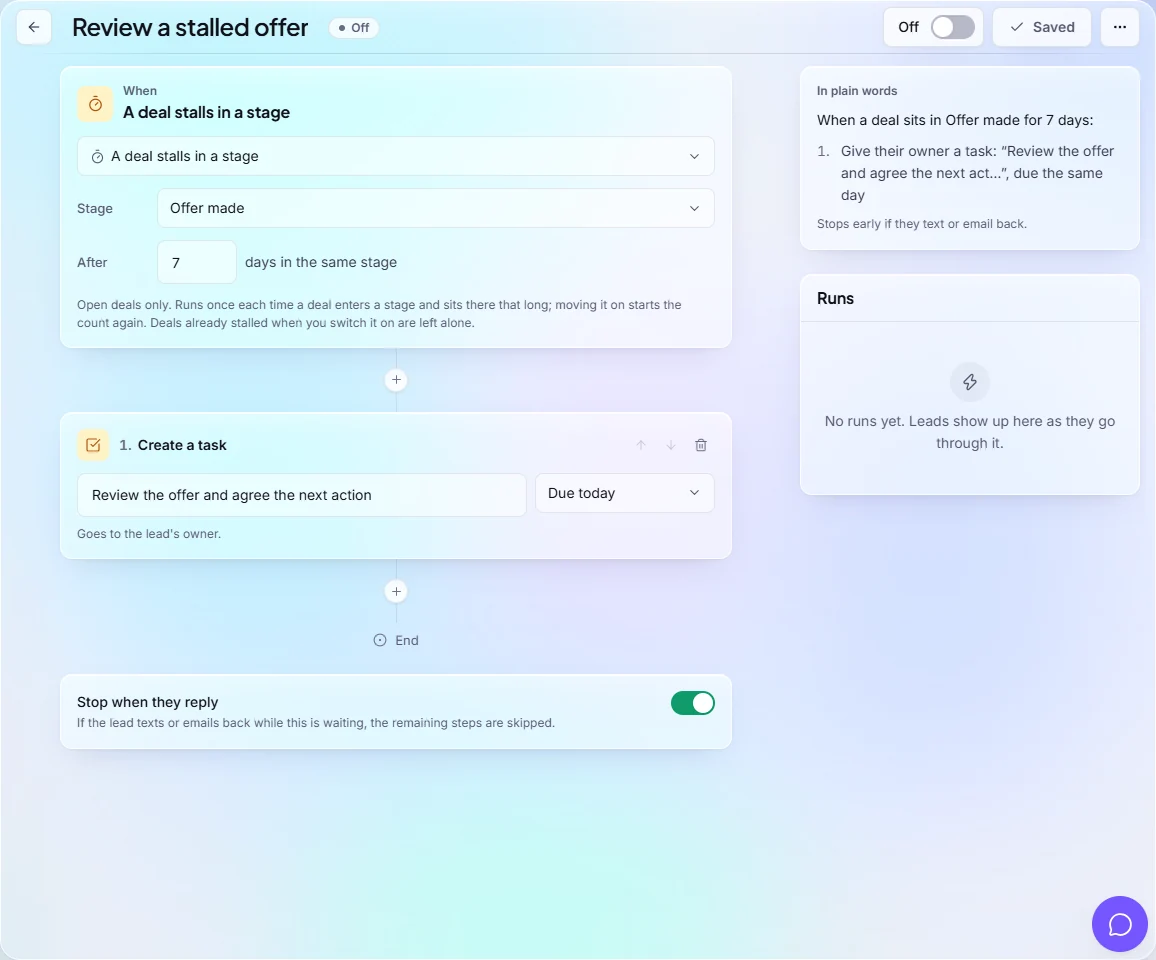
Can CLP remind me when a deal stalls in the offer stage? Yes. Choose the offer stage and an age threshold. CLP can create a review task when an open deal reaches that threshold.
- What starts it
- A deal stalls in the Offer made stage for 7 days.
- What to check
- Choose the Offer made stage in the acquisitions pipeline. The deal must still be open when the rule checks.
- How to set it up
- Select the stage and set the waiting period to 7 days.
- Add Create a task asking the owner to review the latest seller conversation, the offer and the next action.
- What happens
- The lead owner gets an internal review task once for that stay in the stage.
- When it skips or stops
- A closed deal or a deal that leaves the selected stage before the threshold no longer qualifies. The rule leaves already stalled deals alone when first enabled.
Prepare for a seller appointment and follow up on a no-show
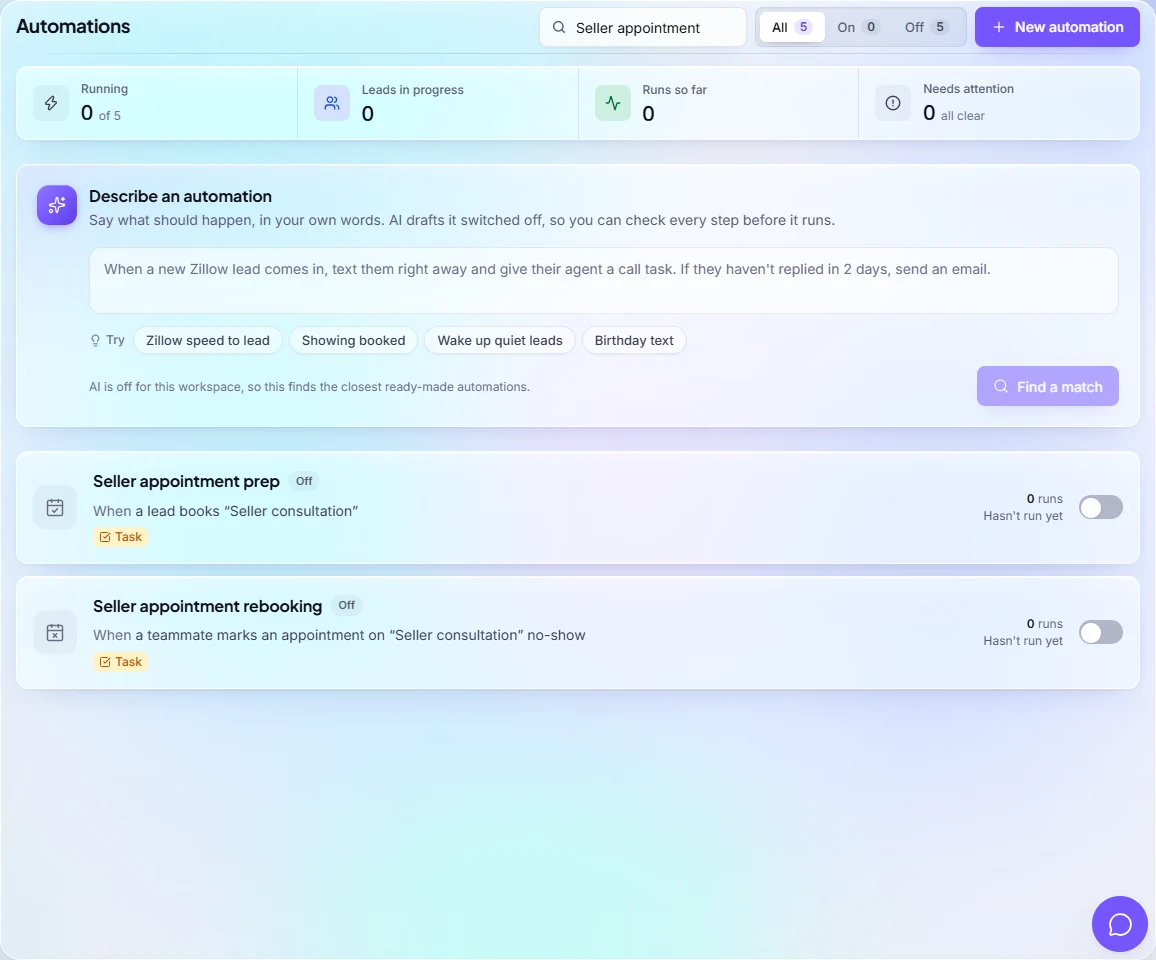
Can CLP create tasks before a seller meeting and after a no-show? Yes. Use one rule for a new booking and a second rule for an appointment a teammate marks as a no-show.
- What starts it
- An appointment is booked for the prep rule. An appointment is marked no-show for the rebooking rule.
- What to check
- Select the same consultation page in both rules, or Any booking page to include appointments made without a page.
- How to set it up
- On booking, create a prep task to review the property notes and agreed meeting details.
- In a second automation, use the no-show trigger to create a rebooking task for the lead owner.
- What happens
- The owner sees separate tasks for preparing and, if the teammate records a no-show, following up about a new time.
- When it skips or stops
- Rescheduling an existing appointment does not start the booked rule. The no-show rule needs a recorded outcome. A correction stops pending work. Existing bookings can send their own configured confirmations and reminders.
Plan and test your automation
Plan one rule before switching it on. Record what should start it, what should prevent it and what you actually see in Runs. Download a blank worksheet or use the four fictional examples as a starting point.
- Open the CSV in a spreadsheet app and make one copy per rule. These are planning worksheets, not files you can import into CLP's automation builder. The example rows describe fictional setups and have not run in your workspace.
- Choose your own published form, stage, booking page and eligible teammates. Leave the rule off while reviewing the builder, then test only the intended rule with controlled data. Check other enabled rules, form confirmations and booking reminders before submitting a test.
- Start with internal actions. These four examples create tasks instead of sending automation messages. If you later add texts or emails, check sender setup, recipient eligibility, quiet hours, limits and consent separately.
- Check the matching and non-matching cases in Runs, then write the actual result and test date. Days-based triggers need their configured time to elapse. Waiting, skipped and failed steps are different outcomes from a completed step.
- Keep Observed result blank and Review status as Not tested until you have verified both cases. Correct the setup and retest when needed. A later reply or outcome correction does not remove a task already created.
Review the blank worksheet fields
- Rule name
- Use a name your team will recognize. Use separate worksheets when a workflow needs separate rules.
- Reviewer and review date
- Name the teammate who will check the rule and record the date of their review.
- Goal and responsible team
- Describe the internal result and who should act on it.
- Trigger and selected form, stage or page
- Copy the trigger and its exact selections from the builder. A trigger is the event or threshold that starts the rule.
- Conditions and assignment choices
- Record any If / else conditions, the All or Any choice and both paths. For assignment, record eligible teammates and whether owned leads can be handed over.
- Actions in order
- List the steps and their settings, including task titles, due times and intended assignees.
- Trigger age, waits and task due times
- Keep these separate: an age threshold starts a rule, Wait pauses a started run, and a task due time schedules the task.
- Stop rules and exceptions
- Record Stop when they reply, any conditions that prevent a run and what happens to work already created. Review sending eligibility before adding outreach.
- Matching test
- Use fictional data and a controlled test lead. Describe the exact event or threshold that should qualify.
- Non-matching test
- Describe a second case that must not qualify, or the branch that should do something different.
- Expected result
- Write the expected assignment, task and run outcome for both cases before testing.
- Observed result
- After testing, record what happened, including waits, skips and errors. Leave blank until you have checked it.
- Run reference and test date
- Record the test lead, rule name, run time and date so the reviewer can find the result. Use internal references without secrets.
- Review status
- Start with Not tested. Record Needs changes or Reviewed after checking both cases. A worksheet status does not enable a CRM rule.
All 15 supported triggers
- A new lead comes in
Starts when CLP creates a lead, such as one added by hand, captured by a form or received through a connected lead source. Bulk spreadsheet imports do not start it.
Any source or one selected source.
- A form is submitted
Starts on eligible submissions from new or existing leads, at most once per lead per rule within 24 hours. A form that creates a new lead can also start a separate new-lead rule.
Any live CLP form or one selected form.
- A lead moves to a stage
Starts when the lead’s deal moves into the selected stage. Moves made by automations or campaigns do not start another rule.
Choose a destination stage.
- A lead texts or emails back
Starts on an eligible incoming text, email or website chat from the lead. Opt-out texts do not start a reply automation.
Add If / else to choose what to do for different leads.
- A lead’s message gets a label
Starts once per message for each matching rule when CLP labels an incoming text, email or chat. A teammate can also trigger a rule by changing the label within 24 hours.
Choose one or more of Ready, Showing or call, Price, Question, Not interested, Stop, Wrong number, Spam and Other.
- A lead goes quiet
Starts when a lead with an open deal goes without activity for the chosen period and has no upcoming booked appointment.
Set 1 to 90 days. Newly enabled rules look for leads that go quiet from then on.
- A lead doesn’t reply
Starts after your latest outbound text or email has gone unanswered for the chosen period. It runs once per stretch of messages that get no reply and ignores recognized automatic email replies.
Set 1 to 90 days. The rule looks for newly due follow-ups instead of running on the old backlog.
- A deal sits in a stage
Starts once per stay when an open deal remains in the same stage for the chosen period. A move to a new stage starts a new count.
Set 1 to 365 days. Choose a stage, any stage in a pipeline, or any stage across pipelines.
- A date comes around
Checks from 9 a.m. in the lead’s sending time zone on the due day. Birthdays and closing anniversaries repeat annually, while closing dates are one-time.
Choose birthday, closing date, closing anniversary or a custom date. A custom date can run once or annually. Run on the date or up to 365 days before or after.
- An appointment is booked
Starts for a new appointment booked through a CLP page or by a teammate. Booking confirmations and reminders use their own settings.
Any booking page or one selected page. Choose Any booking page to cover bookings that have no page.
- An appointment is marked attended
Starts when someone records attendance in the CRM. Supports tasks, emails, waits and conditions.
Any booking page or one selected page.
- An appointment is marked no-show
Starts when someone records a no-show in the CRM. Supports tasks, emails, waits and conditions.
Any booking page or one selected page.
- A lead’s call is missed
Starts when an eligible inbound lead call goes unanswered, with or without a voicemail.
Use a calling setup that logs missed calls in CLP.
- A call is logged
Starts when a teammate’s outbound call is wrapped up and logged.
Any outcome, or Connected, Left voicemail, No answer, Wrong number or Busy.
- A client request is opened
Starts when a client request is opened and linked to a lead. The automation works on that client’s lead.
Filter by request category, priority (Urgent, High, Normal or Low), or both.
All supported conditions
An If / else step can check up to 10 conditions. Choose whether all or any must match. The run takes the Yes or No path, then continues with any steps after the branch.
Fields you can check
- Stage
- Reads the stages of all open deals for the lead. “Is” matches if any is in the chosen stage. “Is not” matches if none is there. Empty means no open deals.
- Pipeline
- Uses all open deals for the lead. “Is” matches if any is in the chosen pipeline. “Is not” matches if none is there. Empty means no open deals.
- Source
- Checks the source saved on the lead, such as a seller intake form or a referral.
- Tags
- Checks whether the lead has a particular tag or any tags at all.
- Owner
- Checks who owns the lead. Empty matches an unassigned lead.
- Deal value
- Reads the value on the most recently updated open deal. Empty means no open deal.
- Time zone
- Compares the sending time zone. CLP uses the lead’s own zone, then one inferred from their phone area code, then a workspace or Eastern time fallback. The empty check treats a fallback as unknown.
- Area code
- Checks the three-digit area code of a US or Canadian phone number when CLP can identify one.
- Custom lead fields
- Use your workspace’s own fields, such as a lease end date or an asking price. The field type determines available operators. Archived or deleted fields cannot match.
Operators by field type
- Choice
Stage, Pipeline, Owner, Time zone, Area code and Single choice custom fields.
Is, Is not, Is empty, Isn’t empty
- List
Tags and Multiple choice custom fields. A match checks membership in the list.
Has, Doesn’t have, Is empty, Isn’t empty
- Text
Source and Short text, Long text, Phone, Email and Link custom fields. Text comparisons ignore case and normalize whitespace.
Is (exact), Contains, Is empty, Isn’t empty
- Number
Deal value and Number or Money custom fields. Between includes both endpoints.
Is more than, Is less than, Is between, Is empty, Isn’t empty
- Date
Date custom fields. Before and after exclude the selected date.
Is before, Is after, Is empty, Isn’t empty
- Yes / no
Yes / no custom fields. An unchecked box counts as No.
Is
All 11 supported step types
- Send a text
Send an SMS using the selected eligible texting connection. You can personalize it with lead and team details.
Enter the message. Sending depends on channel readiness, recipient eligibility and sending rules.
- Send an email
CLP selects the active lead owner as the sender, then falls back to the active person who set up the rule or an active workspace owner if the lead owner is unavailable.
Enter a subject and body. If the selected sender has no working mailbox connection, the email can wait for that sender to connect.
- Create a task
Add an internal task to the lead. CLP uses the current lead owner first, then the automation creator or a workspace owner when needed.
Enter a title and choose when it is due, up to 60 days from creation.
- Assign an owner
Rotate incoming leads among selected people or eligible members of a team. Participants must be active and able to edit leads.
Choose people or a team. Leave “Also hand over owned leads” off to keep an existing owner.
- Add a tag
Add a label to the lead so the team can organize or filter records.
Enter the tag to apply.
- Move to a stage
Moves an open deal to a chosen stage. It uses an open deal in that pipeline when available, otherwise the most recently updated open deal.
Choose a destination stage. CLP skips the step when the lead has no open deal.
- Update a field
Set a stage or open deal value, set or clear an owner, source or custom lead field, or add or remove tags.
Choose the field and operation. Setting deal value needs an open deal. A custom field must be active and accept the value.
- Add to a campaign
Enroll an eligible lead in a nurture campaign, which manages its own sequence, sending windows and stop rules.
Choose a campaign available to your workspace. Campaigns are available on Pro and higher plans.
- Wait
Pause the run before the next step. The run’s activity shows that it is waiting.
Choose minutes, hours or days, from 1 minute to 90 days.
- If / else
Check the lead when this step is reached. Run the Yes branch when all or any of its conditions match as configured, or run the No branch otherwise. The flow then resumes after the branch.
Add 1 to 10 conditions and up to 20 steps per branch. An If / else step cannot contain another If / else.
- Send to a web address
Send a signed update with the lead and event details to another system that accepts a webhook.
Use an approved public endpoint. CLP records delivery attempts in the run. Share only the data your team is authorized to send to that system.
Sending and stop rules
Check the sender and recipient before using a message step
Choose the right mailbox or activated texting connection. Eligible automations can send through smrtPhone when a verified line is available. Recipient consent and contact restrictions, opt-outs, plan access, sending limits and pacing still apply. CLP holds or skips ineligible steps and shows the outcome in the run.
Review quiet hours and waiting steps
CLP usually holds automated texts and emails from 9 p.m. until 8 a.m. in the lead’s sending time zone. An immediate response to an eligible action the lead just took can be an exception before the first wait. The automation’s Stop when they reply setting can stop a waiting run when the lead responds.
Record appointment outcomes in the CRM
Attended and no-show are recorded by a teammate. Google Calendar and elapsed time do not determine either outcome. Correcting the outcome stops pending steps. Tasks already created and emails already being sent stay in the record.
Handle stop, wrong-number and spam labels internally
Rules started by those three labels skip text, email and campaign enrollment steps. Use internal actions such as tagging or creating a task for a teammate to review.
Check run history before retrying a step
Open Runs on the automation to see what started it, the branch it chose, and which steps ran, waited or were skipped. Check Needs attention for failures. A missing message fill-in, such as an unavailable booking link, can skip a send.
Automation troubleshooting
Find the reason before trying again. Open the automation's Runs and expand the relevant lead. Read the step notes as well as the badge: a rule that finished, a step that skipped and a run that failed are different outcomes. Start tests with internal tasks and contact details you control.
Check the lead's existing tasks, Inbox and run notes before repeating a submission or retrying a failed step. If an external message or request may already have succeeded, confirm its outcome first. A retry or a new trigger is not an undo operation.
No runs yet, or no new run for this lead
The event has not started a visible run for this rule. A condition taking the No path happens inside an existing run; it does not explain an absent run.
What to check
- Confirm you saved the rule, switched it on and selected the intended form, source, stage or booking page. An event from a different selected form does not start the rule.
- Use an ordinary controlled test lead. Built-in sample leads and Inbox conversations not yet marked as leads do not start automations. A spreadsheet import does not start A new lead comes in.
- Look for another Running or Waiting run of the same rule for this lead. Form triggers also allow at most one run per lead per rule within a rolling 24 hours, including a recent run that already finished.
- For a days-based trigger, check the actual threshold and eligibility. The normal scan is every 15 minutes; a threshold is not a promise to start at the exact second it is reached. Newly enabled goes-quiet, no-reply and stalled-deal rules leave the old backlog alone.
- For A date comes around, check the selected date, offset and the lead's sending time zone. It looks for today's occurrence from 9 a.m.; it does not catch up dates that already passed. Also confirm your role can see this lead's run.
Next step
Correct the selected trigger or test data, then use one new eligible event. Use a different controlled test lead to test another branch instead of repeatedly submitting the same lead. Keep the test's form, lead and rule references together.
What to expect
A qualifying new event starts one run. An excluded form, protected sample record, repeated form submission inside the limit or already active run can correctly produce no additional run.
Waiting or Waiting for email
The run exists and has paused. A configured Wait, sending window, mailbox or pacing hold, or a scheduled web-address retry can leave work pending without a failed run.
What to check
- Read the current step and its latest note. Compare an explicit Wait step with the saved amount and unit. A task's due time does not pause the automation.
- For Waiting for email, check the named teammate's mailbox connection. Other email holds can concern the sender's safety limit, provider reachability or pacing; use the note to identify which applies.
- For a message step, review the selected texting connection or mailbox, eligible sender and sending hours. Check the current contact restrictions rather than trying to force the message through.
- A web-address step may be waiting for an automatic retry. A waiting follow-up can also stop after a reply or a corrected appointment outcome; check the same run again before starting more work.
Next step
Fix the specific connection or setup issue when needed, then let the existing queued run continue. Keep watching that run's notes; submitting a new event is not a way to shorten its wait.
What to expect
The same run can advance when its delay or hold clears. Its notes can instead explain a stop, a skipped step or a failure. Waiting alone does not confirm a task was created or a message delivered.
Done, with the other If / else path
The trigger matched and the run finished the path it selected. A condition that is not met chooses No; that is a normal result, not a failed run.
What to check
- Compare the saved field, operator and value with the lead's actual data. Review whether the step requires All conditions or Any condition.
- Check what was saved on the lead when If / else was reached. Submitting a form does not make every tag or field condition true. A later tag change does not reroute a branch that has already been selected.
- Expand the run and read its condition note and Yes or No step badges. Only the selected path runs; steps in the other path are not missing work.
Next step
Keep the completed run as evidence. Change the setup only if it differs from the intended rule, then use a different controlled lead with the other condition value to test the second path.
What to expect
Both matching and non-matching tests can show Done while producing different tasks. Read the notes and check those tasks; Done does not mean both paths ran or every optional message was delivered.
A step says Skipped
Skipped is a step note, not an overall run badge. CLP can continue past an inapplicable or protected action and finish the run as Done.
What to check
- For assignment, an existing owner is kept when handover is off. A team with no eligible active teammate cannot take the lead. Read the following task step separately because it can use the current owner or a fallback.
- Check for a missing phone, email, message fill-in, live booking link or open deal, depending on the action. Use the exact step note rather than assuming the whole rule failed.
- Opt-outs, do-not-contact restrictions or a lack of the relevant form consent can skip outreach. Stop, Wrong number and Spam label rules skip text, email and campaign-enrollment actions. Keep those protections in place.
- A paused or draft campaign can make Add to a campaign skip. Already enrolled is also different from a new enrollment. An expired connection hold can skip a message rather than sending it late; review the note before deciding on further contact.
Next step
Confirm whether the skip was intended. Correct genuine missing setup or data for future eligible work, without removing a contact restriction to make a test pass. A skipped step does not offer the failed-run Retry control.
What to expect
The log preserves the reason the action did not happen. Later eligible steps can still run. Verify each resulting task or message separately instead of treating Done as proof that a skipped action occurred.
Failed in Runs; listed in Needs attention
An undismissed failed run appears in Needs attention. The rule stopped at a step that could not finish, such as an unavailable field, a web-address error or a sending error.
What to check
- Read the error and the exact step, including its Yes or No branch. Fix the named field, destination or connection before attempting the action again.
- Inspect the lead's tasks, Inbox and any receiving system for work that may already have happened. If delivery is uncertain, confirm it before retrying or sending a replacement.
- Retry is available to a teammate who can manage automations for a failed run that has not been dismissed. The automation must be on, and the lead cannot already be Running or Waiting in another run of this rule.
- Dismiss removes the failed run from Needs attention and shows it as Dismissed in Runs. It does not complete the failed step, undo prior work or make a message count as delivered.
Next step
After reviewing the existing result and fixing the cause, an authorized teammate can choose Retry for the eligible failed run. Use Dismiss when the team has deliberately decided not to retry; do not repeatedly restart the entire scenario.
What to expect
Retry resumes at the failed step, including its saved branch, rather than repeating the completed beginning. Read the next outcome: the run can complete, wait or fail again if the underlying problem remains.
Stopped
The run ended before its remaining steps. That can be the intended response to a reply, a qualifying incoming call, a disabled automation or a corrected appointment outcome.
What to check
- If Stop when they reply is enabled, a genuine reply, an answered incoming call or a voicemail left by the lead can stop a waiting follow-up. It does not retract work that already completed or a step already being carried out.
- Check whether the automation was turned off. A pending run checks that setting before continuing. Turning the rule back on does not restart a Stopped run.
- For attended or no-show follow-up, check the outcome recorded by a teammate in CLP. A correction or unavailable source can stop pending work. Google Calendar and elapsed time do not record attendance for you.
Next step
Read why it stopped and review the latest seller conversation or appointment record. Keep completed tasks and messages in view, then choose a new agreed next action only if one is needed.
What to expect
The run stays in history as Stopped and its remaining steps do not continue. Existing tasks and sent messages remain; the failed-run Retry control does not restart this state.
Real estate automation questions
What is the difference between an automation and a campaign?
An automation responds to a CRM event or threshold. A campaign is an enrolled follow-up sequence with its own timing, eligibility and stop rules. An automation can enroll eligible leads in a campaign when your plan supports it.
Can I route seller leads differently based on a tag or custom field?
Yes. Add an If / else step to check fields such as source, tags, owner, stage or a custom lead field. Choose whether all or any conditions must match and add different steps to the Yes and No paths.
Can CLP create a task only when a seller hasn’t replied?
Yes. Choose A lead doesn’t reply, set the number of days after your last text or email and add Create a task. A genuine inbound text or email before the check prevents the no-reply trigger from starting that run.
Can I send automated texts with smrtPhone?
Yes. An activated smrtPhone connection can send eligible automation SMS from a verified number. Setup, recipient consent, contact restrictions, opt-outs and sending limits still apply. An unavailable selected route does not silently switch providers.
Does Google Calendar decide whether a seller attended?
A teammate records attended or no-show in CLP. The matching enabled rule starts from that recorded outcome. Correcting the outcome stops pending steps. Appointment outcome rules support tasks, emails, waits and conditions.
Do I need AI to build or run an automation?
You can build and run standard rules directly in the visual builder. On Pro and higher plans, the automation draft assistant can suggest a switched-off draft or matching built-in examples from a description. Review the trigger and actions before enabling a draft.
Why did a second test form submission not create another automation run?
The same form automation starts at most once per lead within a rolling 24 hours, not once per calendar day. A recent Done, Failed or Stopped run still counts toward that limit. An existing Running or Waiting run of the same rule also prevents another simultaneous run. Use a different controlled test lead when checking another branch, and confirm you selected the intended live form.
Is a trigger's days setting the same as a Wait step or a task due date?
No. A no-reply or stalled-deal days setting decides when a lead qualifies to start a run; the normal scan is every 15 minutes. A Wait step pauses a run that has already started. A task due date schedules the task after it is created and does not pause the run. Date triggers look for today's matching occurrence from 9 a.m. in the lead's sending time zone rather than catching up missed days.
Can I retry a Done or Stopped run, or a step that skipped?
The Retry control is for an undismissed Failed run and requires permission to manage automations. It resumes the failed step, including its branch, once the rule is on and the lead has no other active run of it. Done, Stopped and a Skipped step note are different outcomes. Check existing tasks and message or request delivery before retrying; do not repeat the whole workflow to bypass an intentional stop or contact restriction.
Setup guides and walkthroughs
Reviewed by the CLP product team on .
See how a rule would fit your acquisition process
Bring an example of a seller inquiry, follow-up, or stalled deal and see where a CLP rule could help.