How does Gmail work with the CLP investor CRM?
Each teammate connects their own mailbox in each workspace. Emails written in CLP go out through that mailbox and appear in Sent. Relevant emails exchanged with leads, including messages sent in Gmail itself, can sync into CLP. Mailboxes are normally checked about every 2 minutes; this is a polling interval, not a delivery deadline.
Open larger screenshot
Connect and test your integration
Choose your Google mailbox
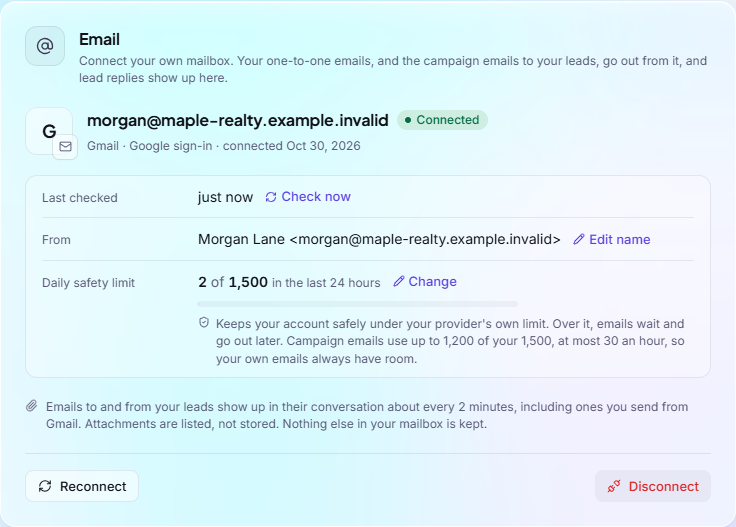
Open Settings, then My account, and find Email. Choose Gmail or Google Workspace and press Sign in with Google. Select the account you use for seller conversations and review the permissions to send mail and find relevant lead email.
Complete Google's sign-in, then return to CLP and confirm the mailbox address and Connected status. Watch the My account connection settings (07:55) for interface orientation; the fictional sample account is not a live Google authorization test.
Review your sender and sending allowance
Check the From name and the Daily safety limit on your Email card. Use Edit name if sellers should see a different sender name. Your mailbox's provider limits still apply, and CLP paces campaign and automation emails to leave room for individual conversations.
Check Last checked and use Check now to request a fresh mailbox check.
Send a seller email and test the reply
Open a test lead with an email address you control. Send an email from the lead page or Inbox, then reply from the recipient mailbox. Review Gmail Sent and the CLP conversation. Allow a sync interval before checking for the incoming reply.
For a follow-up in the same Gmail thread, reply through the existing email conversation and retain its subject. Watch the Inbox email controls (00:28) to preview the composer without sending. Adapt a seller follow-up email template to the actual conversation, replacing its placeholders before sending.
Connect follow-up work to the lead owner
Campaign and automation emails use the assigned lead owner's mailbox. Each sending teammate needs a working connection. Nurture campaigns are available on Pro and higher plans. Genuine text, email or chat replies automatically stop the lead's remaining campaign actions. Review the message sequence, sending window and optional stop-when-booked setting before enrolling sellers.
Confirm the lead's owner and that person's mailbox connection before turning on an email sequence. Use the follow-up planner to outline the next actions first; it does not enroll leads or send emails.
Illustrative seller scenario
Continue an offer conversation from either inbox
A seller answers an offer email in Gmail. After the relevant message syncs, the acquisition teammate can review it in CLP with the lead's notes and next task. They reply through the existing email conversation to continue the same exchange.
Set up your workspace for this workflow
Keep sending status visible
A disconnected mailbox or exhausted daily allowance can leave email waiting. Review the Email card and the affected message before retrying. If the connection needs attention, use Reconnect and complete Google sign-in again.
Understand what is synced and used by AI
CLP keeps relevant email with your leads, with attachments listed as metadata. Messages synced through the Gmail API stay out of external AI features. Your Gmail connection and Google Calendar connection are separate settings.
How this guide was reviewed
The CLP product team checked Google sign-in, mailbox polling, lead matching, sending and reply-thread handling in the current implementation, alongside Google's threading and account-access documentation.
- Each workspace mailbox belongs to its connected teammate. Google authorization allows mail reading and sending; CLP sends through that mailbox and matches relevant lead email rather than importing the whole mailbox into the CRM.
- The normal mailbox check interval is about two minutes. Existing replies use Gmail's thread identifier and reply headers; keeping the original subject is also required for Gmail threading.
This was a source and documentation review, not a fresh signed-in Google authorization or delivery test. Polling, queued work, connection errors and provider limits can delay updates. A sample Connected badge does not verify your own mailbox. Check the real connection and test both sending and receiving with an address you control.
Sources and setup documentation
Gmail seller email questions
Do I need to share my Google password with CLP?
Google sign-in lets you authorize CLP at Google. CLP does not see your Google password. If Google sign-in is unavailable, the Email setup also offers a separate Gmail app-password fallback. Your regular Gmail password is not used for that fallback.
Why does a reply appear in Gmail before CLP?
CLP checks connected mailboxes about every 2 minutes. Confirm that the sender matches the relevant lead's email address, then check Last checked on your Email card. Use Check now, or Reconnect if the connection needs attention.
How do I keep a follow-up in the same Gmail thread?
Reply from the existing email conversation and keep its subject. A new email or a different subject can create a new Gmail thread. CLP still groups the lead's messages in their Inbox conversation.
Can I send nurture campaign emails through Gmail?
Yes, on Pro and higher plans, using the assigned lead owner's connected mailbox. Daily safety limits and campaign pacing apply. Check current settings and waiting messages when planning seller follow-up.
Try this workflow with your next seller lead
Start a 14-day free trial, set up your channels, and walk through the steps with a test lead.