Connect Google Calendar to your seller appointments
Let sellers book calls and property visits around your acquisition team's availability. Connect each host's Google Calendar, choose which busy times block booking slots, and decide where CLP appointments should appear.
What does the CLP Google Calendar integration sync?
The connection can check selected Google calendars for busy times and add CRM appointments to a writable calendar. Changes made in CLP can update the linked event. Supported Google time changes update the linked CRM appointment and future reminders. Deleting that Google event cancels the linked CRM appointment while keeping its record.
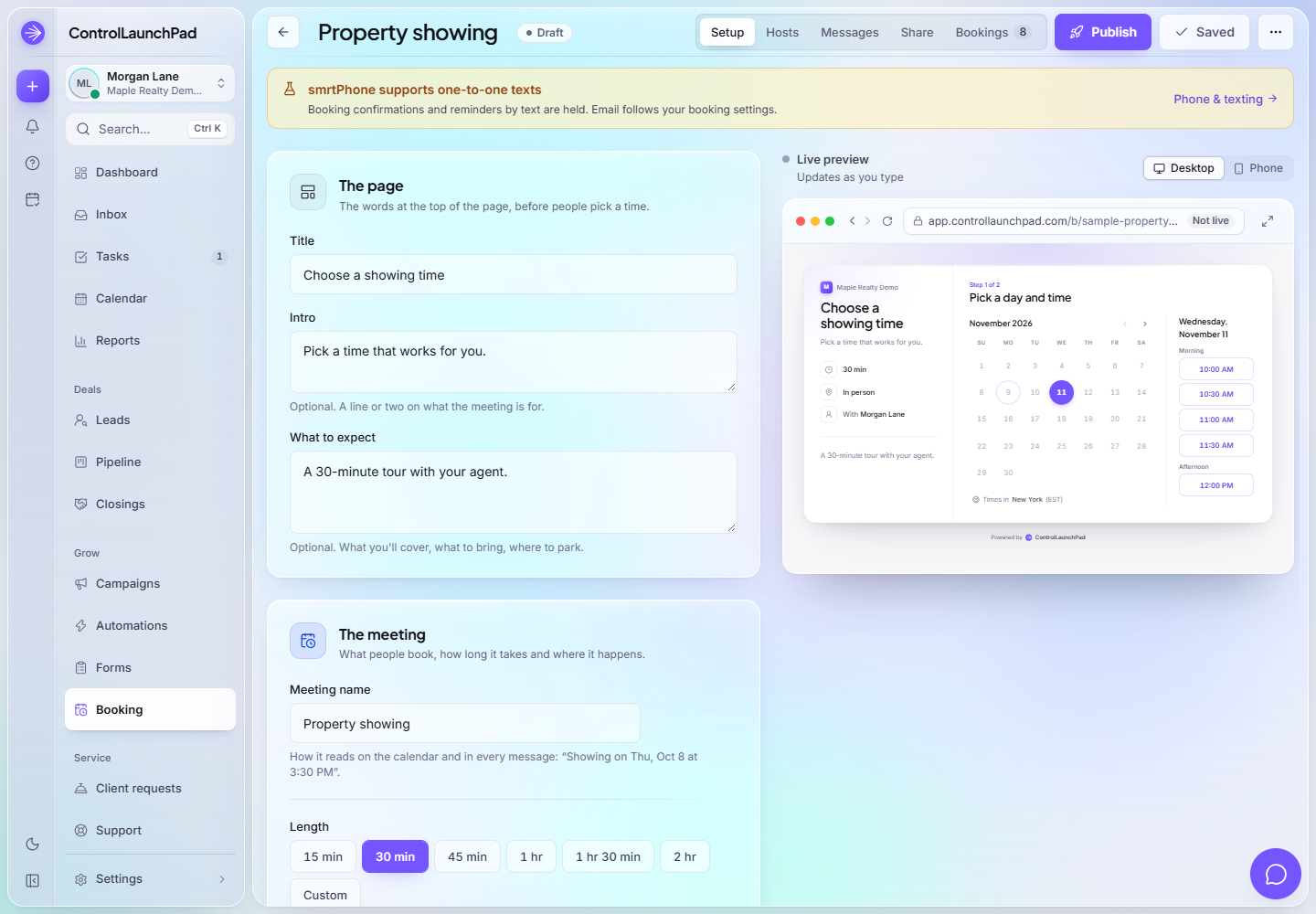
Actual CLP booking-page editor and preview with fictional sample data. This example uses a property-showing label; adapt it for a seller consultation or property visit. The preview is not a live booking or proof of Google synchronization. Open larger screenshot
Connect and test your integration
Connect the host's own Google account
Open Settings, then My account, and find Calendar. Choose Google and complete Google's sign-in and calendar permission screen. Return to CLP, confirm the account shown, and open Manage. Each teammate connects the calendar they use to host appointments.
Connect Calendar separately even if you already use Gmail in CLP.
Choose where appointments go and what blocks bookings
Enable Add appointments to my calendar and choose a writable destination under Write appointments to. Enable Block my busy times on booking pages and select the calendars to check for conflicts. Events marked free do not block booking slots.
Review both switches and your selected conflict calendars in the Calendar drawer.
Set working hours and publish a booking page
In Availability, set Weekly hours, Time zone, and Days off, then press Save changes. In Booking, create a page for a seller call or property visit. Review Setup, Hosts, and Messages, choose the host or rotation, and Publish the page when ready.
Use a test lead you control to book a suitable slot. Confirm the appointment in CLP and the host's selected Google calendar. Move that linked event in Google and allow time for reconciliation. Check the CRM appointment's time and future reminders.
Arrange a property visit around existing commitments
An acquisition host selects a work calendar for conflict checks and shares a property-visit booking page. A seller chooses an available time. The host reviews the appointment with the seller's history in CLP and sees the linked event in Google Calendar.
Set up your workspace for this workflow
Keep destination changes clear
Changing Write appointments to affects new appointments. Existing linked appointments stay on their original calendars. CLP uses one connected calendar provider per person at a time, so switching from Outlook requires disconnecting that connection first.
Review reminders and connection health
Booking messages follow the page's enabled settings and eligible email or texting channels. When smrtPhone is the active SMS provider, eligible appointment texts can use its verified lines; linking Twilio does not change that selection. Check the recipient, sender readiness and enabled message settings. Use Check now or Reconnect in the Calendar drawer if sync needs attention.
Allow time for supported linked-event changes
Google changes are reconciled in the background rather than instantly. A time change must remain a timed, non-recurring appointment lasting 5 minutes to 8 hours in 5-minute duration steps. Overlaps and edits made in both systems can require attention. Imported Google time changes and deletions update CRM state without sending a new change or cancellation notice to the lead.
The CLP product team checked calendar settings, busy-time queries, linked-event writeback, Google rescheduling and cancellation handling, and reminder updates against the current implementation and Google's event documentation.
Conflict calendars and the writable appointment destination are separate settings. CLP manages its own linked appointments; unrelated Google events are not imported as CRM appointments.
A supported Google time change updates the linked CRM appointment and future reminders without sending a new change notice. Deleting the linked Google event marks the CRM appointment canceled; it does not erase its record or send another cancellation notice.
This was a source and documentation review, not a fresh signed-in booking or Google Calendar test. Reconciliation normally checks about every two minutes and can take longer. Recurring or all-day moves, overlapping appointments and conflicting edits may need attention instead of syncing automatically. Check the appointment and connection after making a test change.
Does CLP import every event from my Google Calendar?
The connection uses selected calendars for busy-time checks and manages linked CLP appointments. Time changes and deletions in Google apply to existing linked CRM appointments. Other calendar events are not imported as CRM appointments.
Can I change or cancel a linked appointment in Google?
Yes, for supported changes to an existing linked CLP event. A Google time change updates the CRM time and future reminders after reconciliation. Deleting the event marks the CRM appointment canceled and keeps its history. These imported changes do not send another change or cancellation notice. Review the linked appointment in CLP after testing.
Why does my booking page show no available times?
Check the host's saved Weekly hours, Time zone, and Days off in Availability. Review minimum notice, buffers, existing appointments, and selected busy calendars. Check the Calendar connection if its status needs attention.
Does every acquisition teammate need their own connection?
Each host connects their own Google or Outlook calendar. A booking page can use one host or rotate across selected teammates. Review each host's availability and conflict settings before sharing the booking link.
Try this workflow with your next seller lead
Start a 14-day free trial, set up your channels, and walk through the steps with a test lead.
Connect lead sources, Make and n8n workflows, Google Sheets, signature requests, property data, phone, email and calendars with practical setup guides.
Connect smrtPhone to CLP for seller SMS, scheduled texts and eligible campaign follow-up. Set up webhooks, verify numbers and assign acquisition team lines.
Connect your own Twilio account to CLP for seller calls and eligible SMS. Review registration, numbers, callbacks and how an active smrtPhone connection affects routing.