Skip to content

A walkthrough for US real estate investors

Watch the investor CRM walkthrough

Watch the full CRM tour or explore the 29 screenshot sections below, from seller conversations and deal review to booking and team settings. Every screen uses fictional investor data. The AI examples use actual built-in helpers with the provider not connected; AI Lead Assistant remains Coming soon.

A quick hands-on look

Try a seller lead.

Open Avery’s conversation, review the property and give the next call an owner. Four steps, no signup.

Fictional sample workspace
  1. Open the conversation
  2. Review the property
  3. Plan the callback
  4. See the next action
Actual CLP screen Reference image
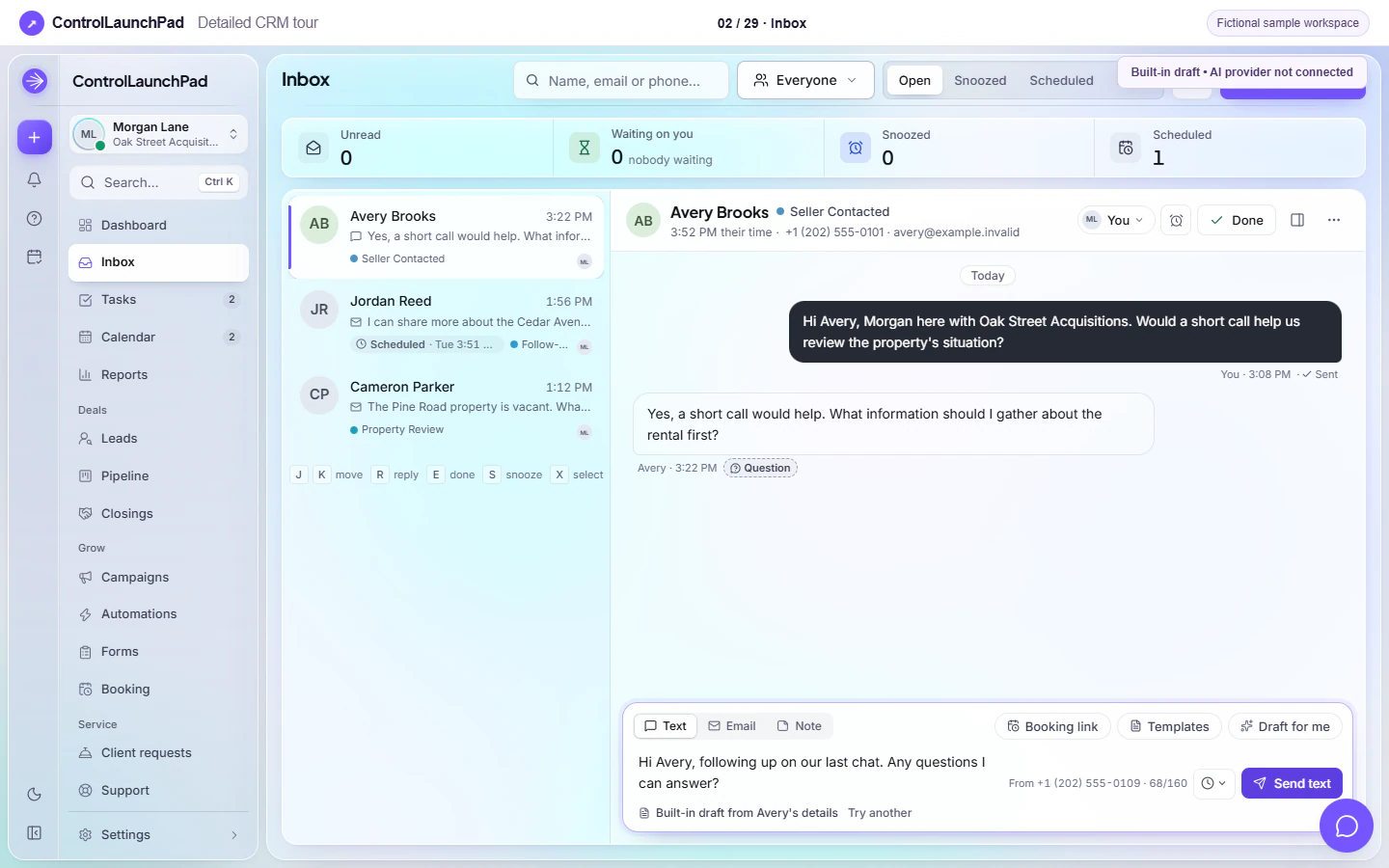
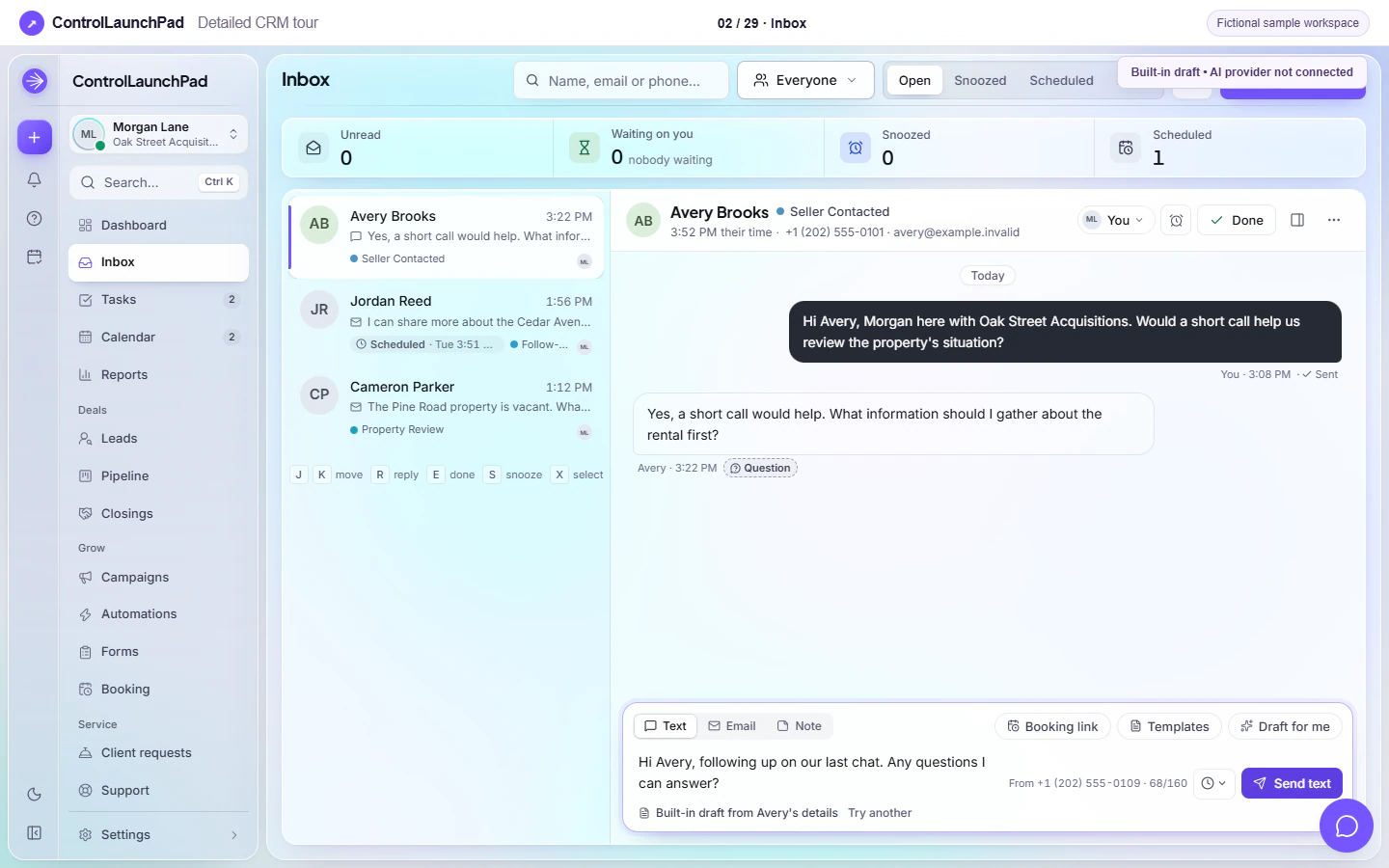
Actual CLP Inbox showing Avery Brooks and the sample seller conversation

The seller’s reply is beside the conversation in CLP.

View full screen (opens in a new tab)

Step 1 of 4

Open the conversation

Avery is considering selling the Oak Street rental. Start with the seller’s own words.

Avery BrooksSample seller · Text conversation
“Yes, a short call would help. What information should I gather about the rental first?”

In CLP, the conversation and seller record stay connected.

This sample stays on this page. No account or real messages are involved.

CLP detailed CRM demo for US real estate investors

Actual CLP screens with fictional US seller and team data. Built-in answers, drafts and workflow matches are shown with the AI provider not connected. This silent tour sends no messages and changes no production records. AI Lead Assistant is Coming soon.

Choose or share a chapter

Open a scene in the same video, or copy its link to share. Playback stays paused until you choose Play.

  1. 00:00Dashboard
  2. 00:28Inbox
  3. 01:33Tasks
  4. 01:58Calendar
  5. 02:26Reports
  6. 02:58Leads
  7. 04:37Pipeline
  8. 04:51Closings
  9. 05:19Campaigns
  10. 05:39Automations
  11. 06:05Forms
  12. 06:31Booking
  13. 07:02Client requests
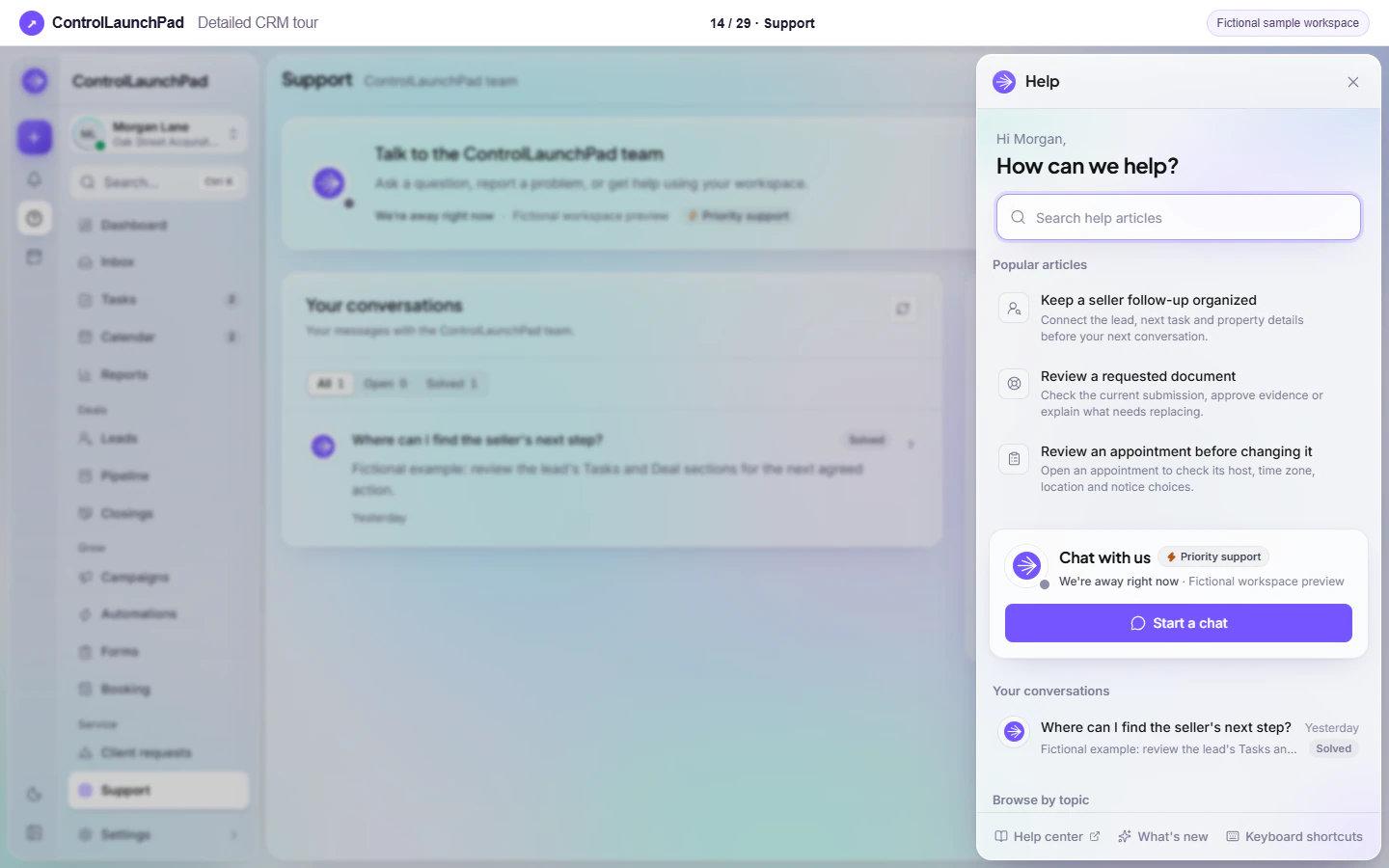
  14. 07:30Support
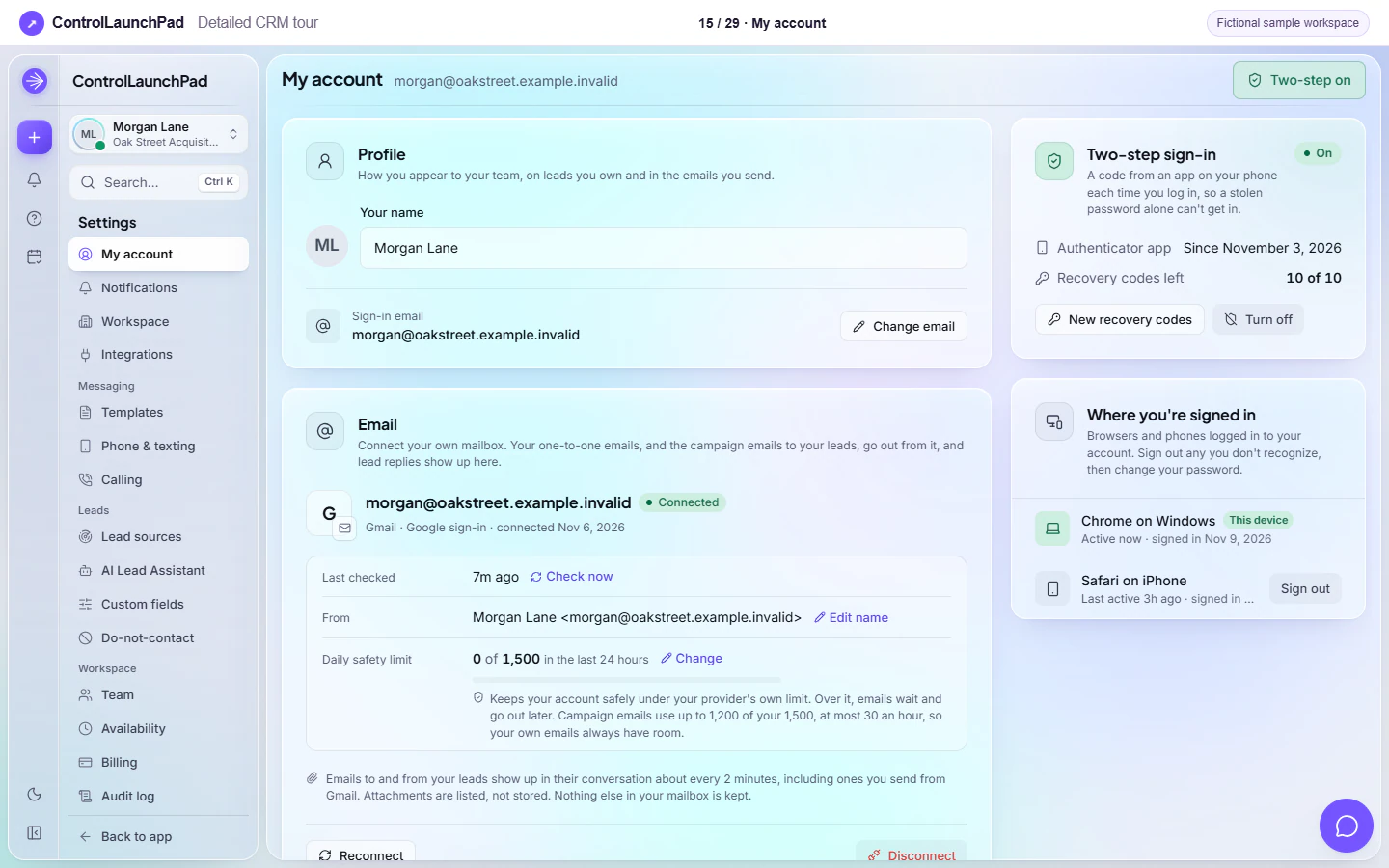
  15. 07:55My account
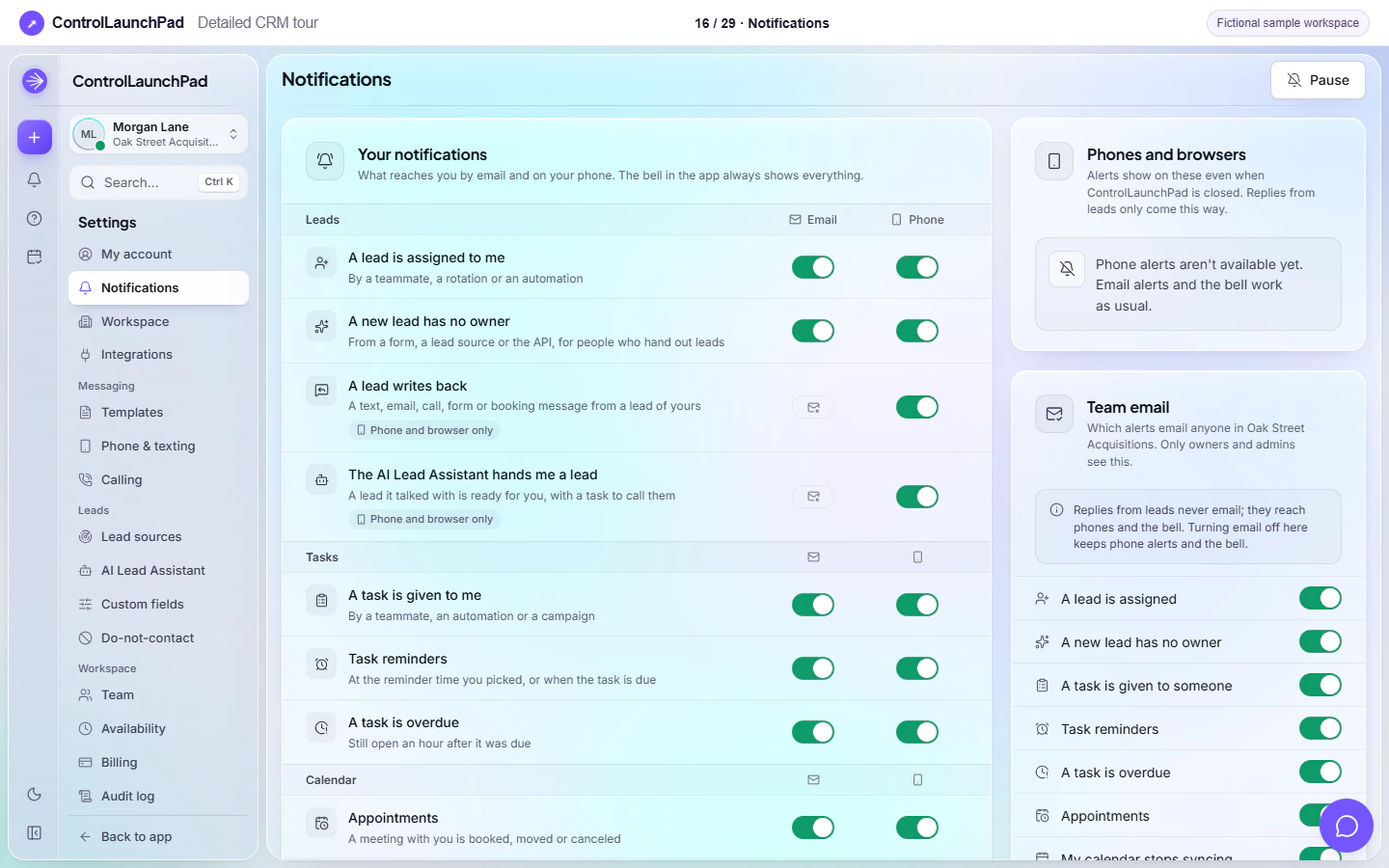
  16. 08:22Notifications
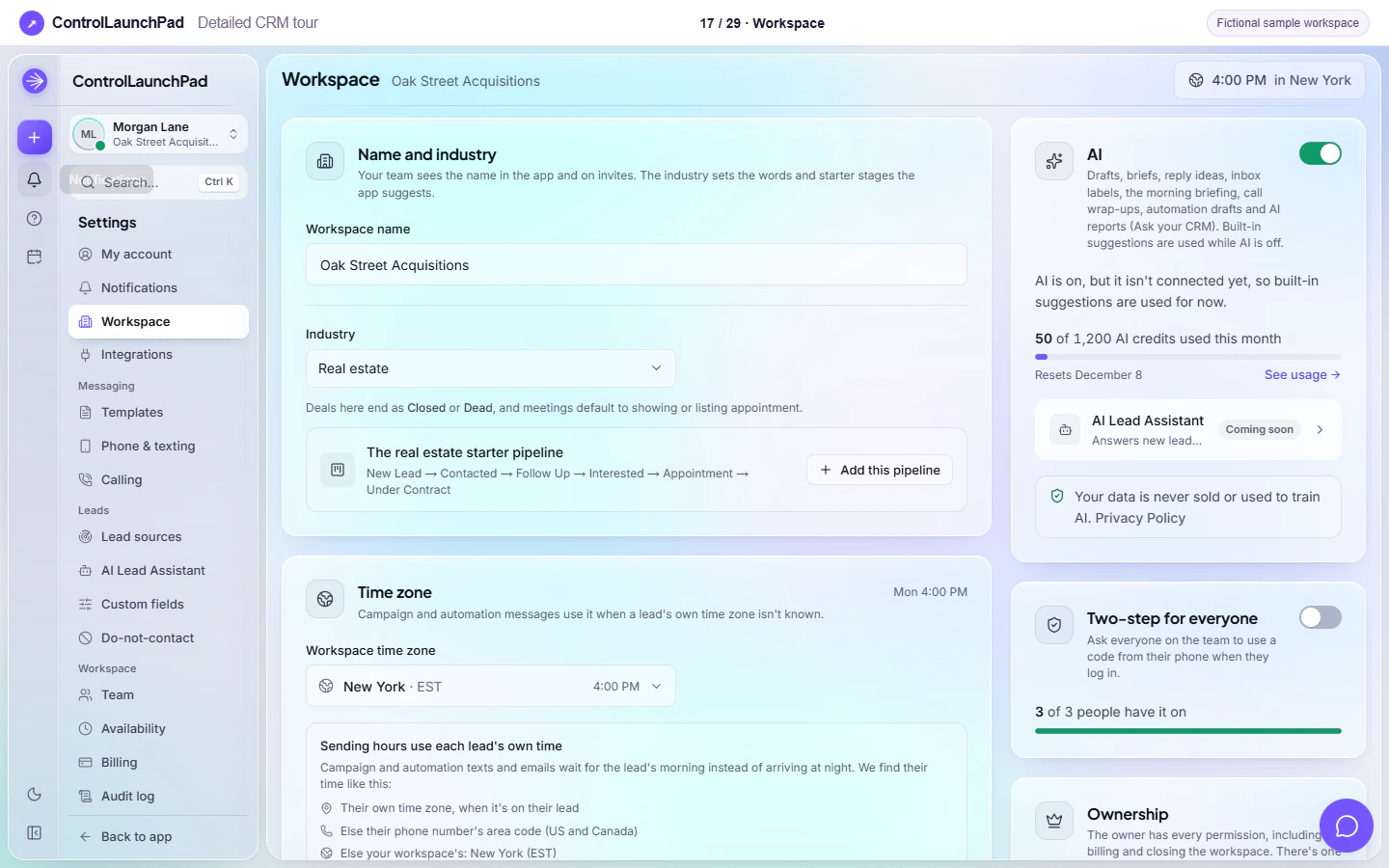
  17. 08:39Workspace
  18. 09:06Integrations
  19. 09:36Templates
  20. 09:51Phone & texting
  21. 10:20Calling
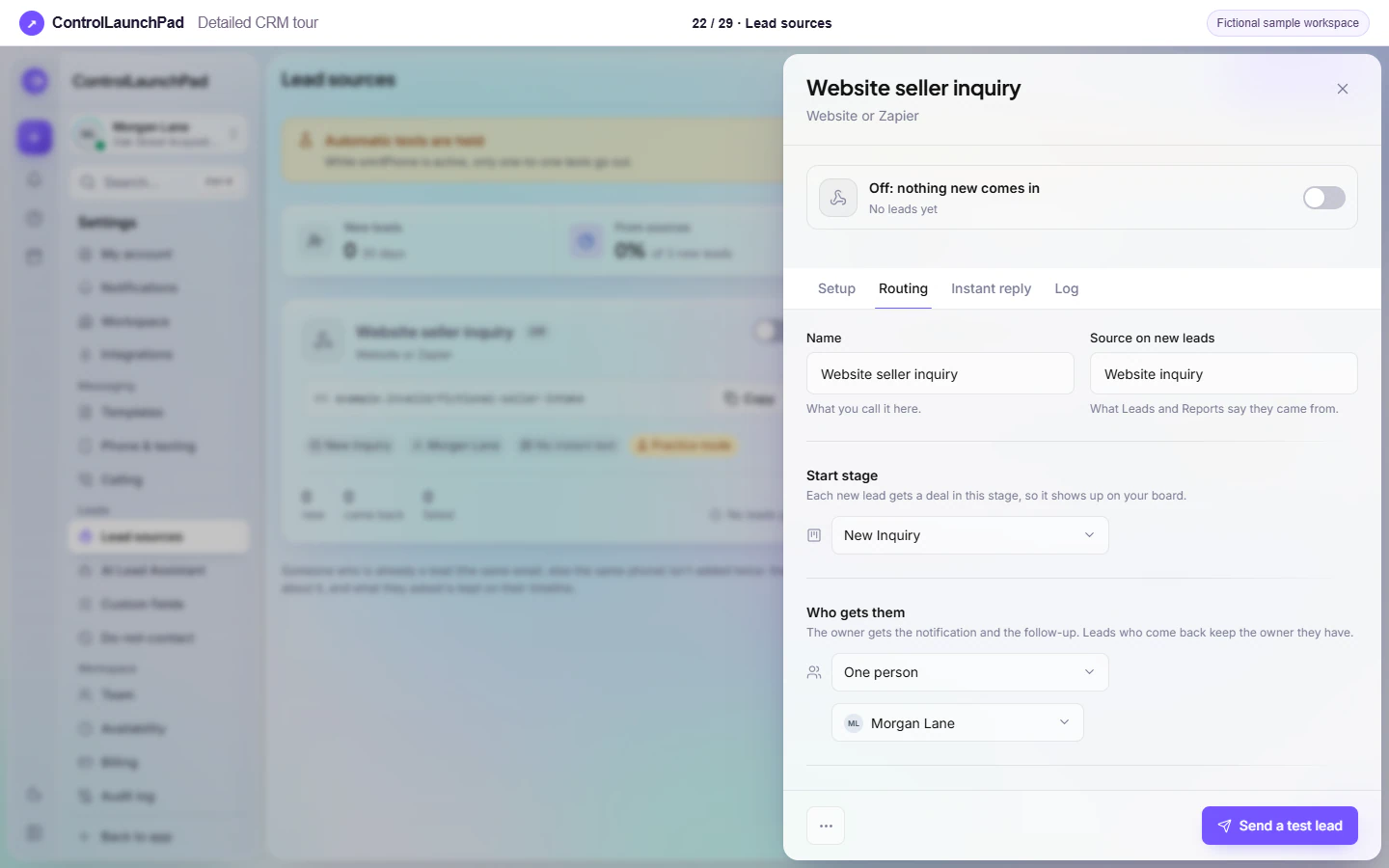
  22. 10:46Lead sources
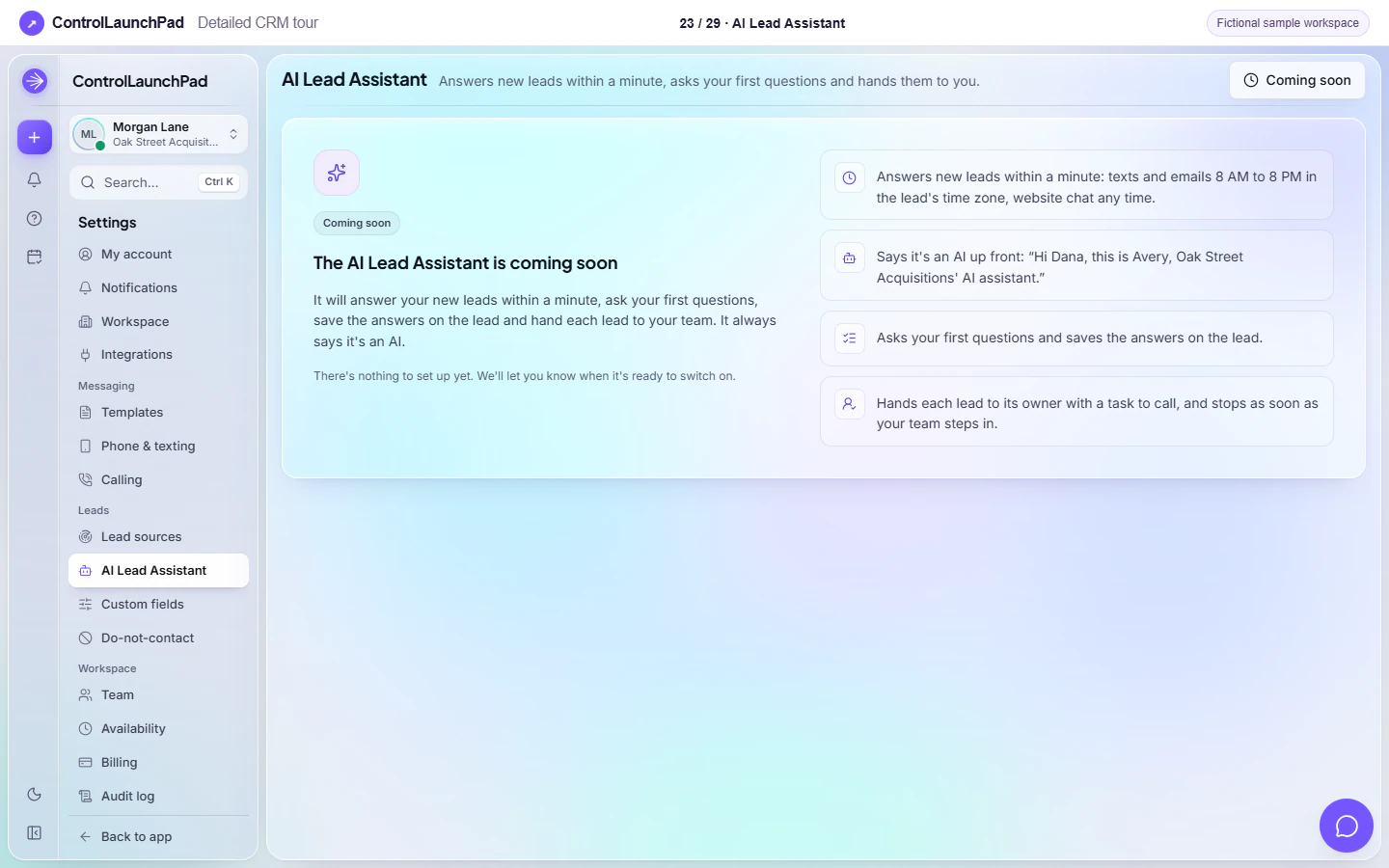
  23. 11:00AI Lead Assistant
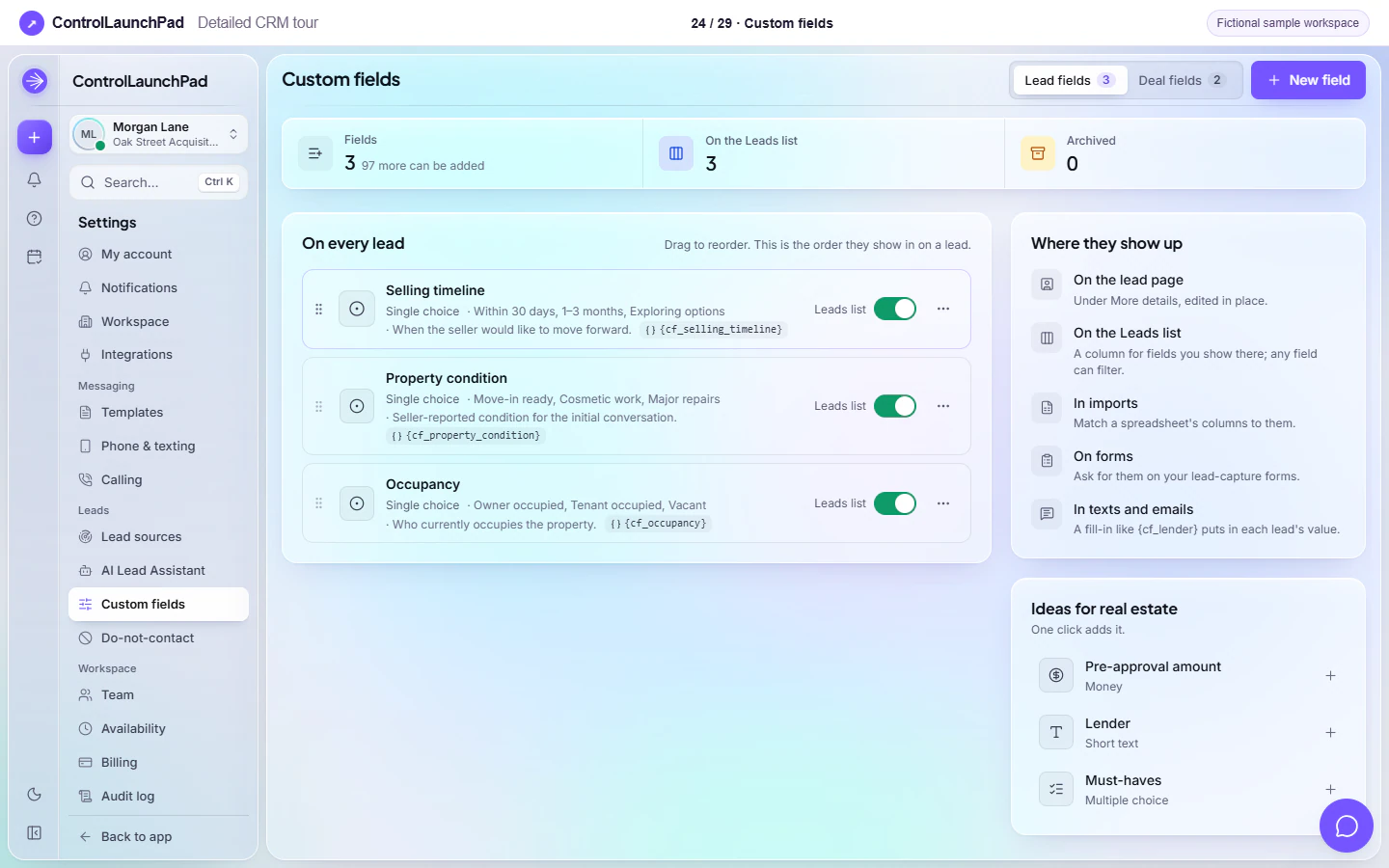
  24. 11:09Custom fields
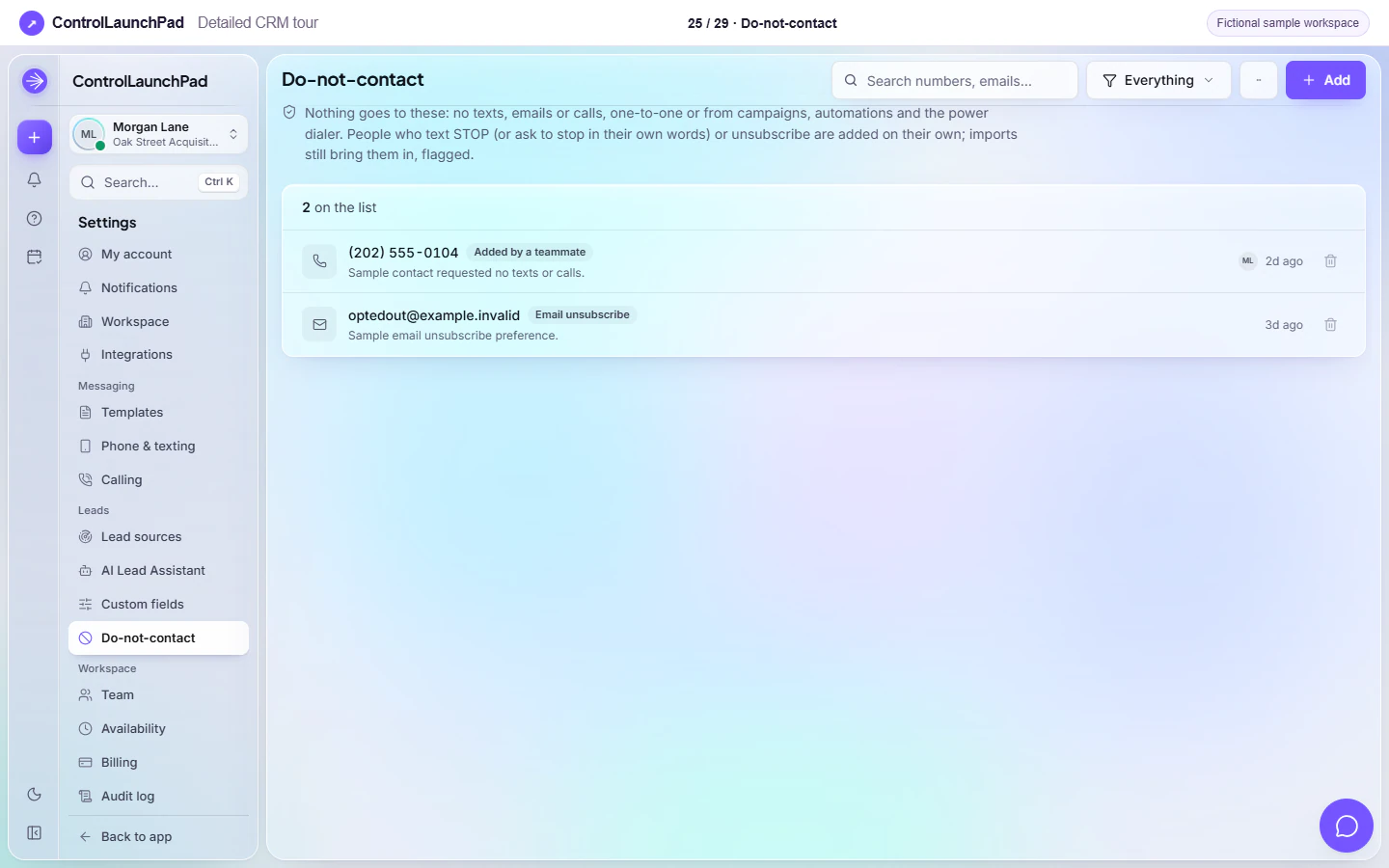
  25. 11:33Do-not-contact
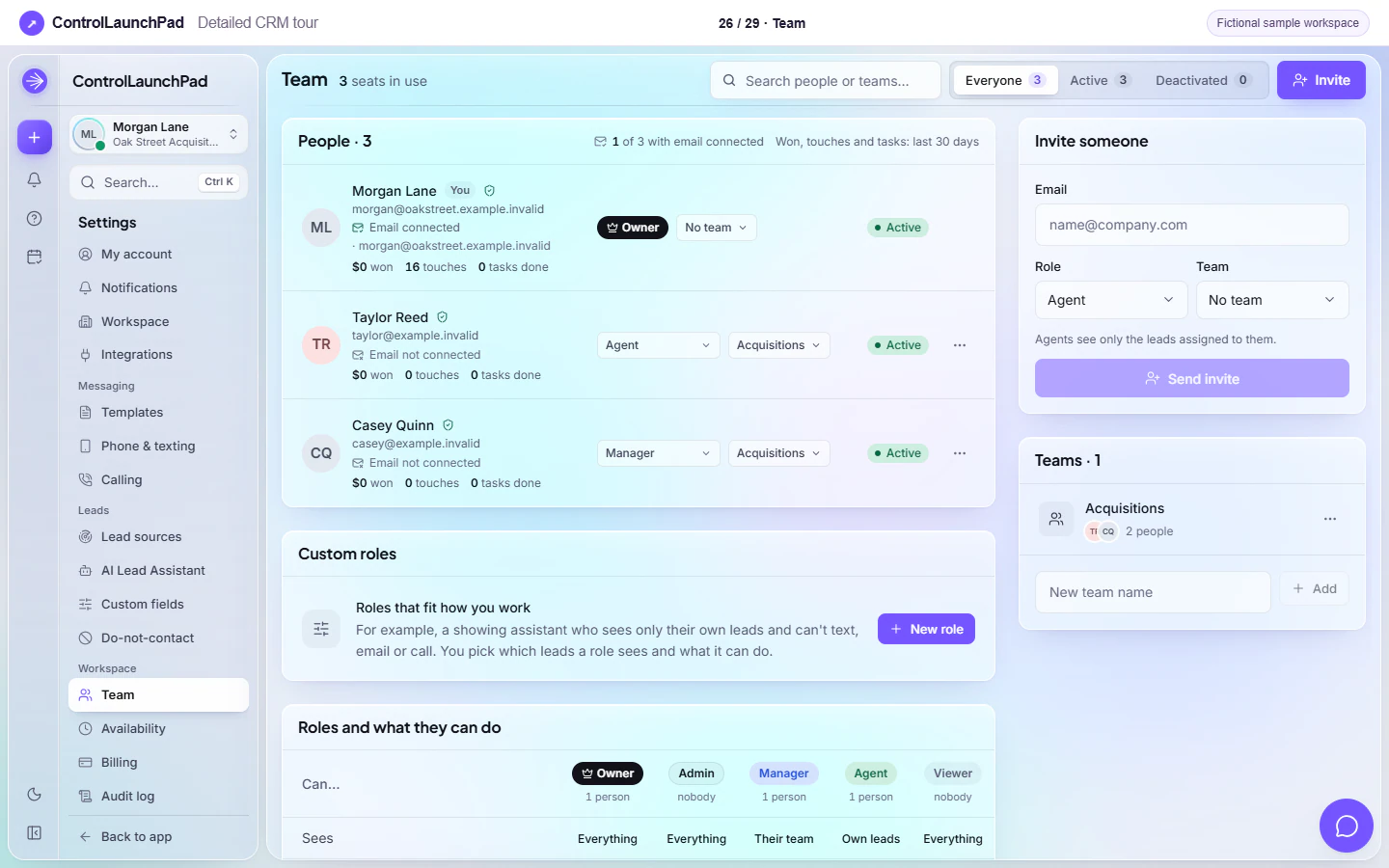
  26. 11:46Team
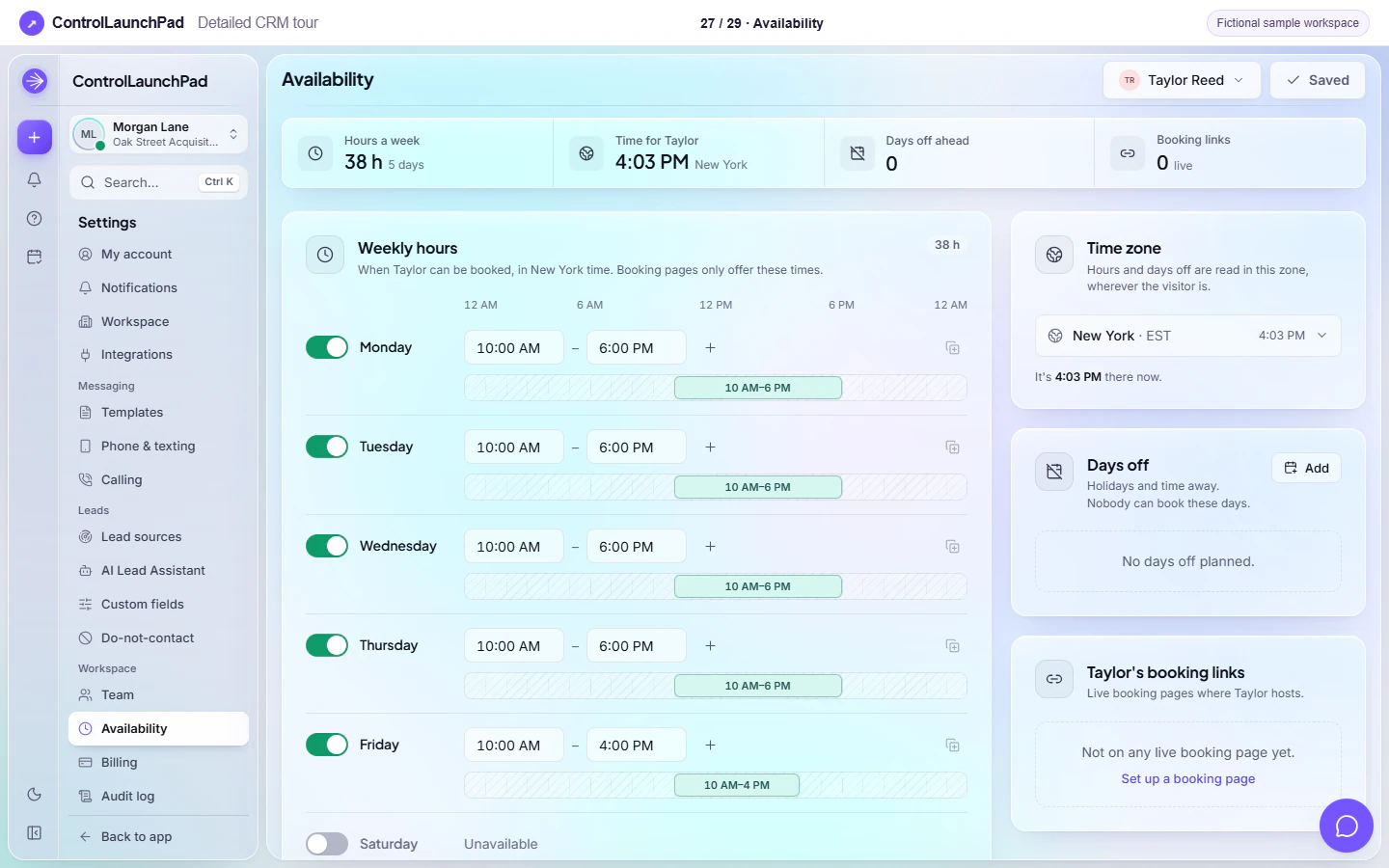
  27. 11:59Availability
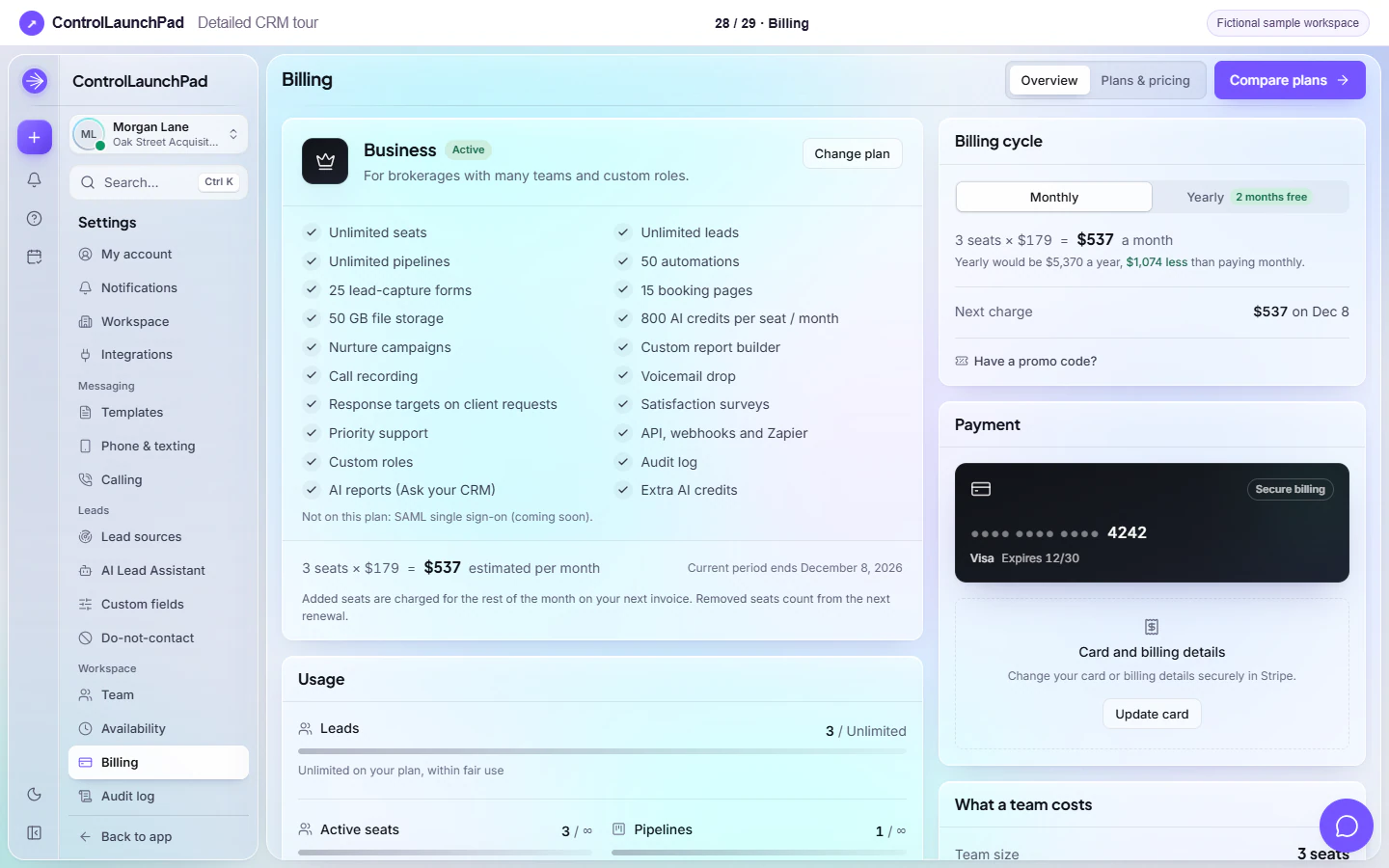
  28. 12:12Billing
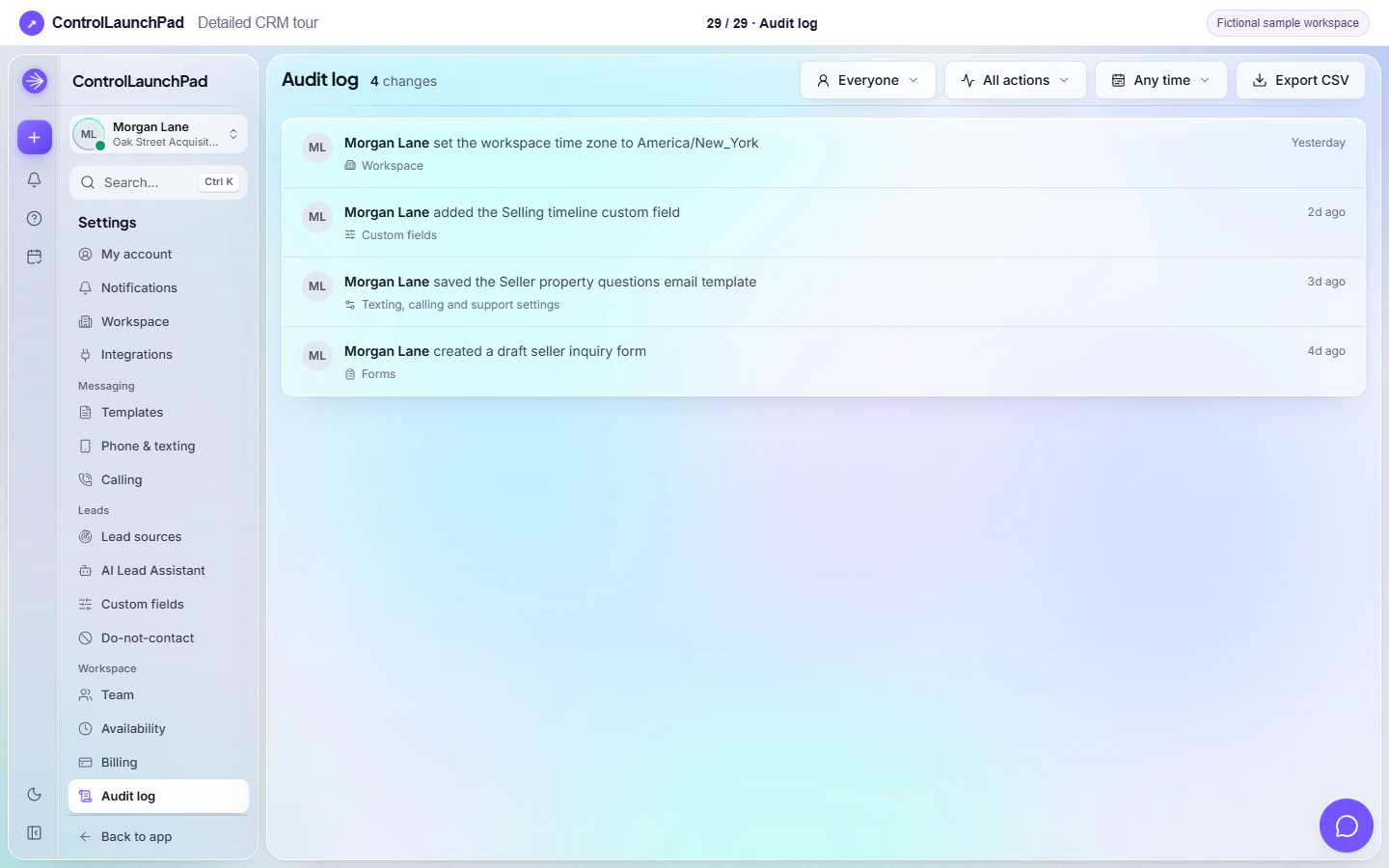
  29. 12:26Audit log

Read the detailed tour transcript
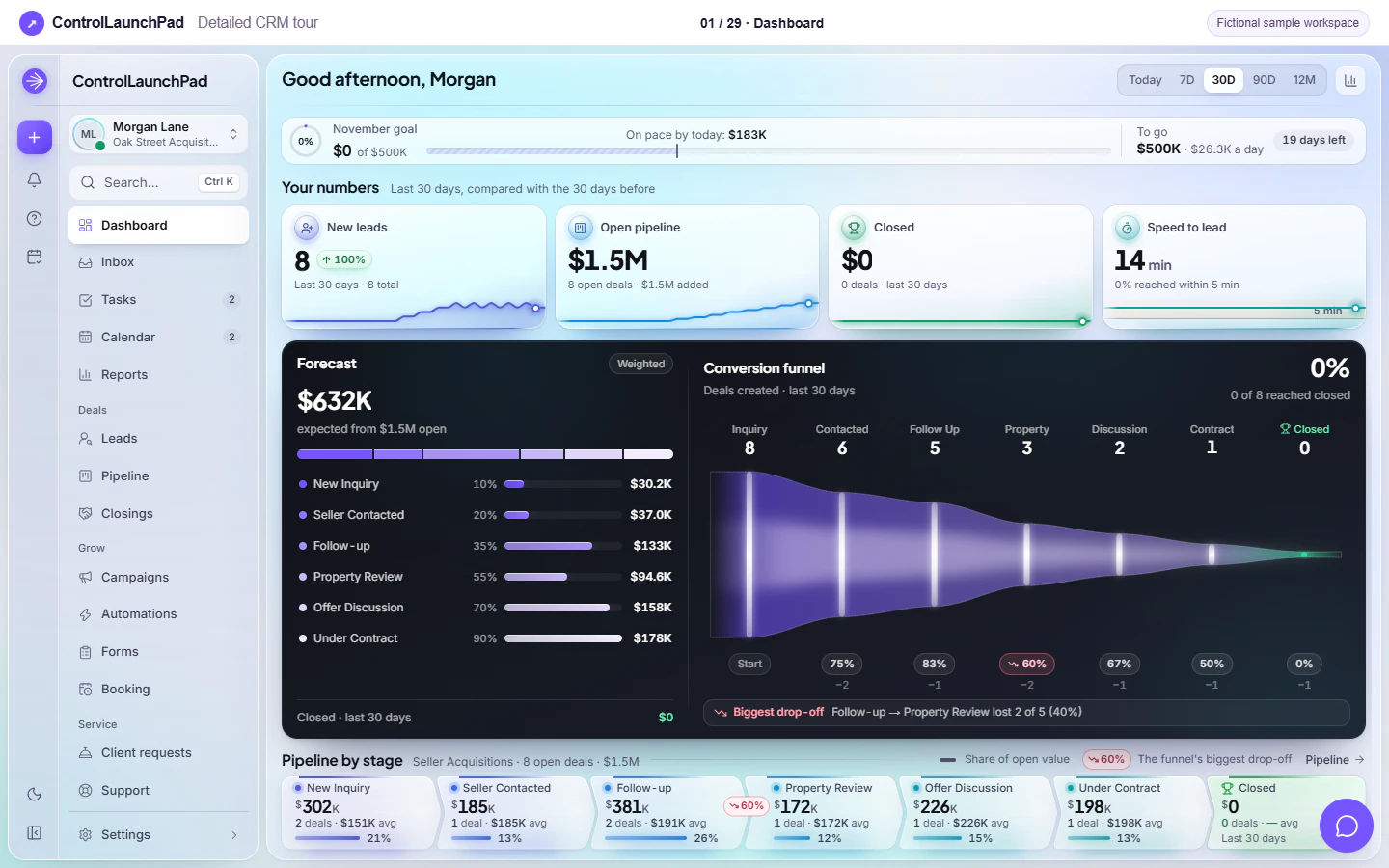
  1. 00:00–00:28.733 — Dashboard. Start with daily priorities, lead activity, entered pipeline value and the acquisition funnel. The workspace and all its figures are fictional. The Ask your CRM scene uses the actual built-in answer engine, with supporting fictional records and the AI provider not connected.
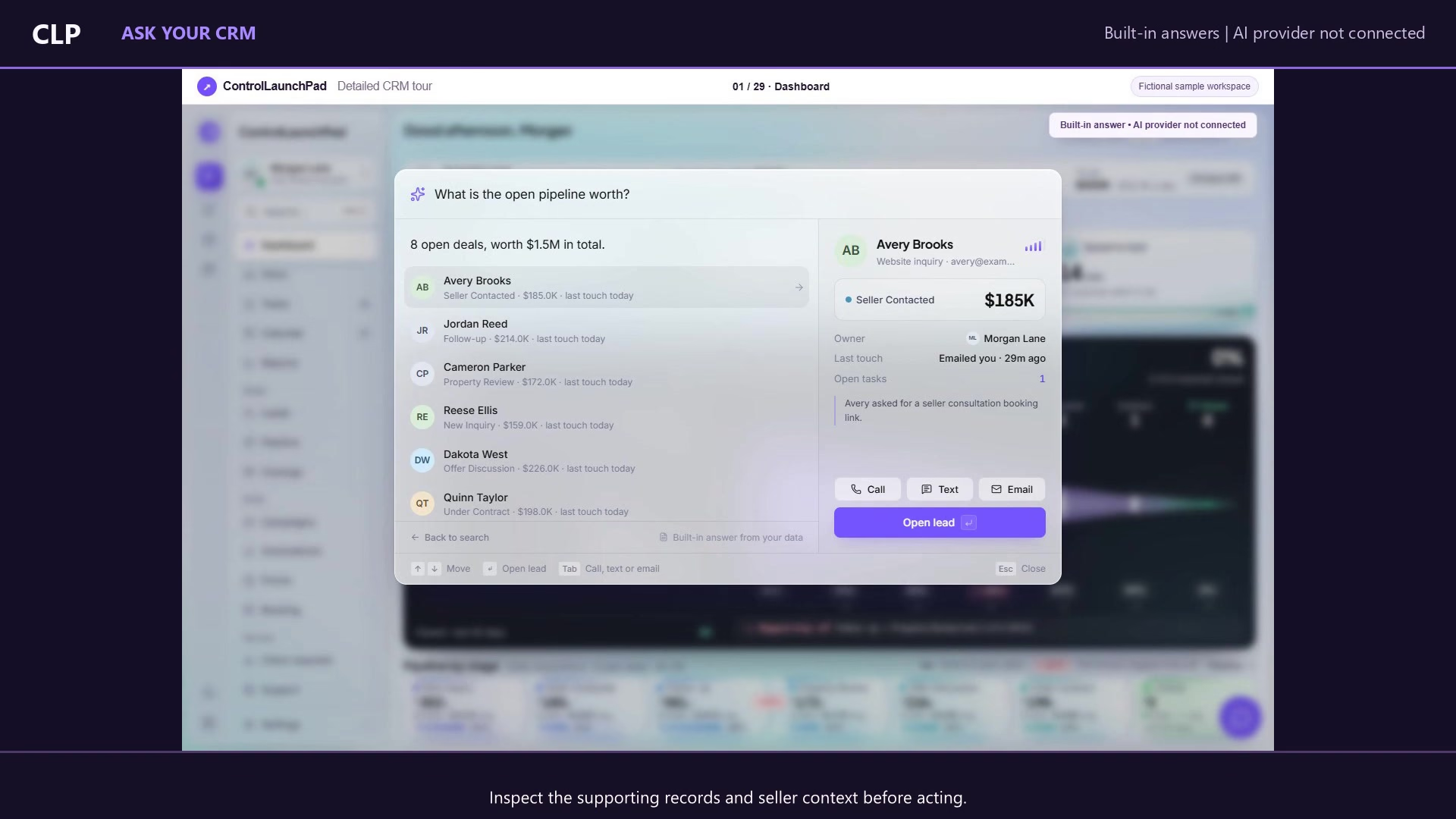
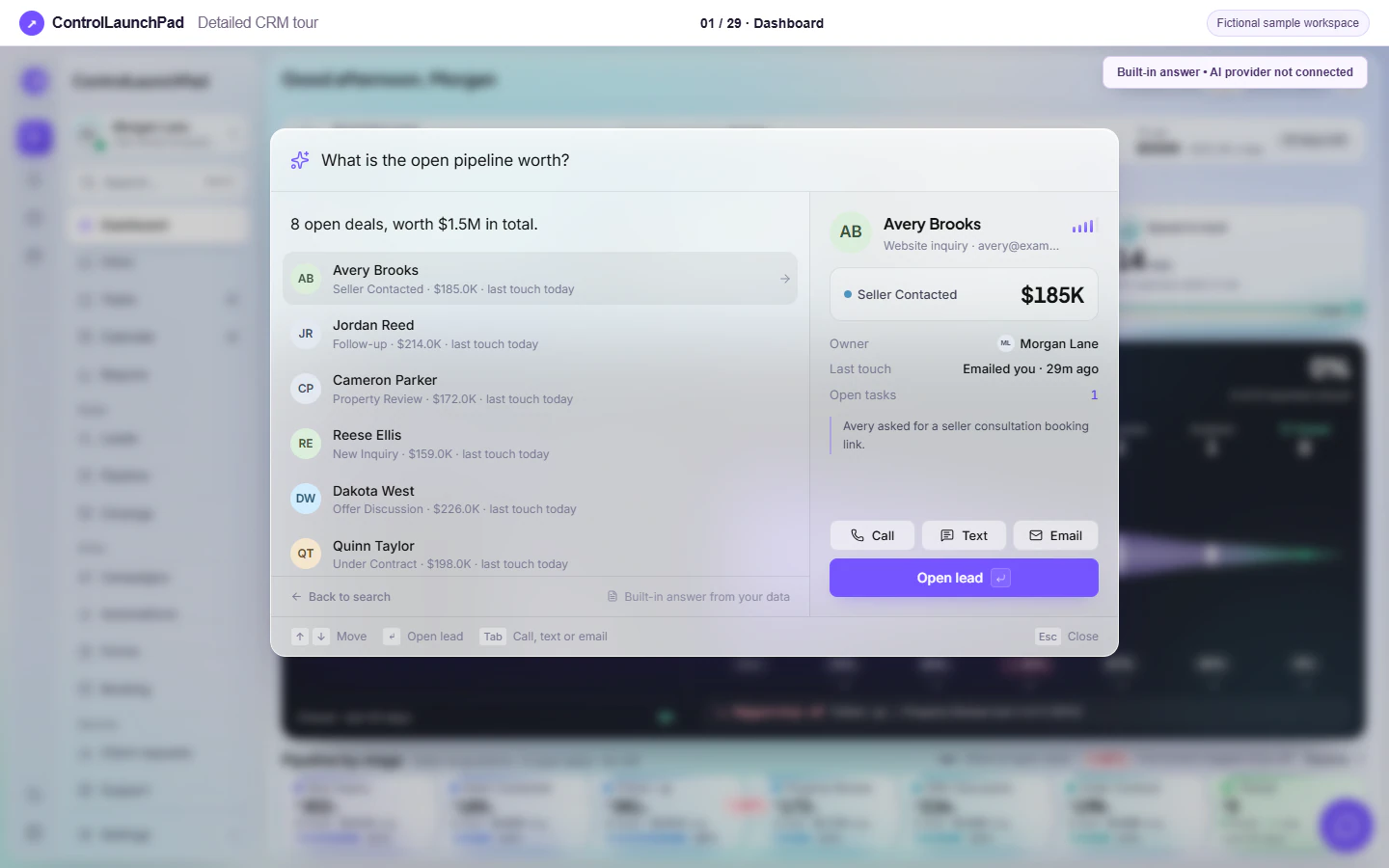
    • 00:13.701 Ask for the open pipeline value and inspect the supporting records. This is an actual built-in answer from the fictional dataset.
  2. 00:28.733–01:33.733 — Inbox. Keep seller conversations, message channels and the next reply together. Review attachments and scheduled-email controls before sending. Reply suggestions and Draft for me use actual built-in rules; the AI provider is not connected. The attachment and scheduling previews remain unsent.
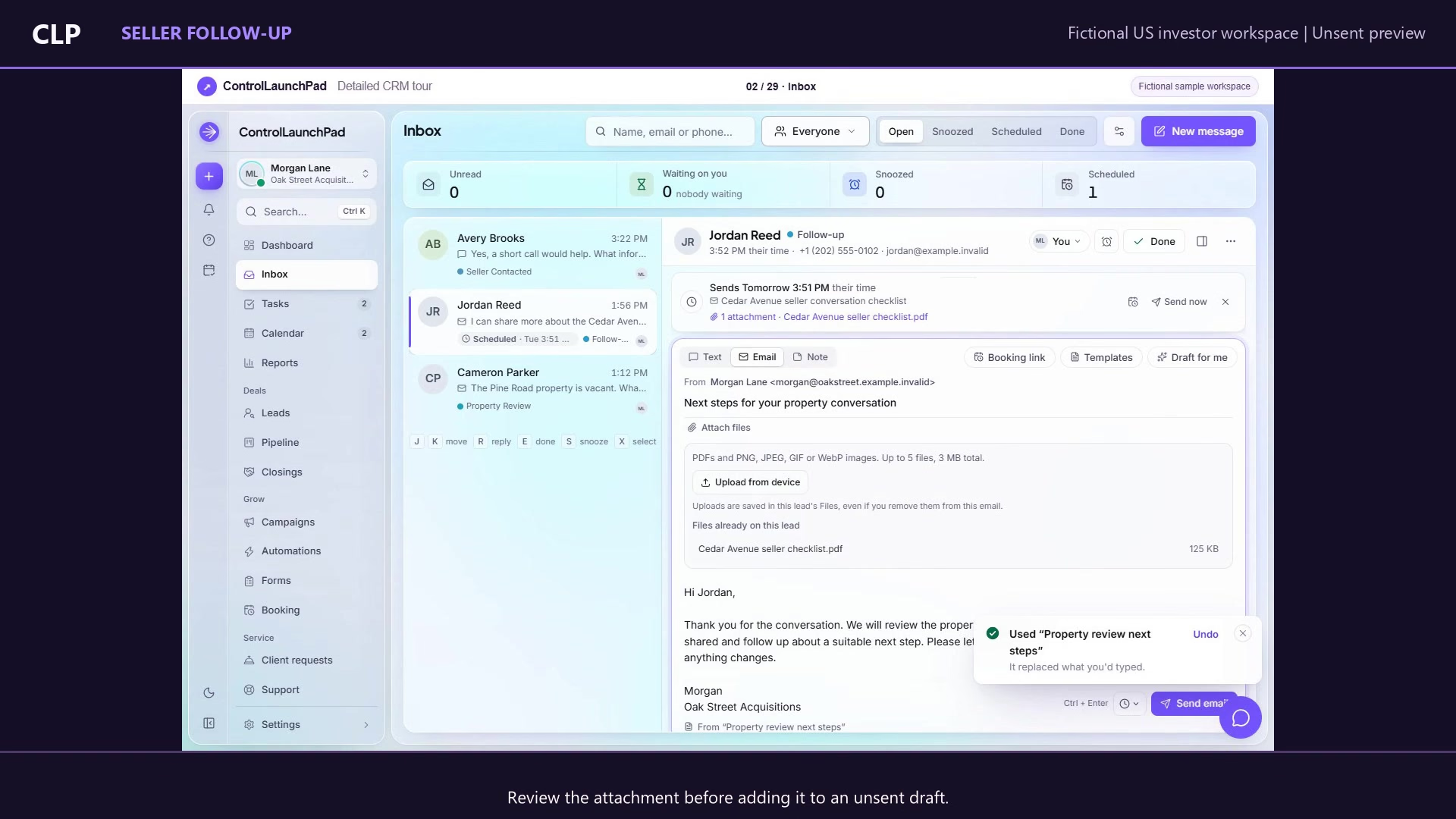
    • 00:33.981 Open Jordan's email conversation alongside the seller context.
    • 00:40.605 Inspect an existing sample scheduled email, its time and attachment list.
    • 00:45.779 Review attachment editing for a scheduled email.
    • 00:51.983 Choose a saved message template.
    • 00:55.487 Review the template text before using it.
    • 00:58.849 Browse existing files that can be attached.
    • 01:02.192 Stage a sample attachment in an unsent local draft.
    • 01:06.951 Open scheduling choices.
    • 01:11.396 Review a custom date and the scheduling time-zone controls.
    • 01:16.187 Return to Avery's SMS conversation and built-in reply ideas.
    • 01:21.312 Generate and review a built-in draft from permitted fictional lead context. A live AI provider is not connected, and the recording sends nothing.
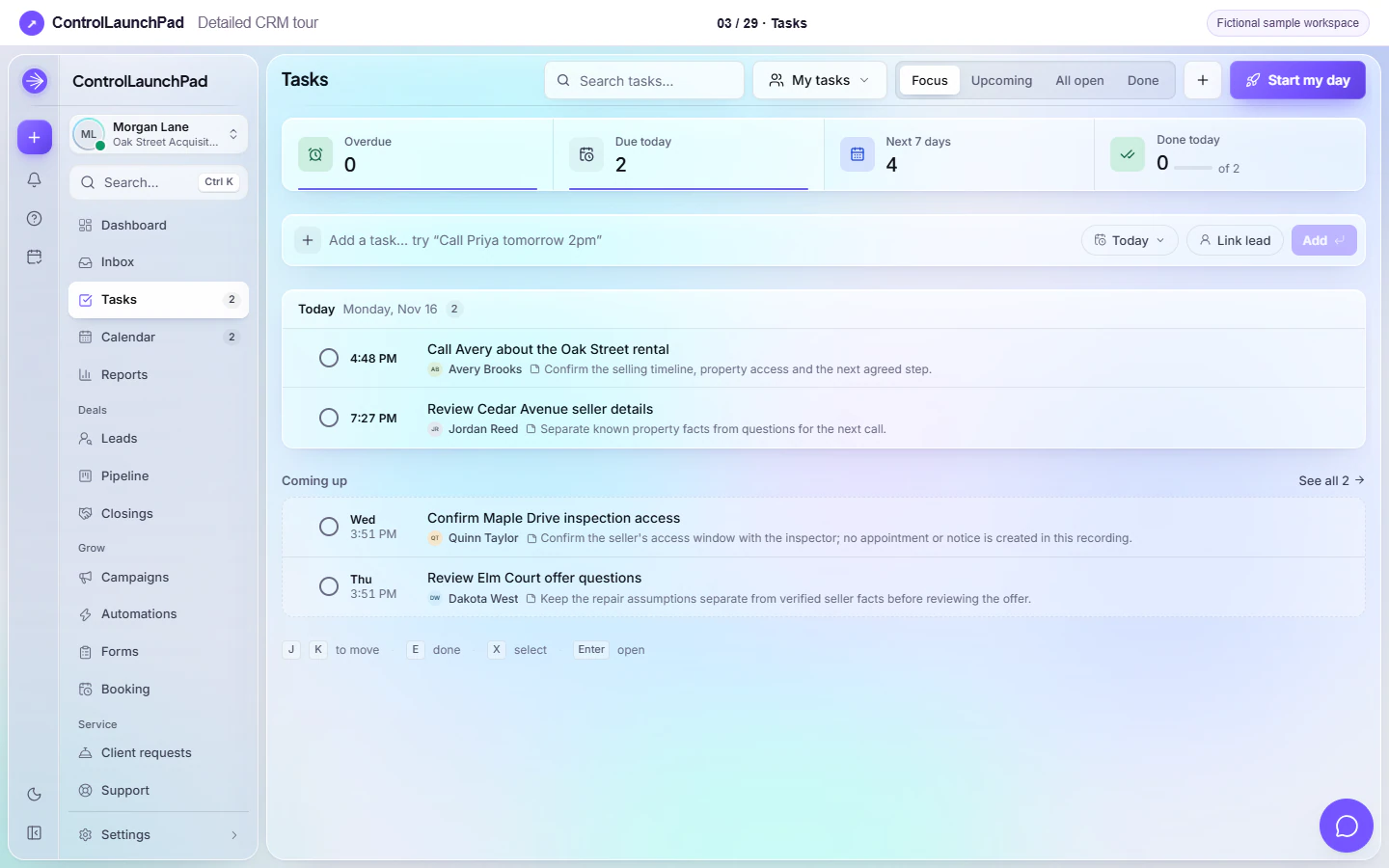
  3. 01:33.733–01:58.933 — Tasks. Give the next agreed action an owner and due time, linked to the seller's record.
    • 01:40.669 Review upcoming work.
    • 01:45.784 Return to all open tasks.
    • 01:50.1 Inspect the linked seller, responsible teammate, due time and task notes.
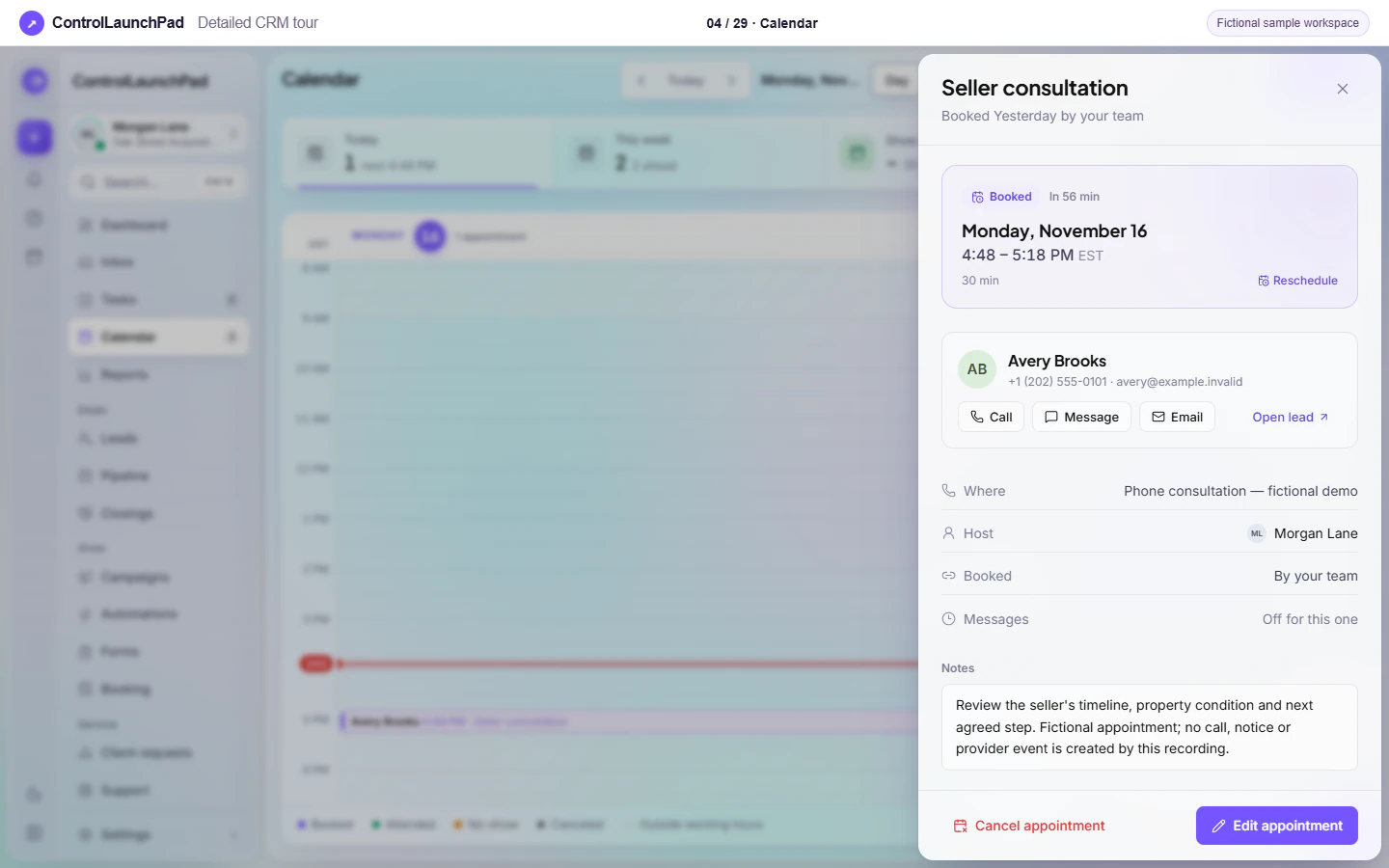
  4. 01:58.933–02:26.2 — Calendar. See appointments in context, then review the host, time zone, location and edit controls.
    • 02:05.862 Switch to a day view.
    • 02:11.016 Open a consultation to review its host, time and seller context.
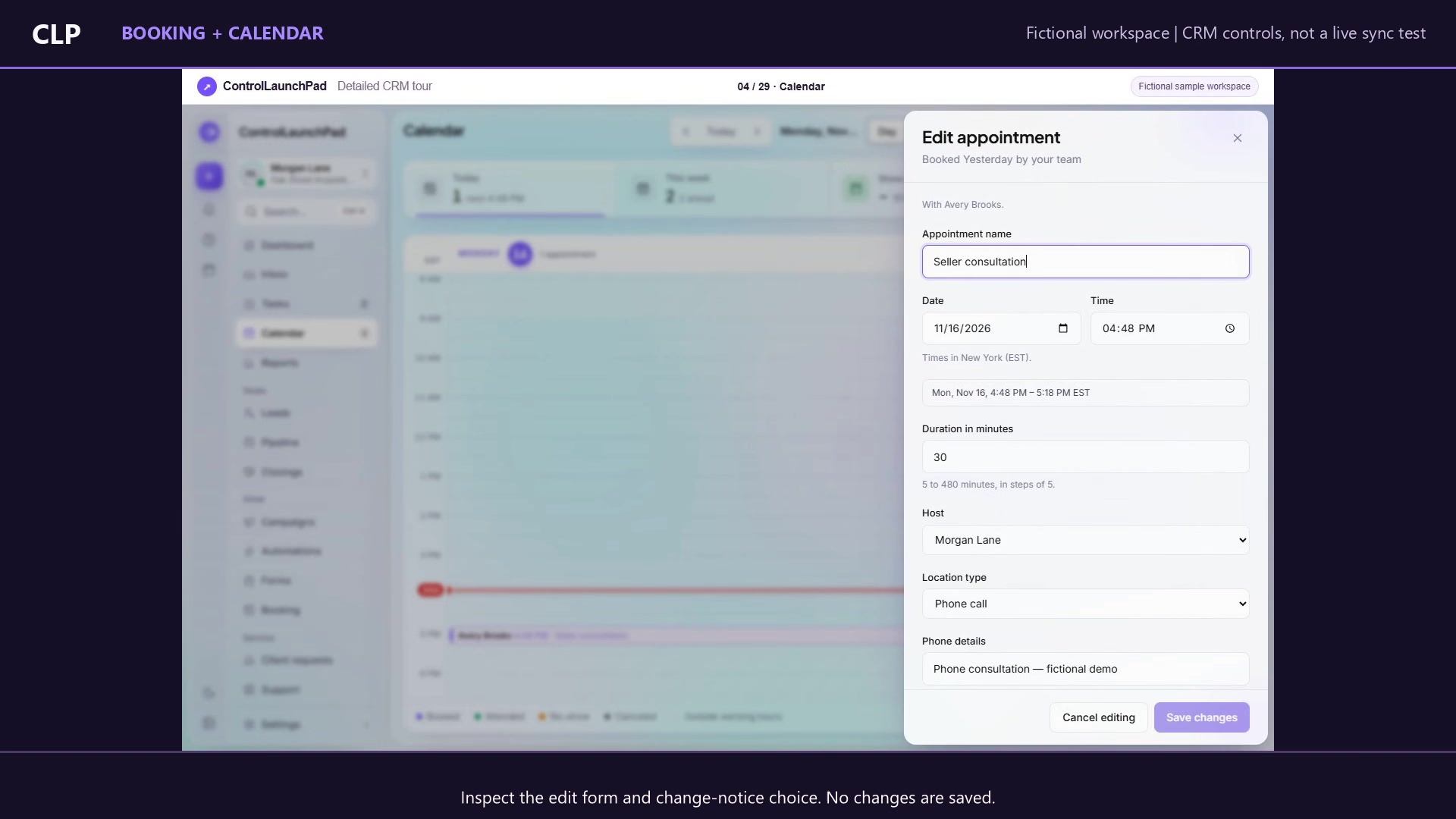
    • 02:18.146 Inspect the appointment edit form and change-notice choice without saving.
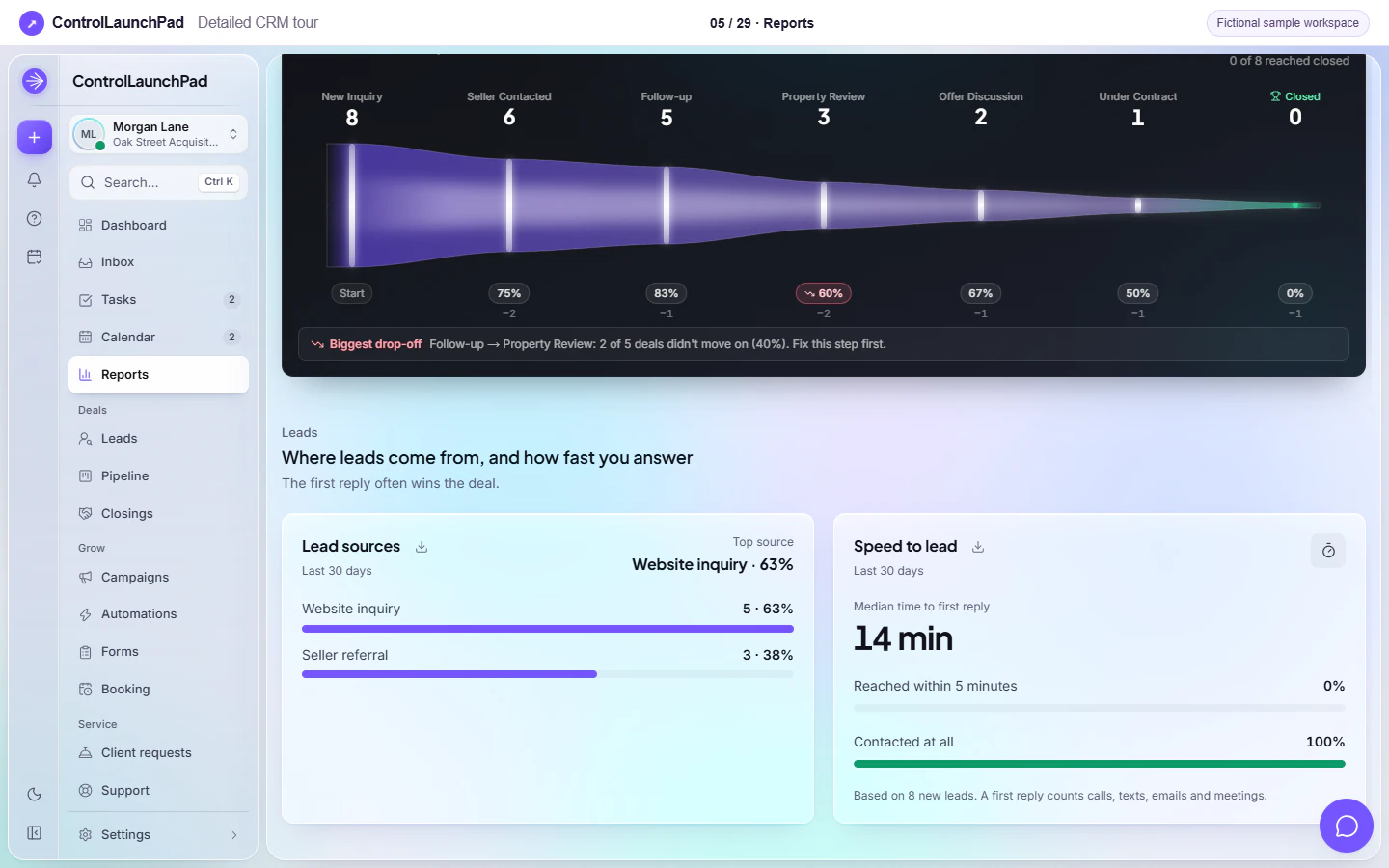
  5. 02:26.2–02:58 — Reports. Review lead sources, response time, activity and open opportunities. Entered deal value is not profit or verified investment performance.
    • 02:34.067 Compare activity and entered values over time.
    • 02:39.186 Review the source mix and response-time measures.
    • 02:45.2 Compare teammate activity without inventing closed revenue.
    • 02:51.4 Review which deals need attention next.
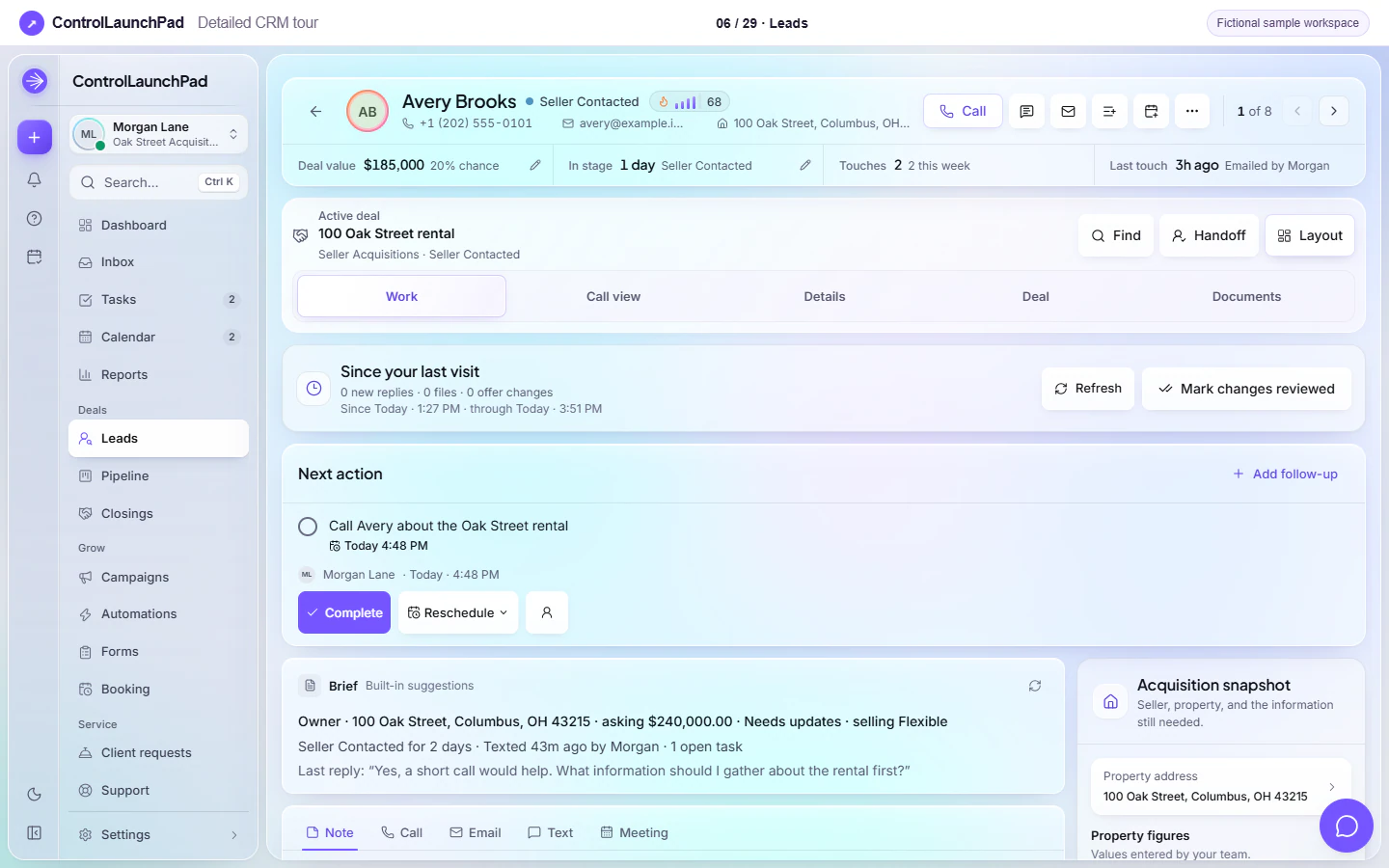
  6. 02:58–04:37.6 — Leads. Open the seller record and move through preparation, property details, saved calculations, recorded offers, review and documents.
    • 03:05.063 Open Avery's complete lead record.
    • 03:10.202 Prepare from the next action and built-in record brief.
    • 03:13.555 Use the seller-call workspace to identify missing information.
    • 03:18.701 Review seller qualification and the property details recorded by the team.
    • 03:23.875 Open the selected deal's saved figures and assumptions.
    • 03:29.051 Inspect recorded comparable-sale evidence.
    • 03:34.223 Review the itemized repair scope and allowances.
    • 03:39.326 Review the Flip calculator's saved inputs and calculated estimates.
    • 03:45.416 Compare the Wholesale calculation using saved assumptions.
    • 03:50.555 Review Rental cash-flow assumptions and calculated results.
    • 03:57.999 Inspect manually recorded offers and their status.
    • 04:03.131 Expand recorded offer revisions; recording an offer does not send it.
    • 04:07.485 Review the pre-offer checklist and unresolved evidence.
    • 04:12.603 Inspect the internal manager-approval panel.
    • 04:15.915 Review the closing handoff and people associated with the deal.
    • 04:21.165 Find property documents and photos in the seller context.
    • 04:26.424 Preview a teammate handoff, its context and open work.
    • 04:32.985 Return to the next action and seller brief.
  7. 04:37.6–04:51.533 — Pipeline. Compare the stage board with the deal table, including entered values, owners and expected dates.
    • 04:42.758 Review deal values, owners and expected dates in the table.
    • 04:47 Return to the acquisition stage board.
  8. 04:51.533–05:19.133 — Closings. Keep an Under Contract acquisition's checklist, dates, people and evidence together.
    • 04:59.023 Open the Under Contract tracker and its checklist and milestones.
    • 05:05.947 Review title, inspection and other transaction contacts.
    • 05:11.969 Review files and notes associated with the closing.
  9. 05:19.133–05:39.2 — Campaigns. Review a recorded draft sequence, delays and sending windows. Its reply-stop toggle is historical: genuine text, email or chat replies now always stop remaining campaign actions. Stopping after a new booking remains optional.
    • 05:24.318 Inspect the draft sequence's email, wait and task steps.
    • 05:28.813 Review recorded sending hours and stop settings. The older reply-stop toggle is historical; current reply stopping is always on, while stopping after a new booking remains optional.
    • 05:33.029 Review enrollment controls and the draft campaign's current people.
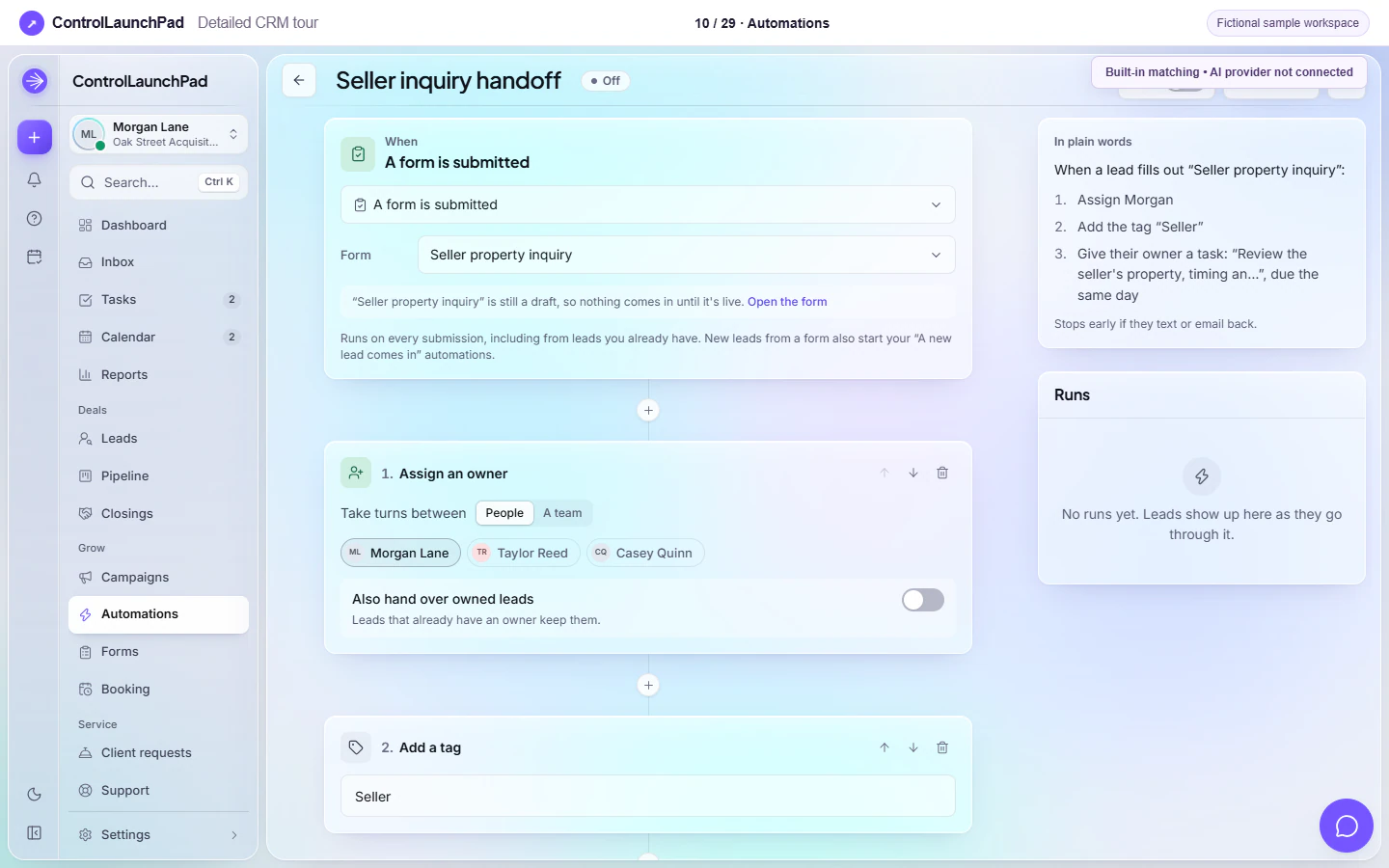
  10. 05:39.2–06:05.8 — Automations. Describe a workflow and review matching recipes. With no AI provider connected, this recording uses actual built-in matching.
    • 05:47.525 Describe the desired handoff and inspect actual built-in recipe matches. Review a workflow before enabling it.
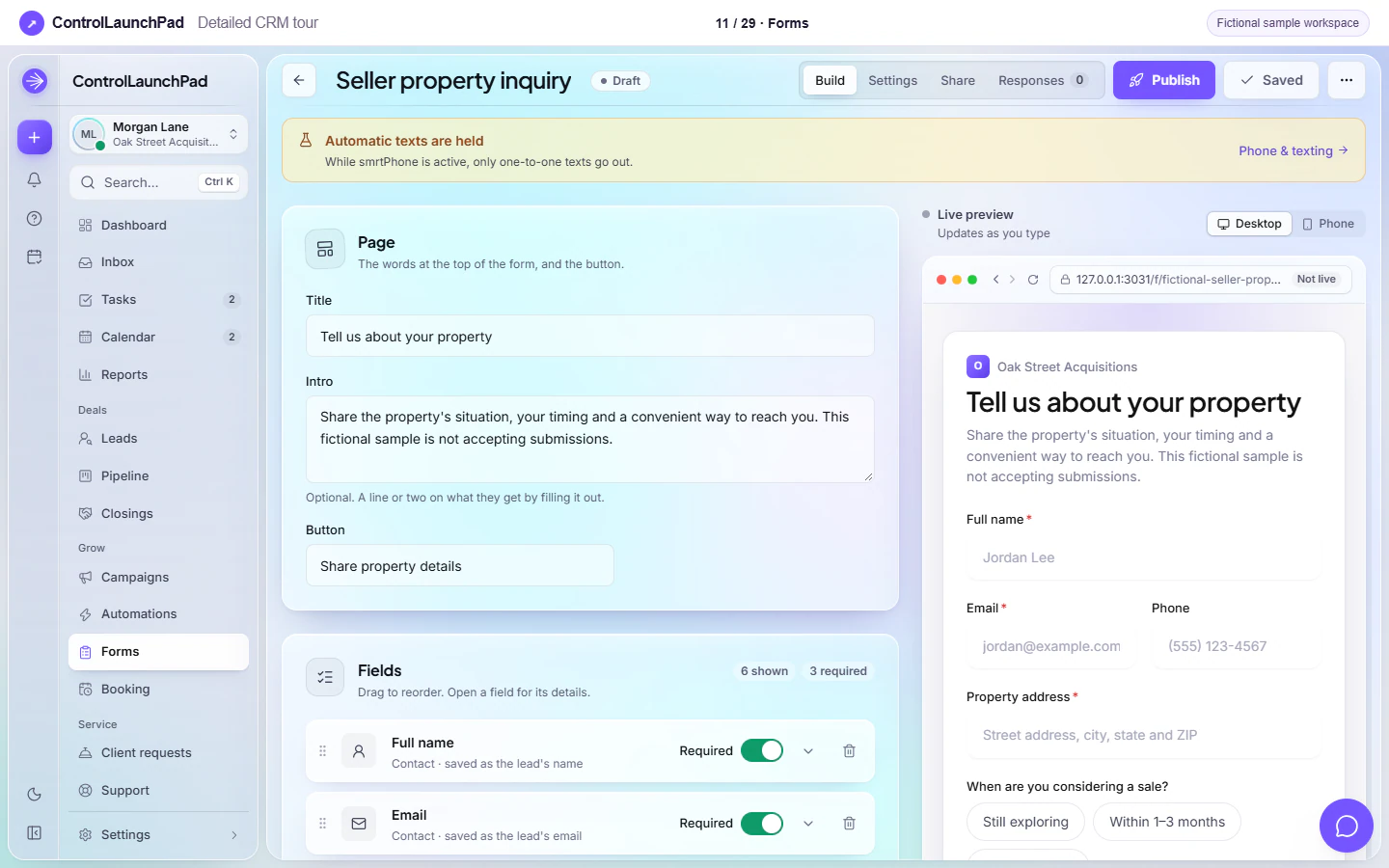
  11. 06:05.8–06:31.2 — Forms. Build a seller inquiry form, preview its fields and review lead routing, sharing and responses.
    • 06:11.065 Review the actual form builder and its live draft preview.
    • 06:16.46 Review source, owner, tags and pipeline routing for new leads.
    • 06:19.8 Review sharing and embed options. This sample form is still an unpublished draft.
    • 06:24.954 Review where form responses appear; this draft has no real submissions.
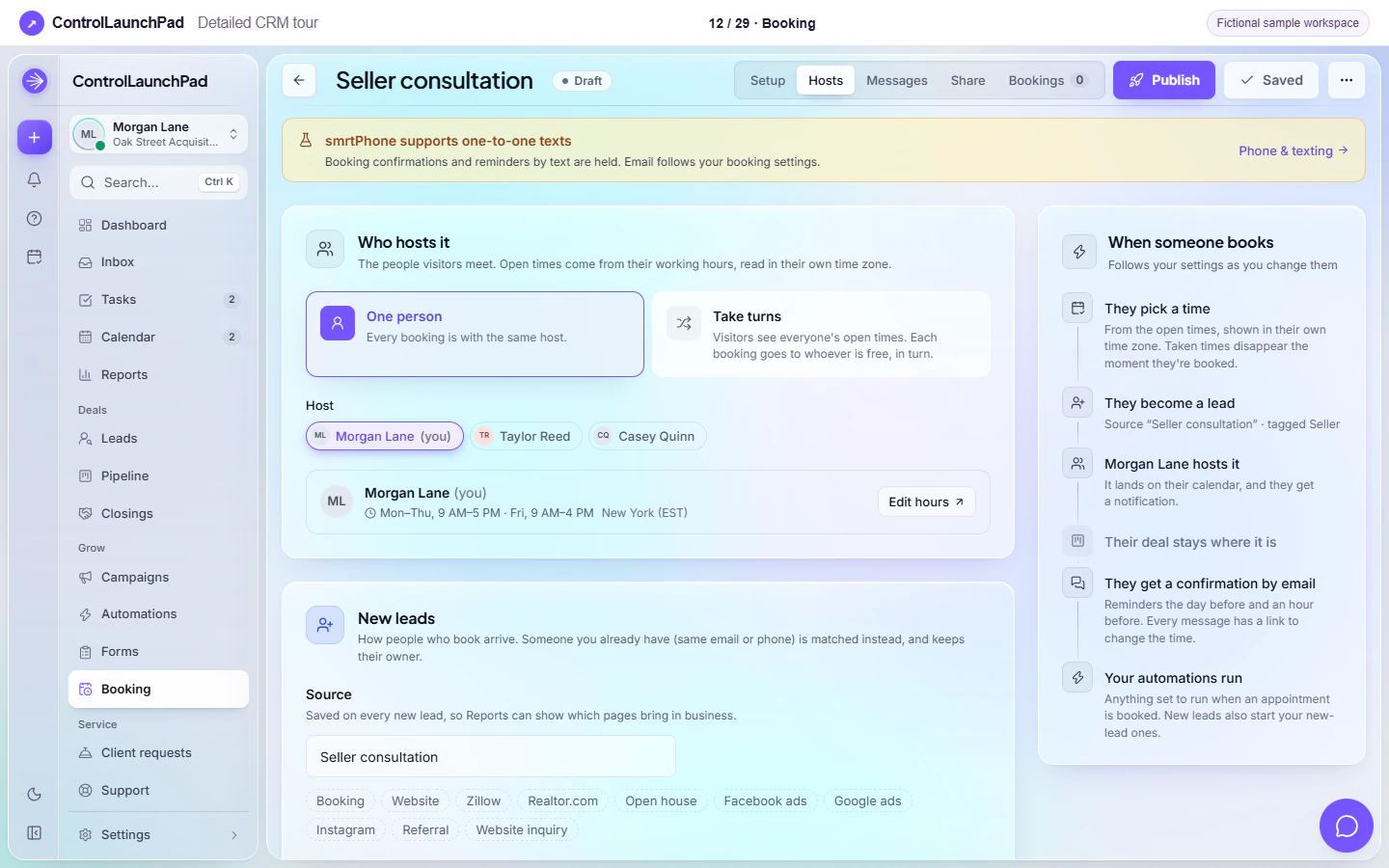
  12. 06:31.2–07:02.4 — Booking. Configure a seller consultation, its hosts, appointment fields and confirmation or reminder choices.
    • 06:36.513 Review the consultation setup, duration and appointment-field preview.
    • 06:41.657 Review confirmation and reminder choices for the connected channels.
    • 06:44.988 Review the hosts and working-hours choices for a consultation.
    • 06:51.024 Review sharing options without publishing the draft booking page.
    • 06:56.179 Review where booked appointments appear; no appointment is created.
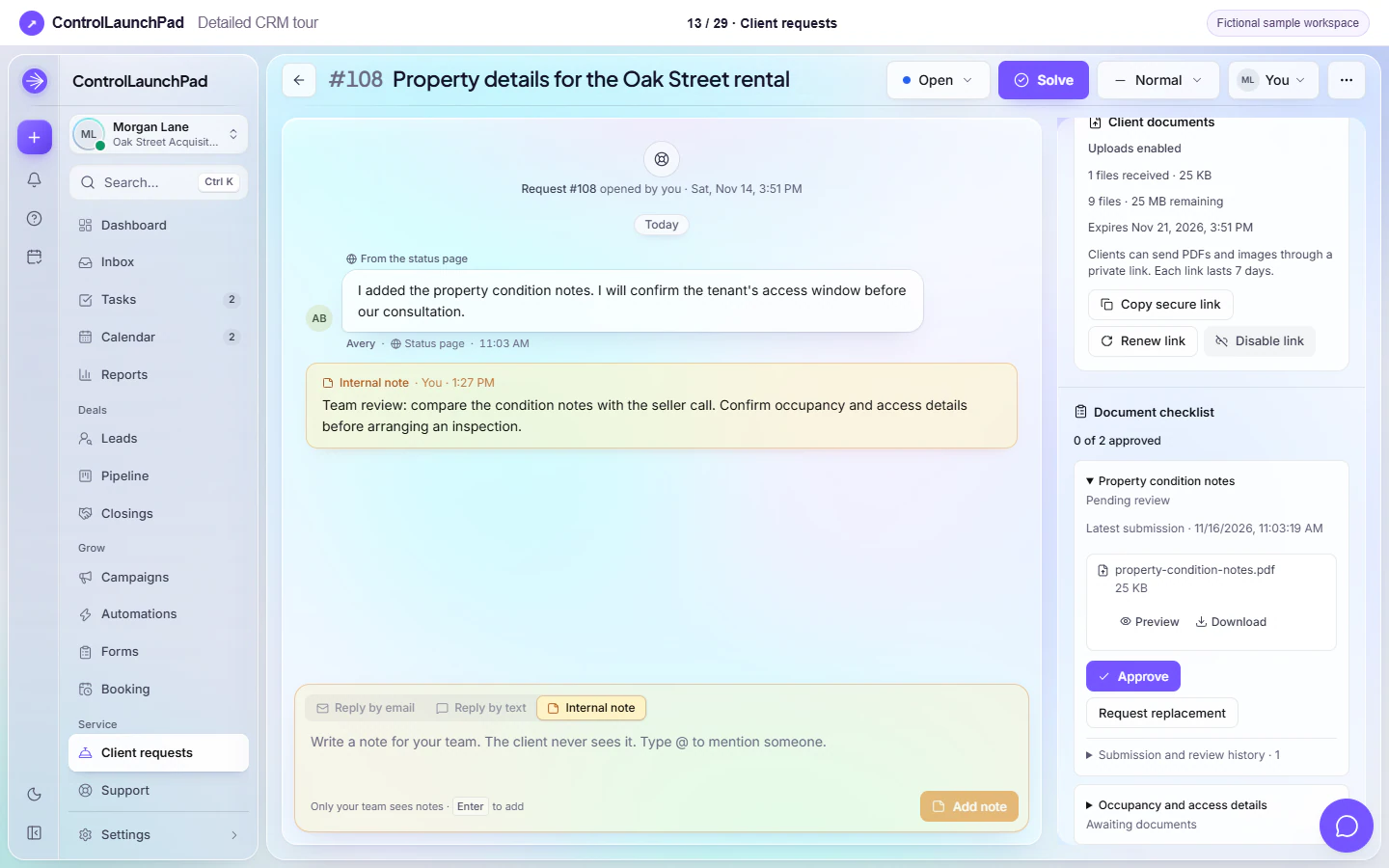
  13. 07:02.4–07:30.467 — Client requests. Review client requests, secure upload availability, a document checklist and the replacement-review workflow.
    • 07:09.454 Open the seller request and its conversation.
    • 07:15.501 Review received evidence and missing document checklist items.
    • 07:22.48 Preview the reason used to request a replacement; nothing is submitted.
  14. 07:30.467–07:55.733 — Support. Open help inside the workspace, read guidance and return to work without submitting a support message.
    • 07:37.439 Open the floating help panel.
    • 07:43.467 Read a sample help article inside the workspace.
    • 07:50.369 Close help and return to the request overview.
  15. 07:55.733–08:22.533 — My account. Review your profile, personal mailbox and calendar connections, two-step sign-in and signed-in devices.
    • 08:00.864 Review the personal mailbox's sender, allowance and connection controls.
    • 08:05.981 Review connected-calendar choices and their scope.
    • 08:11.1 Inspect authenticator-based two-step sign-in controls.
    • 08:16.224 Review active devices and sign-out controls without changing sessions.
  16. 08:22.533–08:39.867 — Notifications. Choose the lead, message, task and appointment notifications that reach you. Review the alert inbox and delivery preferences.
    • 08:31.449 Open the notification inbox from the rail without changing read status.
  17. 08:39.867–09:06.733 — Workspace. Review workspace identity, time zone, business information, team security and ownership controls.
    • 08:45.017 Review the time zone used for workspace scheduling.
    • 08:50.162 Review business-address settings.
    • 08:55.266 Review the team's two-step sign-in requirement.
    • 09:00.364 Inspect ownership controls without transferring the workspace.
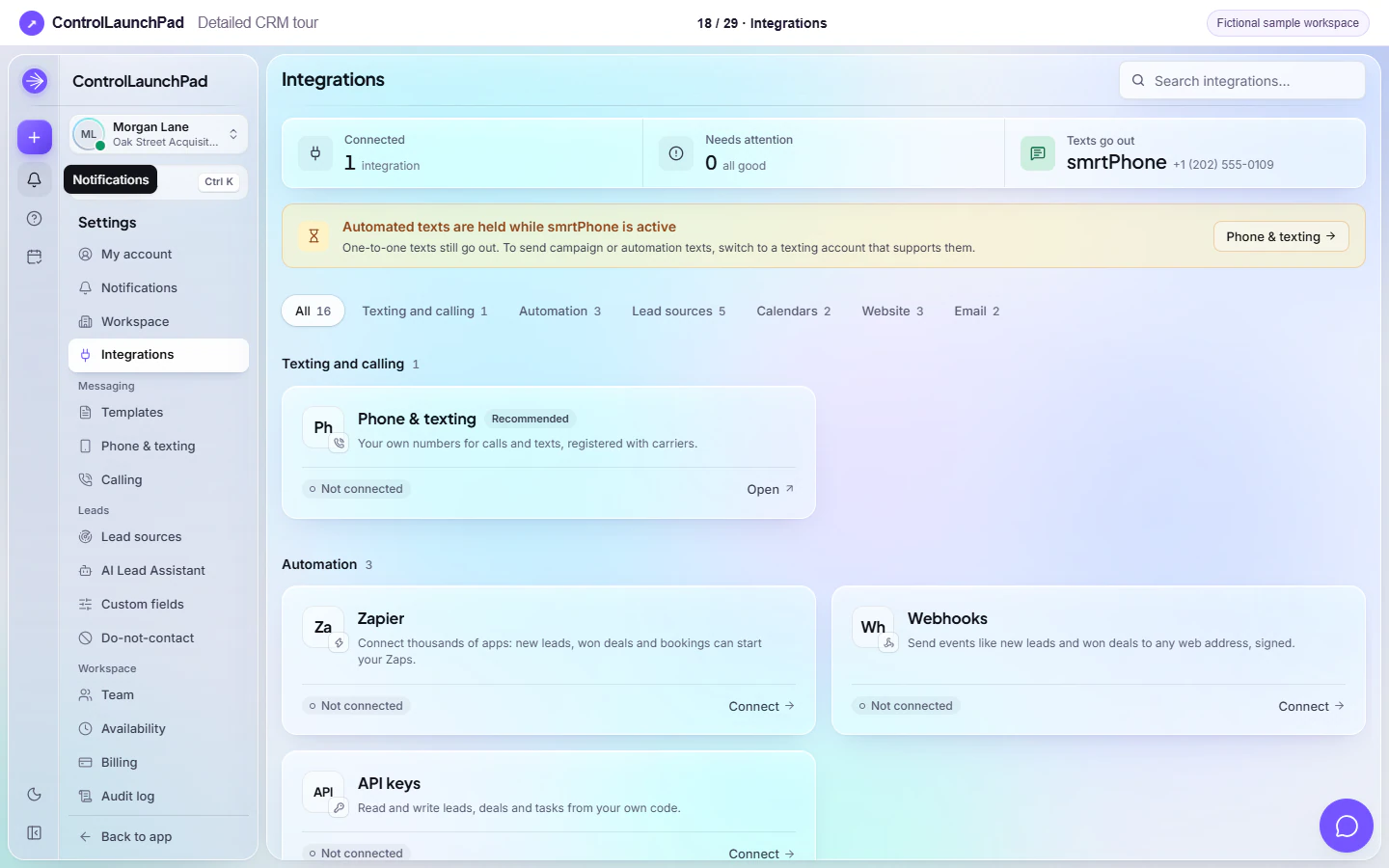
  18. 09:06.733–09:36.4 — Integrations. Browse connection categories and the API-key and webhook setup panels, without creating credentials or connecting a provider.
    • 09:11.957 Inspect the API-key setup panel; no key is generated.
    • 09:18.575 Inspect the signed-webhook setup panel without generating or testing a secret.
    • 09:25.075 Review calendar connection categories.
    • 09:30.172 Review supported email connection categories.
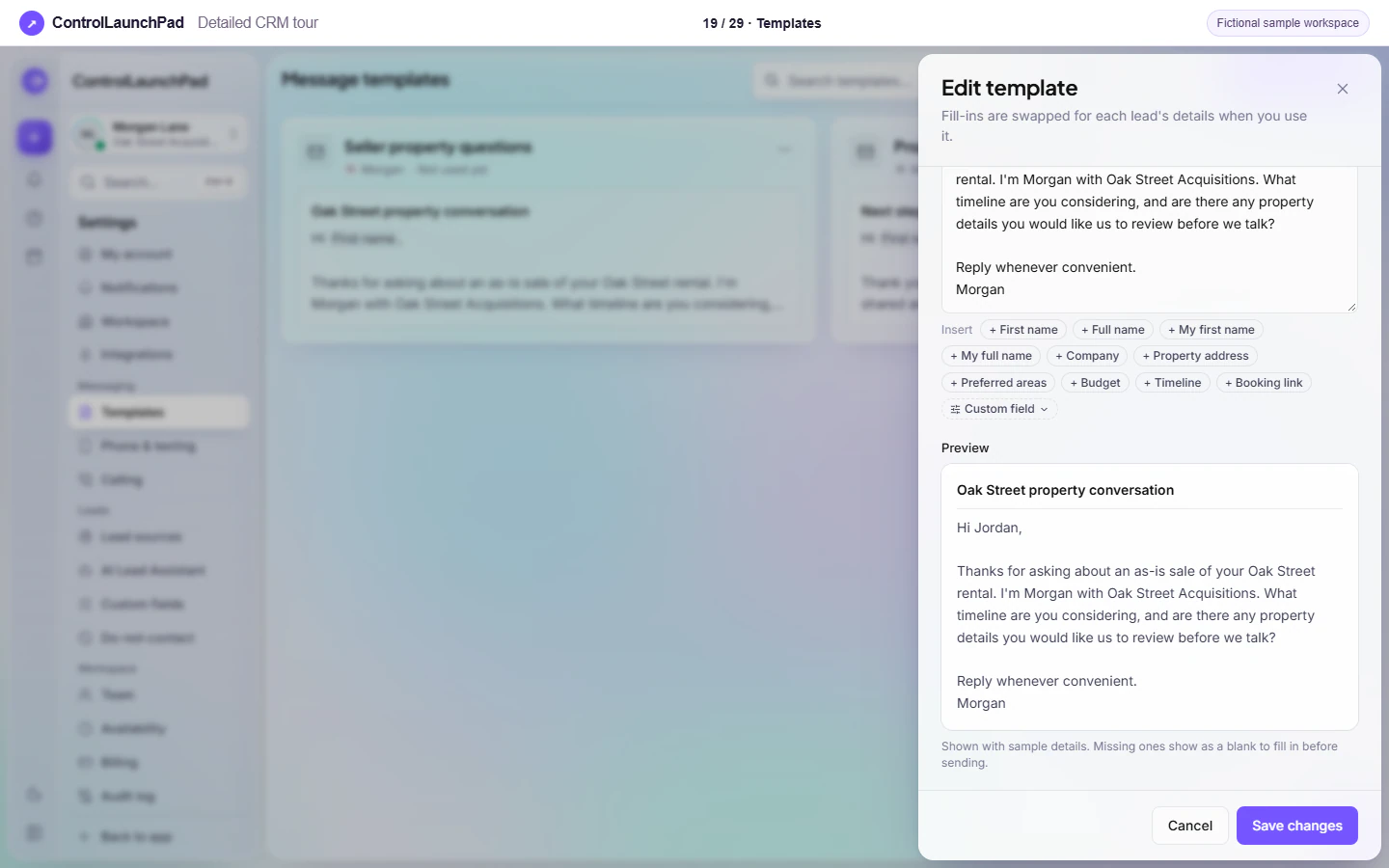
  19. 09:36.4–09:51.4 — Templates. Review reusable text and email templates, their fill-ins and the message preview before using them in a conversation.
    • 09:46.161 Scroll to read the complete message preview.
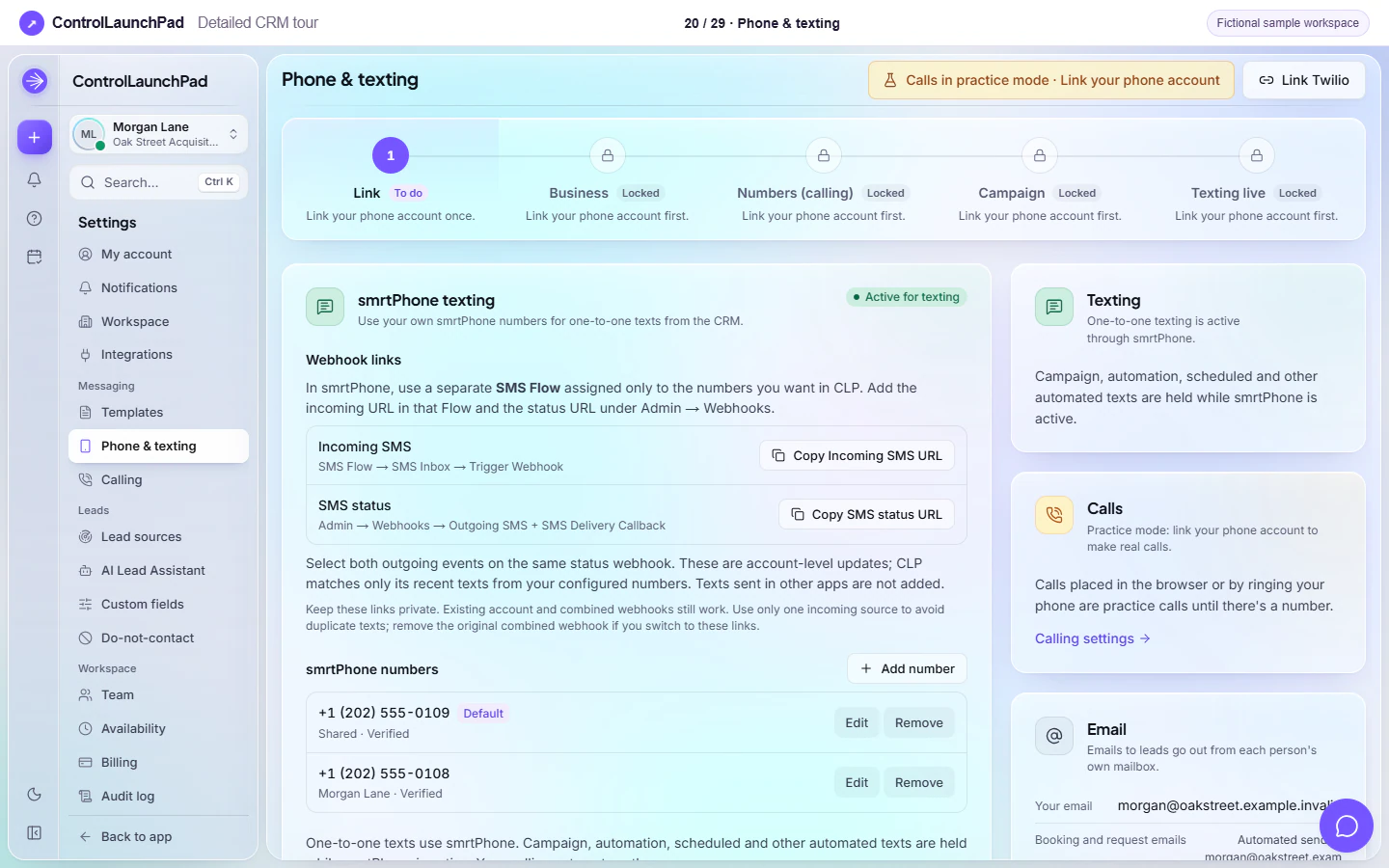
  20. 09:51.4–10:20.133 — Phone & texting. Review smrtPhone lines, defaults and teammate assignments, then the separate Twilio setup requirements.
    • 09:56.525 Review sample smrtPhone lines and their verification/assignment status.
    • 10:01.69 Inspect the number's teammate assignment without saving.
    • 10:08.273 Open the separate Twilio account setup.
    • 10:12.49 Review its empty credential fields and setup requirements.
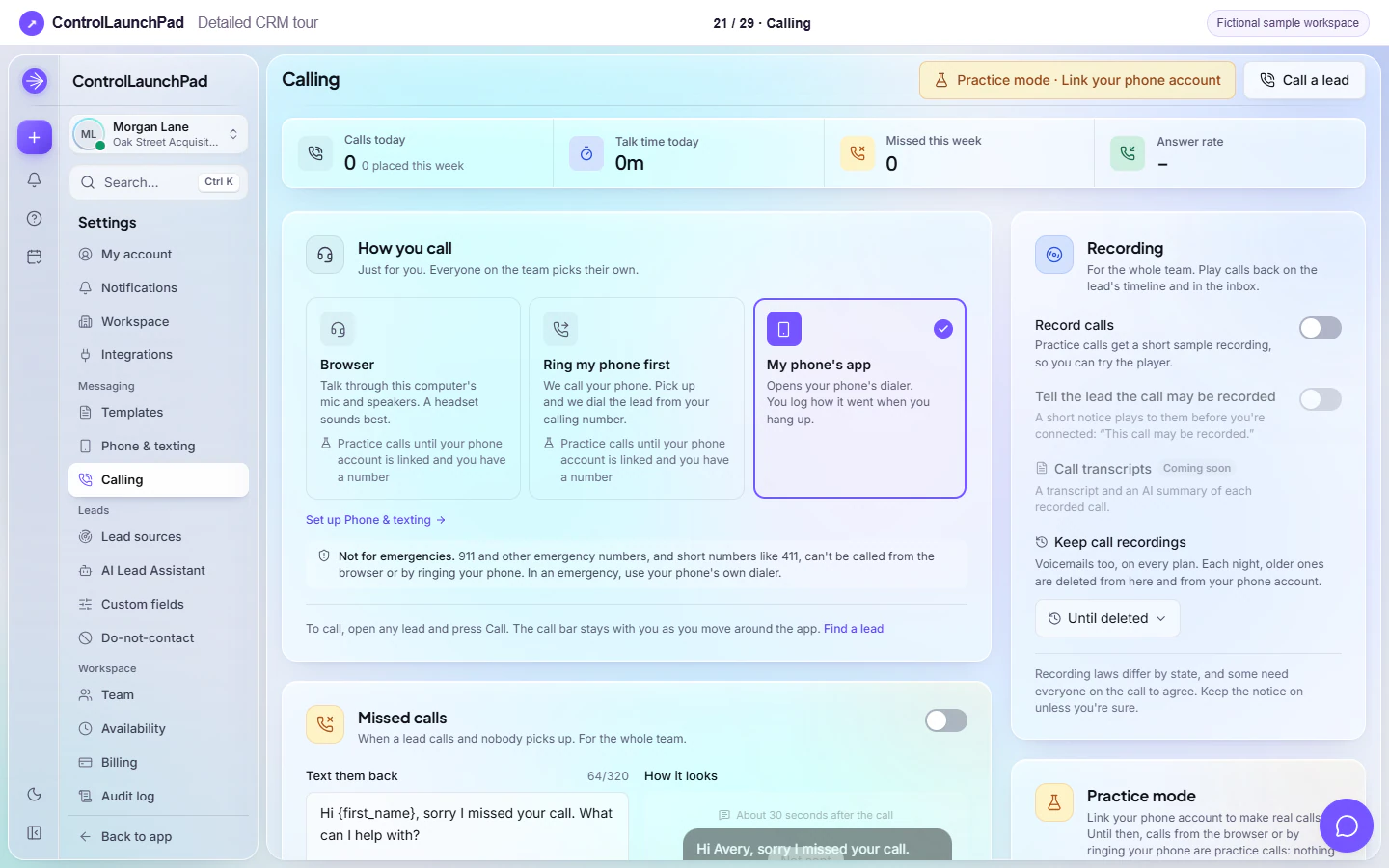
  21. 10:20.133–10:46.8 — Calling. Review calling methods, recording, missed-call handling and voicemail drops. Calling remains in practice in this fictional recording.
    • 10:25.27 Compare browser, ring-first and device-dialer methods.
    • 10:30.396 Review recording settings and notices.
    • 10:35.5 Review missed-call routing and follow-up choices.
    • 10:40.631 Review voicemail-drop controls in practice mode.
  22. 10:46.8–11:00.4 — Lead sources. Connect an incoming inquiry to its source, owner, tags and pipeline routing. This example source remains a disabled draft.
    • 10:51.992 Open a disabled source's settings.
    • 10:55.285 Review owner, tags and acquisition-pipeline routing.
  23. 11:00.4–11:09.333 — AI Lead Assistant. AI Lead Assistant is currently Coming soon. Its planned workflow is distinct from the available built-in helpers shown in this tour.
  24. 11:09.333–11:33.8 — Custom fields. Preview seller-intake fields and deal-specific repair estimates. The right fields help the team collect consistent information.
    • 11:14.557 Inspect the seller's Selling timeline field and choices.
    • 11:21.118 Switch to deal-specific fields.
    • 11:26.267 Inspect a sample repair-estimate field.
  25. 11:33.8–11:46.267 — Do-not-contact. Review phone and email contact preferences before choosing a follow-up channel or starting a sequence.
  26. 11:46.267–11:59.2 — Team. Review fictional teammates, access roles and groups. Workspace permissions determine what each person can see and do.
    • 11:51.385 Review active teammate roles and groups.
    • 11:54.717 Return to the full team list.
  27. 11:59.2–12:12.067 — Availability. Review saved working hours for each teammate and the time zone used to offer booking availability.
    • 12:06.7 Review another teammate's saved availability and time zone.
  28. 12:12.067–12:26.933 — Billing. Review the sample plan, active seats and AI-credit allowance. Displayed billing data is fictional; no purchase or plan change is made.
    • 12:18.987 Review the AI allowance and sample usage alongside the subscription.
  29. 12:26.933–12:39.667 — Audit log. Review sample change history and accountability. These are fictional audit entries, not changes made during this recording.

Recorded · 12 min 40 sec. Chapter times match the silent tour's scene captions.

Short product demos

Choose a short demo first.

Silent examples with fictional US investor data. Load a player when you want to watch; captions and transcripts describe each scene.

The video is not loaded. Load its controls when you are ready; playback remains under your control.

Silent demo

Seller follow-up, with a next action

Read the conversation. Prepare a draft. Assign the follow-up.

Fictional workspace. No email is sent or scheduled.

Read transcript for Seller follow-up, with a next action
  1. Review the seller conversation, prepare a draft, then give the next action an owner.

  2. 1. Read the existing email thread and seller context before replying.

  3. 2. Choose a saved template, then edit the message for this seller.

  4. Review the attachment before adding it to an unsent draft.

  5. Check the proposed send time and time zone. Nothing is sent or scheduled here.

  6. 3. Review upcoming follow-ups, then open the linked task.

  7. Use the task list to decide which lead needs attention next.

  8. Confirm the responsible teammate, due time and notes.

  9. Explore the full workflow and free seller email templates at controllaunchpad.com.
Download English captions

The video is not loaded. Load its controls when you are ready; playback remains under your control.

Silent demo

Seller booking and appointment review

Review the booking setup, host and appointment details.

Fictional CRM controls. No booking draft is published, appointment change saved or live Google sync tested.

Read transcript for Seller booking and appointment review
  1. Review booking and appointment controls in a fictional CRM workspace.

  2. 1. Review a draft seller consultation and its setup.

  3. Check the duration and appointment fields.

  4. Review confirmation and reminder choices for connected channels.

  5. Check hosts and working hours before sharing a booking link.

  6. Inspect sharing options. This draft is not published.

  7. 2. Open Calendar to review the seller appointment.

  8. Use the day view to place the appointment in context.

  9. Review its host, seller, time zone and location.

  10. Inspect the edit form and change-notice choice. No changes are saved.

  11. Google sync needs a connected calendar. This clip previews CRM controls, not live provider sync.

Download English captions

The video is not loaded. Load its controls when you are ready; playback remains under your control.

Silent demo

Ask your CRM: check the supporting records

A record-backed built-in answer, followed by a reviewed draft.

Fictional records and built-in answers. The AI provider is disconnected; no message is sent.

Read transcript for Ask your CRM: check the supporting records
  1. See a record-backed built-in answer in a fictional investor workspace.

  2. 1. Start from Dashboard and ask about the open pipeline.

  3. The built-in answer reports eight open deals from this fictional dataset.

  4. Inspect the supporting records and seller context before acting.

  5. 2. Review a built-in reply draft. It is not sent, and no AI provider is connected.

  6. Built-in answers are shown. Live model responses and investment results are not demonstrated.

Download English captions

The screenshot walkthrough

Explore all 29 CRM menus

Follow the same order as the video, or jump to the part your acquisition team needs. Each section pairs a real product screen with practical steps and a fictional investor example.

Written and maintained by the CLP product teamSource and documentation review:

Choose from all 29 screenshots Same order as the video

Daily work

Priorities, conversations, tasks, appointments and reporting.

All categories

01 / 29 · Dashboard

Start with the acquisition team's priorities

Review new leads, entered pipeline value, upcoming work and the acquisition funnel. Ask your CRM can show supporting records; this demonstration uses the actual built-in answer engine with the AI provider not connected.

  • Choose the reporting period for the overview.
  • Compare open stages and the next tasks.
  • Review the records behind a built-in pipeline answer.

For an acquisition teamMorgan reviews Oak Street Acquisitions' fictional open opportunities before deciding which seller conversations need attention.

CLP Dashboard showing sample acquisition totals, stage values, forecast and conversion funnel
A shared starting point for the team's next actions.

Actual Dashboard with fictional workspace figures. Entered pipeline values and forecasts are not profit or verified investment performance.

Open larger screenshot
See the built-in pipeline answer
Ask your CRM showing eight fictional open deals and their supporting seller records, with a built-in answer label
The actual built-in answer engine uses the fictional pipeline records. The AI provider is not connected; this is not a live model response.

02 / 29 · Inbox

Keep the seller's conversation and next reply together

Read seller texts and emails, choose a template, and review attachments or scheduled email. The example's reply ideas and drafts use built-in rules with the AI provider not connected; nothing is sent.

  • Open a seller thread and confirm the selected channel.
  • Preview an email template, attachment selection and scheduling controls.
  • Review a built-in draft against the conversation before sending.

For an acquisition teamMorgan reads Jordan's Cedar Avenue email, then returns to Avery's SMS conversation to review an unsent draft.

CLP Inbox with fictional seller threads, a selected conversation and the reply composer
A reply prepared with the relevant seller context in view.

Native Inbox using fictional conversations. Attachment and scheduling examples remain previews; no email, text or upload is submitted.

Open larger screenshot

03 / 29 · Tasks

Give the next promised action an owner and due time

Keep seller callbacks, property questions and review work in a task list. Open a task to see its linked lead, responsible teammate, due time and notes, then distinguish upcoming work from completed actions.

  • Review open tasks and upcoming due dates.
  • Check the assignee and linked seller record.
  • Read the task notes before the next conversation.

For an acquisition teamMorgan's sample callback task asks for Avery's selling timeline and property access details before arranging a consultation.

CLP Tasks with fictional seller follow-up work and a task's assignee, due time and notes
A specific next action someone is responsible for completing.

Sample tasks show how work stays linked to sellers. The walkthrough does not complete or change a production task.

Open larger screenshot

04 / 29 · Calendar

Review consultations in the team's calendar

See appointments by day or week and open one to review its seller, host, location and time zone. The edit form lets you inspect changes and the optional change notice before saving.

  • Switch between day and week views.
  • Open an appointment and check its host and time zone.
  • Review the edit form and change-notice choice.

For an acquisition teamMorgan checks a fictional seller consultation before coordinating the next property conversation with the acquisition team.

CLP Calendar displaying fictional seller appointments and consultation details
Appointment details the host and team can review together.

Fictional appointment data in the native Calendar. Opening an edit preview does not move an appointment or notify a lead.

Open larger screenshot

05 / 29 · Reports

Review activity before choosing what to improve

Compare lead sources, response time, team activity and open opportunities over a selected period. Use the underlying records to interpret the figures; entered deal values and sample totals do not establish revenue or profit.

  • Choose a period for comparing activity.
  • Review the source mix and response-time measures.
  • Inspect the deals that need another action.

For an acquisition teamMorgan compares the fictional team's website inquiries and referrals, then reviews which opportunities need follow-up.

CLP Reports with fictional lead-source breakdown, response times and acquisition funnel
A record-based discussion about the team's workflow.

Actual reporting interface with fictional records. Sample deal totals and activity measures are illustrative, not a customer performance claim.

Open larger screenshot

Seller and deal review

Seller context, acquisition stages and the closing handoff.

All categories

06 / 29 · Leads

Bring seller context and deal preparation into one record

Open a seller record to review qualification, property details, notes and the next action. Deal tools keep recorded comparables, repair assumptions, calculations, offers and review decisions together; saved assumptions still need the team's verification.

  • Review seller qualification and unanswered property questions.
  • Inspect recorded comparables, repairs and Flip, Wholesale or Rental inputs.
  • Check recorded offers, review notes and related documents.

For an acquisition teamMorgan reviews Avery's Oak Street rental, keeping the tenant's move-out date unconfirmed until Avery supplies it.

CLP lead record with fictional seller details, property context, linked deal and follow-up information
A seller and deal record that separates known facts from assumptions.

Fictional seller record in the actual interface. Calculations and manually recorded offers are examples, not verified valuations or offers sent to a seller.

Open larger screenshot
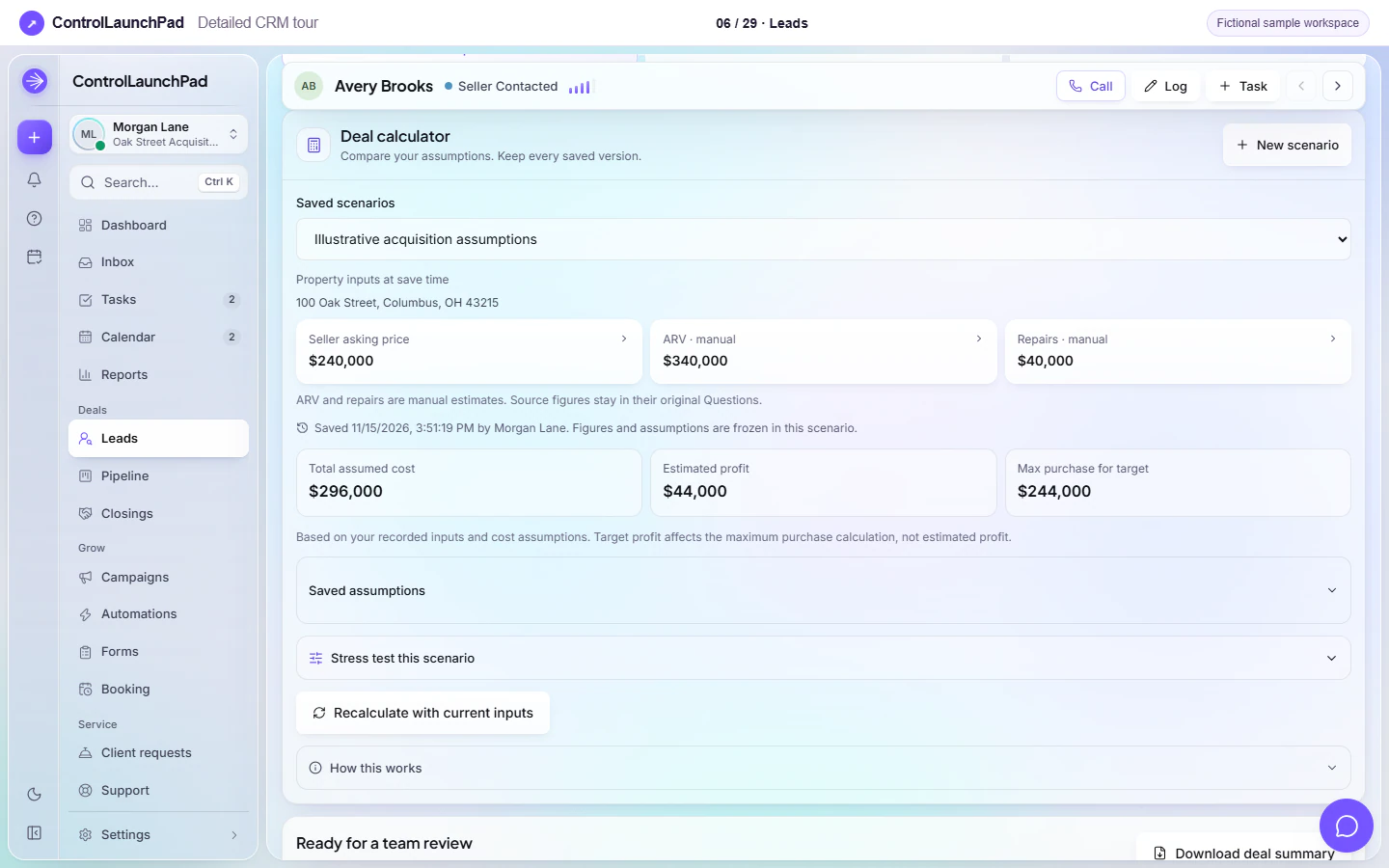
See a saved deal calculation
CLP Flip calculator with saved fictional asking price, ARV, repairs and calculated estimates
Actual calculation code with saved fictional inputs. Manual ARV and repair assumptions do not establish a verified property valuation or investment result.

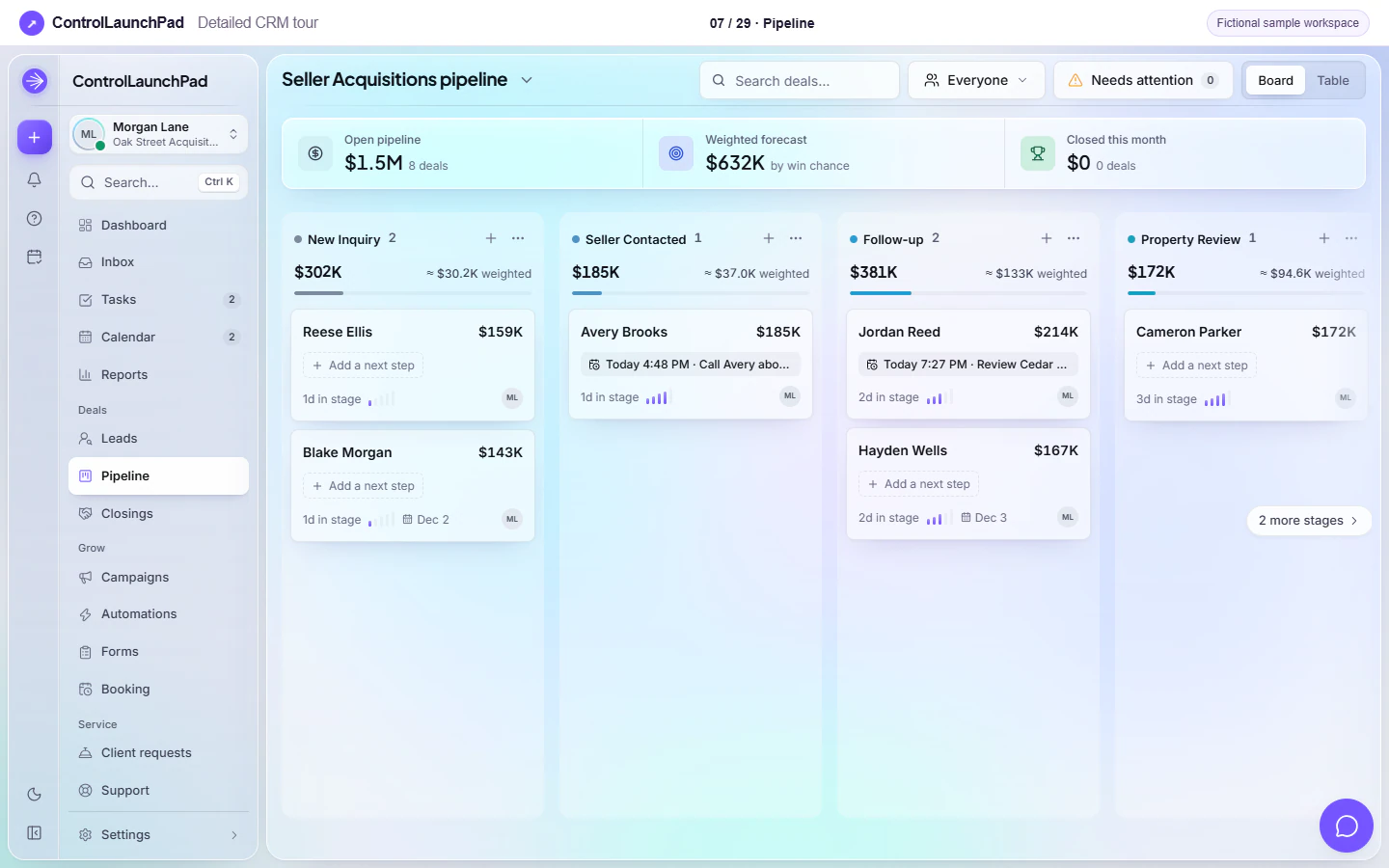
07 / 29 · Pipeline

See where each acquisition needs to move next

Review opportunities on a stage board or in a deal table. Compare the owner, entered value, expected date and next task without treating a stage label or weighted forecast as proof an acquisition will close.

  • Read the acquisition stages on the board.
  • Switch to the table for owners, values and expected dates.
  • Check the next task before moving a deal forward.

For an acquisition teamMorgan distinguishes a Cedar Avenue follow-up from a Pine Road property review in the fictional acquisition pipeline.

CLP Pipeline with fictional acquisitions organized into stages and a table view option
A shared view of the evidence and action needed at each stage.

Sample acquisition stages and entered values. Stage positions and forecast amounts do not guarantee a closing or investment return.

Open larger screenshot

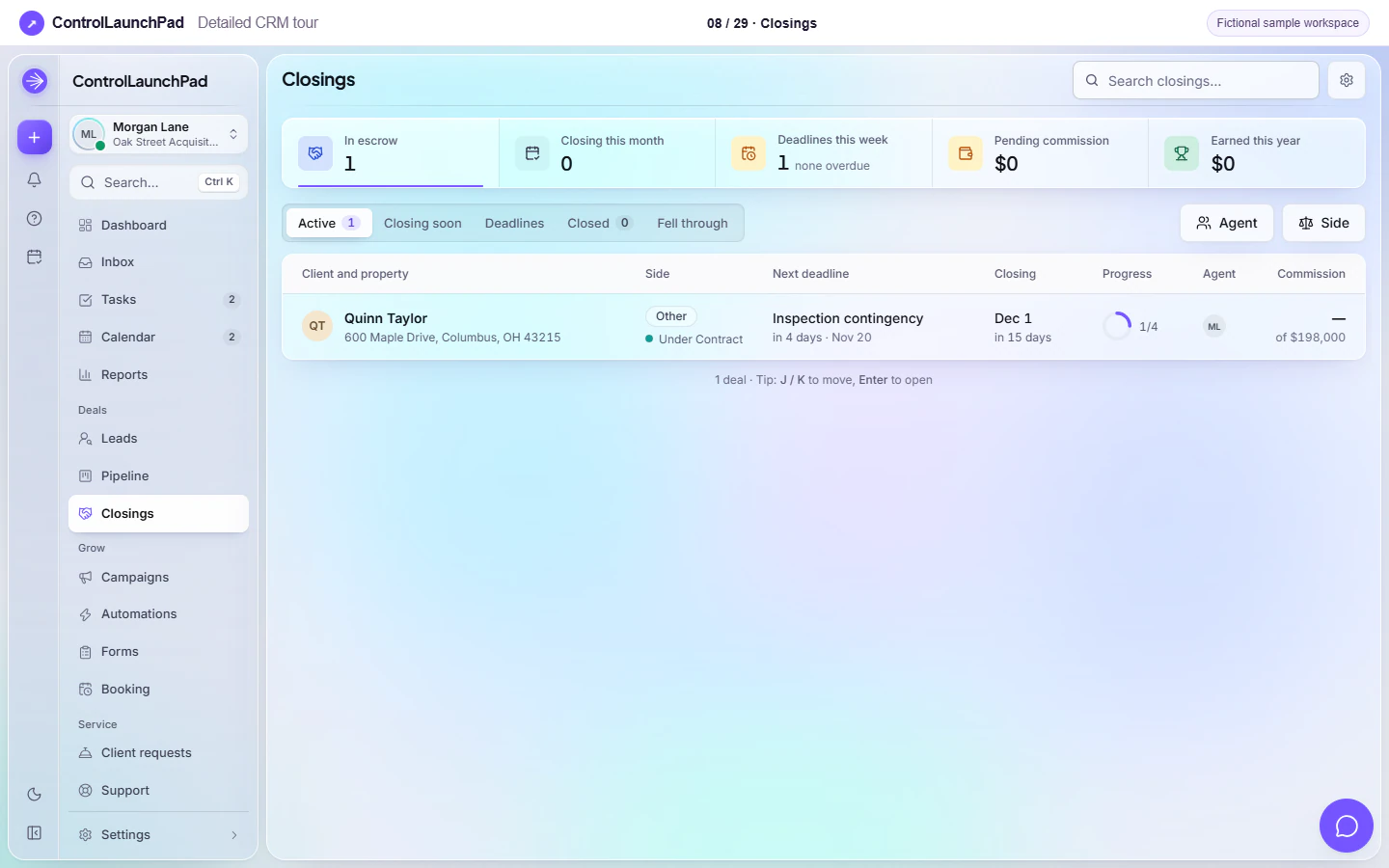
08 / 29 · Closings

Keep the contract handoff and closing work together

Review an Under Contract tracker's checklist, milestone dates, transaction contacts and supporting files or notes. Keep outstanding work tied to the deal and to the teammate responsible for its next step.

  • Review the closing checklist and milestone dates.
  • Check the transaction contacts associated with the deal.
  • Find the files and notes supporting the handoff.

For an acquisition teamThe fictional team reviews a Maple Drive acquisition's inspection and title follow-up before its next handoff.

CLP Closings queue listing a fictional Under Contract acquisition, its owner and closing status
A clearer record of closing responsibilities and outstanding evidence.

The Closings queue shows the team's fictional Under Contract work. The video also opens its tracker for milestones, contacts and files; the sample is not a completed transaction.

Open larger screenshot

Follow-up and booking

Sequences, workflow matching, inquiry forms and consultation pages.

All categories

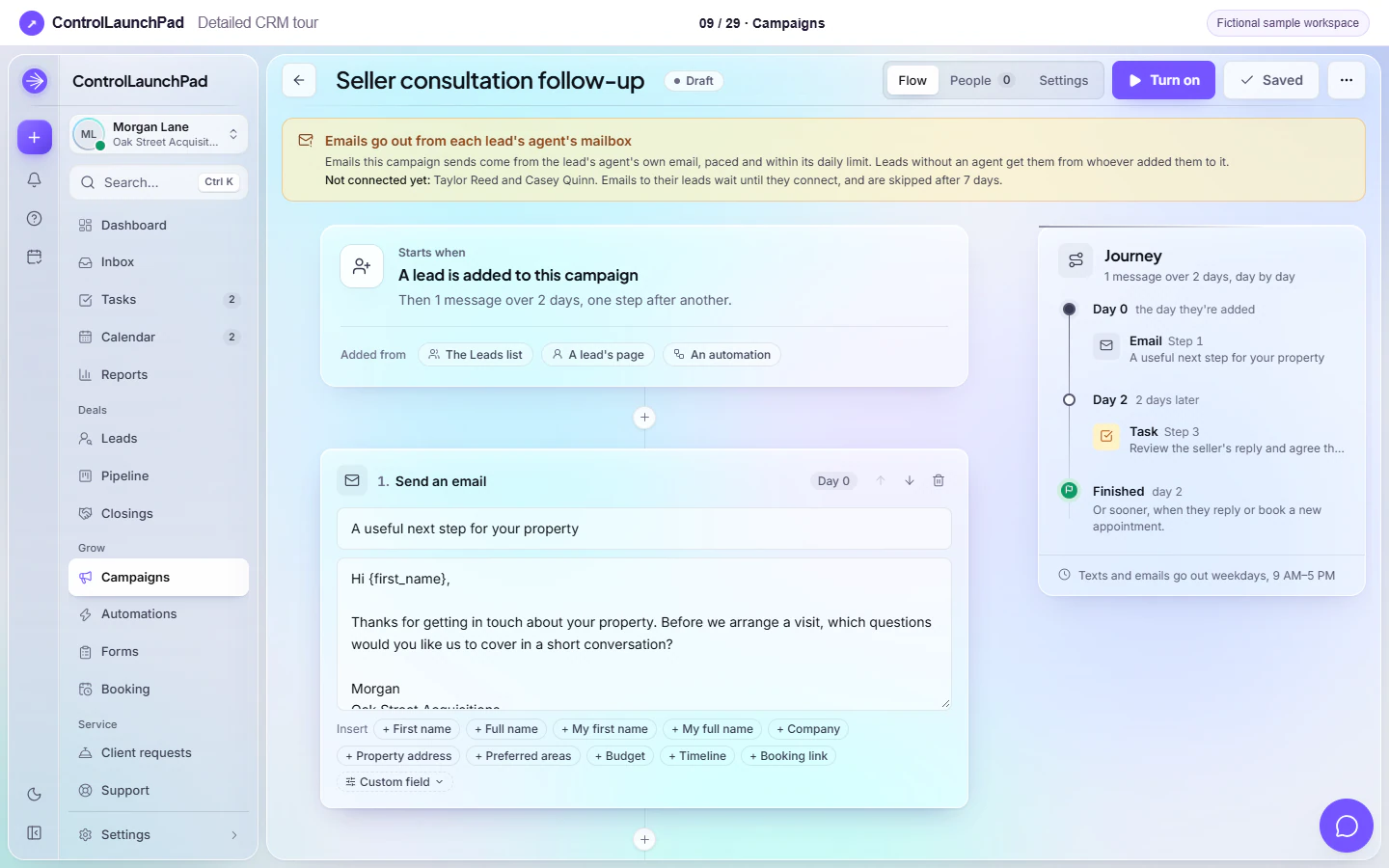
09 / 29 · Campaigns

Review a follow-up sequence before enrolling sellers

Inspect email, wait and task steps alongside sending hours. This unsent recording shows the older reply-stop toggle; genuine text, email or chat replies now always stop remaining campaign actions. Stopping after a new booking is optional. Current eligible SMS steps can use the activated texting provider; verify its numbers and delivery readiness separately.

  • Read the sequence and its wait periods.
  • Review sending windows and stop conditions.
  • Check enrollment and mailbox readiness before turning it on.

For an acquisition teamMorgan reviews a draft seller-consultation follow-up that stops its remaining steps after a new qualifying booking.

CLP campaign editor showing a fictional seller follow-up sequence and configuration tabs
A sequence whose timing and stop rules the team has reviewed.

Draft campaign with fictional setup. No lead is enrolled and no campaign is activated or sent during the demonstration.

Open larger screenshot

10 / 29 · Automations

Review the trigger, steps and owner of a repeatable workflow

Describe a workflow and inspect matching recipes, then review its trigger and actions. This demonstration uses actual built-in matching with the AI provider not connected; the sample automation stays switched off and has no runs.

  • Describe the seller inquiry handoff you want to organize.
  • Review the matching recipe's trigger and steps.
  • Check owner, tags and task details before enabling anything.

For an acquisition teamA fictional seller inquiry can be routed to Morgan, tagged Seller and paired with a property-review task.

CLP Automations with a fictional disabled seller inquiry workflow and its steps
A workflow the team can inspect before allowing it to run.

Actual automation interface with a switched-off example. Built-in recipe matching is shown without a connected AI provider or live automation run.

Open larger screenshot

11 / 29 · Forms

Collect the property questions your team needs first

Build a seller inquiry form and review its field preview, source, owner, tags and pipeline routing. Sharing and response tabs show how the form is used; the example remains an unpublished draft with no submissions.

  • Review the inquiry fields and their preview.
  • Check how a response routes to the acquisition team.
  • Inspect sharing options and the response list before publishing.

For an acquisition teamMorgan prepares an as-is property inquiry that asks for seller contact information and initial property context.

CLP Forms editor for a fictional seller property inquiry with build, routing and sharing controls
A consistent starting point for reviewing a new seller inquiry.

Native form builder with a fictional unpublished inquiry. No form is published or submitted in this walkthrough.

Open larger screenshot

12 / 29 · Booking

Offer a consultation with the right host and questions

Configure a consultation's duration, hosts and appointment fields, then review sharing, confirmation and reminder choices. Working hours and connected-calendar settings affect available times; the sample booking page remains a draft and creates no appointment.

  • Review the consultation duration and appointment fields.
  • Check its hosts and availability choices.
  • Inspect confirmation, reminder and sharing settings before publishing.

For an acquisition teamMorgan prepares a seller consultation so Avery can choose a suitable time after the team's setup is ready.

CLP Booking editor for a fictional seller consultation with setup, hosts and message settings
A booking page whose host, questions and notices have been reviewed.

Draft consultation page in the actual editor. The capture does not prove a live booking, calendar connection or delivered reminder.

Open larger screenshot

Client service

Document requests, review steps and help inside the workspace.

All categories

13 / 29 · Client requests

Follow requested documents through checklist and review

Keep a client request's conversation, document checklist and received files together. Review requested evidence and preview a replacement request when something is missing or unclear; private upload access remains separate from access to CRM records.

  • Open the seller's request and document checklist.
  • Compare received files with the requested evidence.
  • Review the reason for requesting a replacement before submitting it.

For an acquisition teamThe fictional team reviews an Oak Street property document and records what needs clarification before accepting it.

CLP Client requests showing a fictional seller request with document checklist and review information
A visible record of requested, received and still-needed documents.

Sample request and document metadata in the native interface. No real client upload, approval or replacement notice is submitted.

Open larger screenshot

14 / 29 · Support

Find product guidance without losing your place

Browse help articles or open the floating support panel while working in the CRM. The Support page keeps your conversations with the CLP team together; the demonstration reads guidance without submitting a support message.

  • Open the support panel from the corner button.
  • Read a help article inside the workspace.
  • Review your support conversation list before starting a new one.

For an acquisition teamMorgan checks a setup article while reviewing the fictional team's workflow, then returns to the same workspace.

CLP Support area with help articles and access to the in-app support panel
Relevant product guidance close to the work being reviewed.

Actual support interface with sample workspace context. No support request is sent and no response time is promised by the capture.

Open larger screenshot

Accounts and connections

Personal settings, integrations, reusable messages and phone setup.

All categories

15 / 29 · My account

Review your own mailbox, calendar and sign-in controls

Manage the personal account used to work in a workspace. Review your profile, email sender, calendar choices, signature, two-step sign-in and signed-in devices; connection badges in the demonstration are fictional and do not prove live delivery.

  • Check the mailbox sender and connection controls.
  • Review calendar connection choices for your account.
  • Inspect two-step sign-in and the devices where you are signed in.

For an acquisition teamMorgan checks which personal mailbox would send an email to a seller before using a real connected workspace.

CLP My account settings with a fictional profile, mailbox, two-step sign-in and device information
A clearer understanding of the account and connections you control.

Fictional account information in the native settings page. No password, connection, recovery code or signed-in session is changed.

Open larger screenshot

16 / 29 · Notifications

Choose which workspace changes need your attention

Review personal notification preferences for leads, tasks, messages and appointments, then inspect the notification inbox. These staff alerts are separate from the confirmation and reminder messages configured for a seller's booking.

  • Review the categories you want to hear about.
  • Check available email and device delivery settings.
  • Open the notification inbox to read the workspace context.

For an acquisition teamMorgan reviews alerts for new seller replies and upcoming consultations without sending a test notification.

CLP Notifications settings showing personal alert categories for a fictional acquisition teammate
Notification choices that fit your role in the acquisition team.

Sample notification preferences in the actual interface. The walkthrough does not change delivery settings or send test alerts.

Open larger screenshot

17 / 29 · Workspace

Review the settings shared by the acquisition team

Check the workspace name, industry, time zone, business address, AI settings and team sign-in requirements. Ownership controls belong here too; review the available choices and permissions before changing how the shared workspace operates.

  • Check the workspace's identity and scheduling time zone.
  • Review business-address and AI settings.
  • Inspect team sign-in and ownership controls.

For an acquisition teamOak Street Acquisitions uses Eastern Time in the fictional workspace so the team can discuss scheduling consistently.

CLP Workspace settings showing fictional team identity, time zone and shared account controls
Shared settings the team can understand before updating them.

Native workspace settings with sample data. The capture does not change a business address, ownership or security setting.

Open larger screenshot

18 / 29 · Integrations

See which tools connect to each part of the workflow

Browse phone, automation, lead-source, calendar, website and email connections in one directory. Open the API-key or webhook panels to understand their setup; this walkthrough creates no credentials, tests no webhook and connects no provider.

  • Browse integration categories and current connection states.
  • Inspect API-key and signed-webhook setup panels.
  • Follow the relevant guide before testing a real connection.

For an acquisition teamMorgan reviews mailbox and calendar choices separately from the texting provider used by the fictional workspace.

CLP Integrations directory displaying connection categories and setup options
A clearer map of the connections your workflow depends on.

Actual integrations directory with fictional connection states. A visible badge or setup panel is not evidence of a successful live provider test.

Open larger screenshot

19 / 29 · Templates

Prepare reusable messages that still need a human review

Keep text and email templates with their subjects, message bodies and fill-ins. Preview how a saved message reads for a seller, then check missing information and contact preferences before using it in a conversation.

  • Switch between saved text and email templates.
  • Read the subject, message and supported fill-ins.
  • Review the rendered preview before using a template.

For an acquisition teamMorgan previews a property-questions email and checks that it asks about Avery's actual situation instead of assuming missing facts.

CLP Templates showing fictional seller email content, fill-ins and a message preview
A reusable starting point for an individual seller conversation.

Saved sample templates in the native editor. The preview does not send a message or establish the recipient's permission to receive it.

Open larger screenshot

20 / 29 · Phone & texting

Review texting lines and the separate calling setup

Inspect smrtPhone numbers, the default line, teammate assignments and private callback setup. This recording shows the earlier manual-texting description. Current activated smrtPhone connections can also handle eligible scheduled, campaign and automated texts; use the setup guide for current requirements. Calling uses a separate supported connection.

  • Review the eligible texting numbers and workspace default.
  • Inspect a number's teammate assignment without changing it.
  • Read the separate phone-account setup requirements.

For an acquisition teamThe fictional team keeps a shared default texting line and a line assigned to Morgan, while calling stays in practice mode.

CLP Phone and texting settings with fictional smrtPhone lines and separate phone-account setup controls
A clearer view of which number and provider a conversation uses.

Sample number assignments and connection states. Private webhook values are not shown, and no account, line or provider is changed.

Open larger screenshot

21 / 29 · Calling

Choose the calling method and review what happens afterward

Choose how to place calls, then review recording, missed-call and voicemail settings. The example remains in practice mode; no call is placed. Call transcripts and AI summaries are currently marked Coming soon.

  • Compare browser, ring-first and device-dialer methods.
  • Review recording notices and missed-call handling.
  • Inspect voicemail-drop controls before recording or calling.

For an acquisition teamMorgan reviews the fictional workspace's call routing and voicemail greeting before testing a real ready connection separately.

CLP Calling settings in practice mode with calling-method, recording and missed-call controls
Calling choices the teammate has reviewed before using a live line.

Actual Calling interface in practice mode. No call, microphone capture or audio preview occurs, and coming-soon transcription is not demonstrated as active.

Open larger screenshot

Lead data and preferences

Sources, assistant availability, custom fields and contact choices.

All categories

22 / 29 · Lead sources

Keep an incoming inquiry's origin and routing visible

Review how a configured source records an inquiry's origin and chooses its owner, tags and pipeline destination. Different source types have their own setup requirements; the example source remains disabled and sends no test lead.

  • Open a source and read its connection requirements.
  • Review the assigned owner, tags and pipeline routing.
  • Keep the source disabled until its separate setup test is ready.

For an acquisition teamMorgan inspects a fictional website inquiry source that would route seller information into the team's acquisition workflow.

CLP Lead sources with a fictional disabled source and its owner, tags and pipeline routing
A source-to-owner handoff the team can inspect before activating it.

Native lead-source setup using sample data. No private inbound address is exposed and no webhook or test inquiry is triggered.

Open larger screenshot

23 / 29 · AI Lead Assistant

Distinguish the planned assistant from helpers available today

AI Lead Assistant is currently Coming soon. Its menu explains the planned workflow rather than running an assistant conversation. The separate answers, reply drafts and recipe matches shown elsewhere use actual built-in rules with the AI provider disconnected.

  • Read the assistant's current availability notice.
  • Distinguish its planned workflow from built-in record helpers.
  • Review current product availability before planning an automated response process.

For an acquisition teamMorgan reviews the Coming soon screen; Avery does not receive an assistant-generated message in this demonstration.

CLP AI Lead Assistant menu showing its current Coming soon information screen
A clear distinction between a planned assistant and the helpers shown in the tour.

Current launch-gated assistant screen. No live assistant, AI-provider response, automated qualification or active call transcription is shown.

Open larger screenshot

24 / 29 · Custom fields

Collect the seller and deal details your team needs consistently

Keep lead-specific questions separate from deal-specific facts. Review field types, choices, help text and list visibility; lead fields can also provide message fill-ins. The example previews existing fields without saving or changing any values.

  • Review lead fields for selling timeline and property context.
  • Inspect a field's type and choices.
  • Switch to deal fields for repair estimates and target dates.

For an acquisition teamThe fictional team records Selling timeline on seller leads and Estimated repairs on the related acquisition deal.

CLP Custom fields with separate lead and deal tabs and fictional property-related field definitions
Fields that give the team a consistent place to record its questions.

Sample field definitions in the actual settings page. Opening a field editor does not save choices or alter a seller's information.

Open larger screenshot

25 / 29 · Do-not-contact

Review contact restrictions before another follow-up

Keep phone and email restrictions visible before choosing an outreach channel. Review the listed value, reason and source alongside the seller's current preferences; the demonstration uses fictional entries and does not contact or remove anyone.

  • Review the phone and email entries on the list.
  • Read why an entry was added and where it came from.
  • Check restrictions before preparing another message or call.

For an acquisition teamMorgan reads a fictional no-contact request and a sample email unsubscribe before planning the team's next outreach.

CLP Do-not-contact list showing fictional phone and email restrictions with their reasons
Contact restrictions the team can see when reviewing follow-up.

Sample contact restrictions in the native list. Nothing is imported, exported, removed or contacted during the walkthrough.

Open larger screenshot

Team and workspace review

People, working hours, plan information and recorded changes.

All categories

26 / 29 · Team

Make responsibility and access visible across the team

Review teammates, roles, groups and account status before sharing seller work. Permissions determine available actions and visible records, so the handoff should match both responsibility and access.

  • Review the active teammate list and role labels.
  • Check group assignments and the available access controls.
  • Confirm responsibility before handing over a seller's next action.

For an acquisition teamMorgan reviews fictional acquisition teammates Taylor and Casey before deciding who should own the next property review.

CLP Team page with fictional acquisition teammates, role labels and group information
A clearer picture of who is responsible for work and what they can access.

Fictional team members in the actual interface. No invitations are sent and no account, role or workspace access is changed.

Open larger screenshot

27 / 29 · Availability

Review the hours each consultation host can offer

Inspect each teammate's weekly hours, time zone and days off, then see which booking pages use that host. These working-hours settings are separate from the busy-time checks supplied by a selected connected calendar.

  • Choose whose working hours to review.
  • Check that teammate's time zone and days off.
  • Review the booking pages associated with the host.

For an acquisition teamMorgan compares the fictional team's Eastern Time schedules before offering a seller consultation with the right teammate.

CLP Availability page showing a fictional teammate's weekly working hours and time zone
Availability choices that match the host's recorded working hours.

Saved sample availability in the native editor. No hours are changed and no calendar account is connected during the demonstration.

Open larger screenshot

28 / 29 · Billing

Review the plan and usage behind the workspace

See the workspace's current plan, active seats and AI-credit usage before considering a change. The demonstration uses fictional subscription and usage data; it does not purchase credits, enter checkout, change a plan or alter billing.

  • Review the current plan and active seat count.
  • Inspect the AI allowance and usage breakdown.
  • Read the current public pricing before deciding on a change.

For an acquisition teamMorgan reviews sample usage for the fictional acquisition team without buying credits or changing its subscription.

CLP Billing page with a fictional subscription, active seats and billing-cycle controls
A clearer view of the workspace's displayed plan and usage.

Sample subscription, seats and billing cycle. The AI-usage breakdown appears later in this video chapter. No payment or subscription change takes place.

Open larger screenshot

29 / 29 · Audit log

Review who made a recorded workspace change

Authorized teammates can review recorded changes by person, action and date when the plan includes audit-log access. The example entries are fictional history, separate from actions performed in the video, and do not establish a complete security audit.

  • Read the actor, action and date on each entry.
  • Review the available person, action and date filters.
  • Check the record's context before drawing a conclusion.

For an acquisition teamMorgan reads sample history for a time-zone change, a seller field, an email template and an inquiry-form draft.

CLP Audit log with fictional workspace, custom-field, template and form changes attributed to a teammate
A record of selected workspace changes the team can review in context.

Clearly fictional audit history in the actual log interface. The listed changes were not submitted during the recording.

Open larger screenshot

Before you try it

Make the workflow fit your workspace

Use the channels you have connected

Each teammate connects their own mailbox. Sending limits and connection readiness can leave email waiting. An activated smrtPhone connection can handle eligible Inbox, scheduled, campaign and automated texts. Verify sender numbers, contact preferences and delivery outcomes before enabling follow-up.

Review supported integrations

Review follow-up when a booking arrives

On Pro and higher plans, genuine text, email or chat replies automatically stop remaining campaign actions. You can also enable stopping after a new appointment is booked. Review open tasks separately so the seller's current plan is clear to the team.

Compare current plans

Keep calendar connections in scope

Selected calendars provide conflict checks, and a writable destination can receive CRM appointments. Changes to linked Google events can update those CRM appointments; this is not an import of every event in the Google account.

Read the Google Calendar guide

Product walkthrough questions

Can I share a link to a specific demo chapter?

Yes. Each chapter has a direct link and a Copy link control. Opening a valid chapter link moves the same video to that time without starting playback. Choose Play when you are ready. If your browser blocks copying, a selectable chapter link is shown for manual copying. The full recording and screenshot sections stay on this page.

Can I explore the CRM without watching the full video?

Yes. The screenshot walkthrough covers all 29 menus in the same order as the video. Each section includes a native product screen, practical steps, a fictional investor example, its video timestamp and a related guide. Use the category links or full menu directory to jump to the area you need; larger screenshots open separately.

Does the demo show live AI responses?

The pipeline answer, draft reply and workflow matches use CLP's actual built-in rules with fictional data. The AI provider is not connected in this recording, so these are not live model responses. Review the supporting records and drafts before acting. AI Lead Assistant and call transcripts remain Coming soon.

Is this a live CRM demo or a real customer case study?

No. This walkthrough uses actual product screens populated with fictional sample data. The seller scenario is illustrative. Reading the page does not send messages, create appointments or change a CRM workspace.

Can my acquisition team try this workflow in CLP?

Yes. Start a trial, add a test seller lead, assign its owner and create the next task. Connect a mailbox and calendar before testing real email or appointment delivery. The free seller intake worksheet can help you plan the information to collect.

Can follow-up stop when a seller books an appointment?

On Pro and higher plans, enable stop when an appointment is booked on the relevant campaign. A new appointment for that lead then stops its active enrollment. Review any separate tasks and other sequences after the booking.

Can this walkthrough use automated smrtPhone texts?

The recording demonstrates unsent email drafts and tasks, not live SMS delivery. Current activated smrtPhone connections can handle eligible scheduled, campaign, automation and appointment texts with verified numbers. The recorded Phone & texting screen shows the earlier manual-only description. Check the current integration guide and test your configured sender before enabling a workflow.

How this guide was reviewed

The CLP product team reviewed all 29 recorded menus, shareable chapter links and screenshot sections, the built-in helper responses, and the integration behavior described in the linked setup guides.

  • All 29 screenshot sections use native captures from the same fictional CRM session as the video. Additional views show the actual built-in pipeline answer and a saved deal calculation. No real customer records or working private provider links are shown.
  • The detailed recording uses fictional seller, deal and team data. Pipeline answers, reply drafts and workflow matches use the app's actual built-in rules with the AI provider disconnected. Previews and local draft actions change no production records or providers. AI Lead Assistant remains Coming soon.
  • Email and calendar delivery require the user's own working connections. Current activated smrtPhone connections can handle eligible scheduled, campaign and automated texts. The recorded Phone & texting screen predates this expansion and still shows the earlier manual-texting limit; consult the current setup guide.
  • The recorded Campaigns settings include an older reply-stop toggle. Current campaigns always stop remaining actions after a genuine incoming text, email or chat reply. Stopping after a new booking is still optional; notes, provider status updates and automatic replies are not genuine seller replies.

The recording uses the actual CRM interface with isolated sample responses and local helper actions, rather than a signed-in production provider test. No live model response is demonstrated. Sample dates, availability, connection badges and amounts are illustrative; deal calculations use saved fictional assumptions, not verified valuations or investment results. Verify delivery, booking and sync in your own test workspace.

Try the workflow with a test seller lead

Start with the seller's context, assign the next action, and connect the channels your team plans to use.