How can real estate investors automate appointment booking?
Create a booking page for a seller consultation or property visit, choose its hosts and working hours, and connect a supported calendar for busy-time checks. Review the meeting details, confirmations and reminders before sharing the published link. After booking, check the appointment and the lead's next action together.
Open larger screenshot
Before you start
- A meeting purpose, duration, host and working hours your team has agreed to offer.
- Each host's supported calendar connection and the calendars to use for conflict checks.
- Ready sending channels if you plan to use confirmations or reminders; smrtPhone SMS needs an activated connection, a usable verified line and eligible recipient settings.
Put the workflow into practice
Define the conversation you are offering
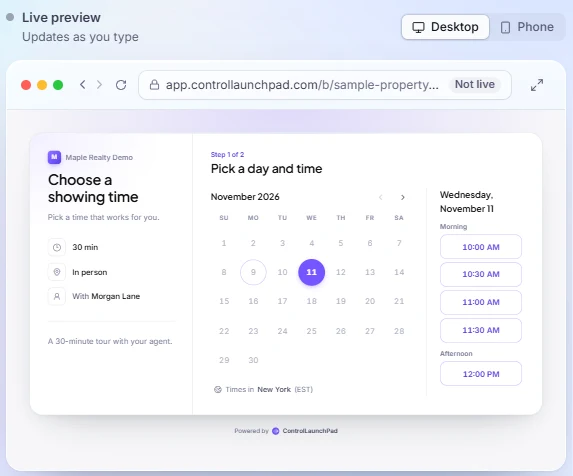
Create a booking page with a clear purpose, such as an initial seller consultation. Choose the duration, location or meeting details and the questions the host needs beforehand. Use the appointment status definitions to distinguish a booking from a completed visit. A consultation and an access-dependent property visit may need different arrangements.
Review the page name, meeting details and intake questions.
Assign hosts and check availability
Use one host or rotate bookings across selected teammates. Review working hours, time zones, notice and buffers so the available slots are practical for that meeting.
Confirm the eligible hosts and their available hours.
Choose conflict calendars and a writable destination
Each host can connect Google Calendar or Outlook. Select calendars whose busy times should block bookings, and choose an editable destination when writing CRM appointments to the provider.
Test the intended calendar choices before sharing the page.
Review confirmations and reminders
Check the published wording and day-before or hour-before reminder settings. Delivery depends on when the appointment is booked and the enabled, eligible sending channel.
Review the reminder switches and perform a controlled test booking.
Share the published link in context
Send the link after explaining what the meeting is for. The seller chooses an offered time and provides the requested details. Review the resulting appointment, assigned host and lead history before the call.
Confirm that the seller and host have the expected meeting details.
Keep later changes aligned
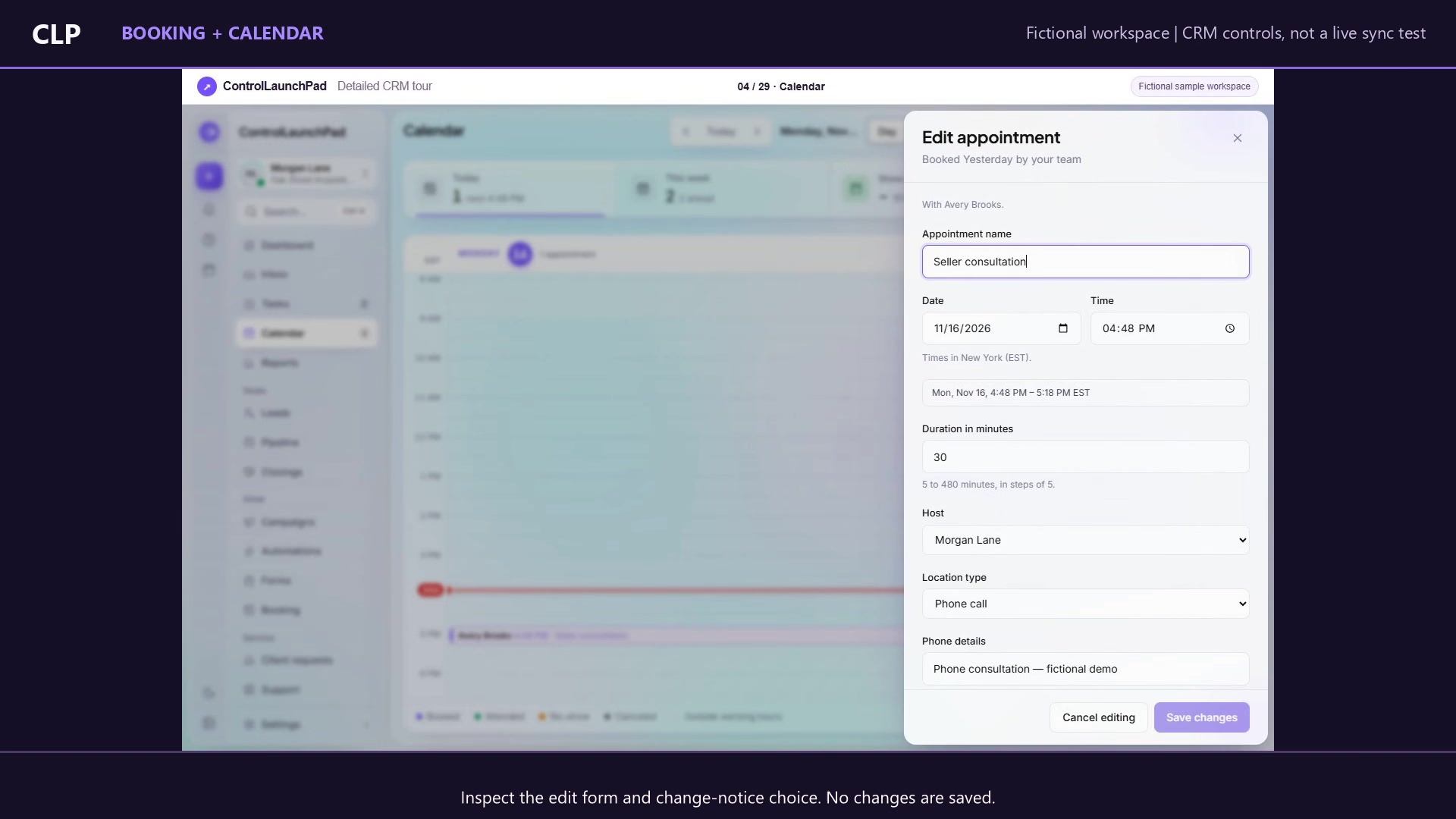
Edit the appointment in CLP when appropriate, or use the seller's management link to reschedule or cancel. Valid supported time changes or deletions of existing linked Google events can update CRM appointments. Incoming Google time changes refresh future reminders without sending a change notice. Review old tasks and campaign settings separately.
Check the updated time and the remaining follow-up plan.
Illustrative seller scenario
A consultation before arranging property access
In this fictional example, Avery chooses a consultation with Morgan after an email exchange. Morgan reviews the seller history and uses the call to clarify the tenant's timeline. A later property visit is arranged separately once access is agreed; the consultation booking does not establish permission to enter the property.
Set up your workspace for this workflow
Separate conflict checks from calendar imports
The connection checks selected busy times and can write linked CRM appointments. It does not turn every Google event into a seller appointment. Select the calendars and destination deliberately.
Choose which work stops after booking
On Pro and higher plans, enable stop when an appointment is booked on relevant campaigns. A new booking can trigger that stop; later edits, reschedules and cancellations do not. Review separately created tasks and other sequences instead of assuming the booking completed them.
Common pitfalls and the next useful action
Publishing a time without testing the host's calendar
Create a test booking and confirm its time, host and linked event. If the connection needs attention, fix it before using the page with a seller.
Expecting a reminder through an unavailable channel
Review the enabled reminder, its lead time, recipient preferences and the eligible sending route. Activated smrtPhone can send eligible appointment SMS; an unavailable or held selected route does not silently become another provider. Check the outcome instead of assuming the reminder arrived.
How this guide was reviewed
Reviewed booking host and reminder settings, calendar connection choices and linked-event synchronization source for this appointment guide.
- Checked single-host and rotation settings, selected busy calendars and the writable appointment destination.
- Checked day-before and hour-before reminder controls and the need for sufficient lead time and an eligible sending channel.
- Checked linked Google time-change and cancellation handling, including refreshed future reminders and no automatic change notice for an incoming Google time change.
No live provider connection or new booking was tested during this review. Linked Google event updates have validation and conflict limits; this is not a promise to import arbitrary events or synchronize Outlook edits back into CLP. Reminder delivery depends on enabled settings, lead time and an eligible connected channel.
Booking and follow-up guides
Seller appointment booking questions
Can seller appointments rotate across acquisition teammates?
Yes. A booking page can use one host or rotate bookings across selected teammates. Review each host's availability and calendar connection so the offered times fit their work.
Can I connect Google Calendar or Outlook?
Each person can connect one supported provider at a time, select calendars for busy-time checks and choose a destination they can edit for writing CRM appointments.
When can CLP send appointment reminders?
Booking settings include reminders for the day before and an hour before the appointment. Delivery depends on booking lead time, enabled settings and an eligible channel.
Can sellers reschedule or cancel?
The appointment management link lets the seller choose another available time or cancel. Your team can also edit the appointment in CLP and review the resulting lead history and reminders.
Do changes in Google Calendar update CLP?
Valid supported time changes and deletions of existing linked Google events can update their CRM appointments. Incoming time changes refresh future reminders without sending a change notice. Review any reported conflict; this connection does not import every event from the Google account.
Try this workflow with your next seller lead
Start a 14-day free trial, set up your channels, and walk through the steps with a test lead.