Background AI
Lead briefs
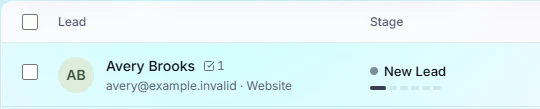
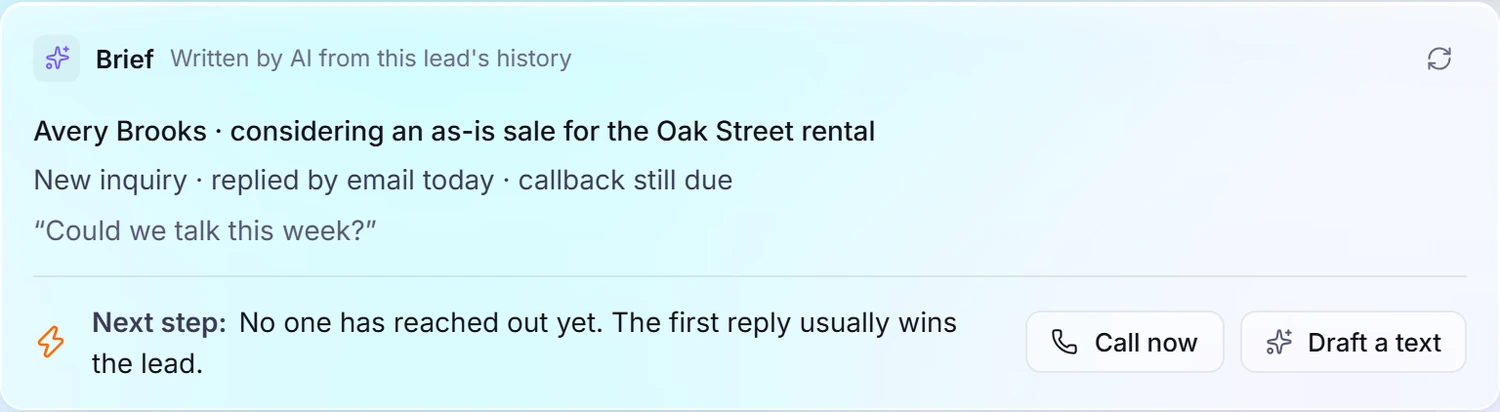
Open a lead to see a short brief built from their record. Review their stage, recent activity, and suggested next step before you call.
All plansNo credits used within fair use
ControlLaunchPad features
Capture new leads, stay on top of replies, and see every offer through to closing. Explore how the CRM works at each step.
Card required. Temporary hold released after signup. Cancel before the trial ends to avoid a charge.

01 / Lead capture
Collect inbound inquiries, see where they came from, and give the owner enough context to respond quickly.
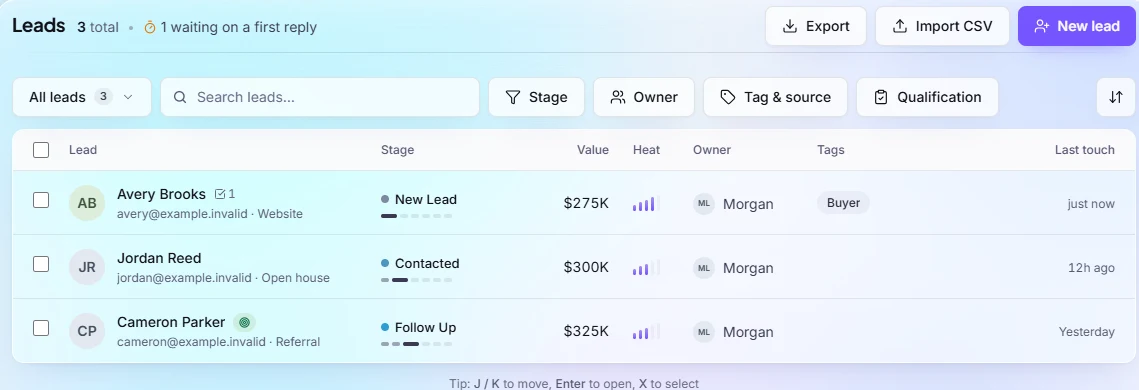
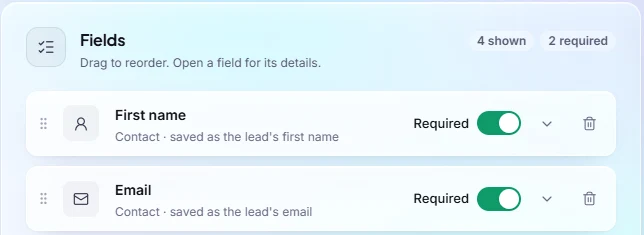
Bring in inquiries from your connected website forms, ads, email sources, and chat, then notify the teammate who owns the lead.
Import a CSV export from your current CRM, with ready-made column matching for Follow Up Boss, HubSpot, Pipedrive and GoHighLevel. Check it with a dry run first, and undo the leads an import added within 24 hours.


ExampleA seller fills out your property form. The new lead lands in CLP and the teammate you assigned gets an alert.
02 / Inbox & calling
Give teammates the context to make a handoff, answer a seller, or log the result of a call.
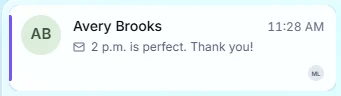
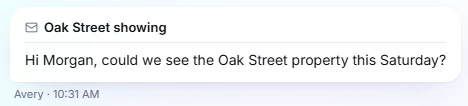
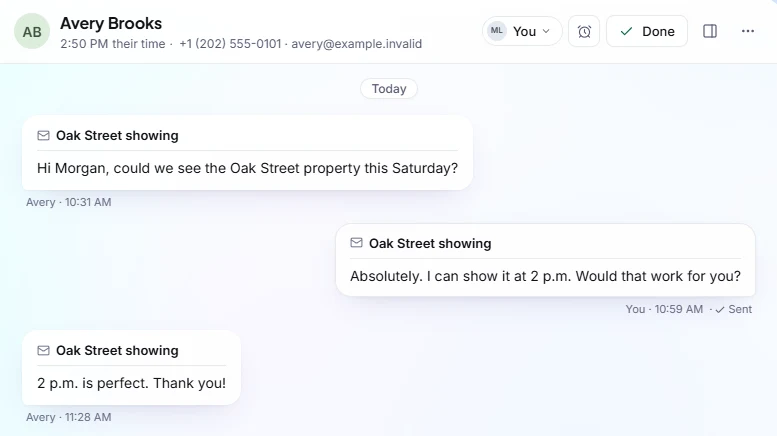
Every conversation with a lead sits on one thread, even the emails you send from Gmail or Outlook, so whoever picks it up knows exactly where things stand.
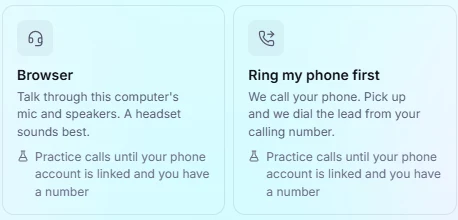
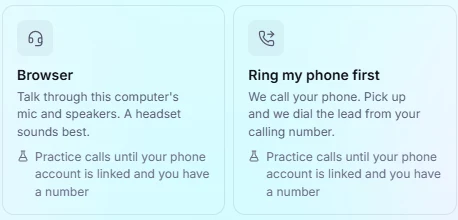
Every call button dials the same way, and every call lands on the lead's timeline with notes and an outcome.
Voicemail drop and call recording are on Pro and up.


ExampleA teammate opens the inbox before calling a seller, reviews their last reply, and logs a callback task after the call.
03 / Follow-up
Use tasks for individual callbacks and rules for the steps your team repeats.
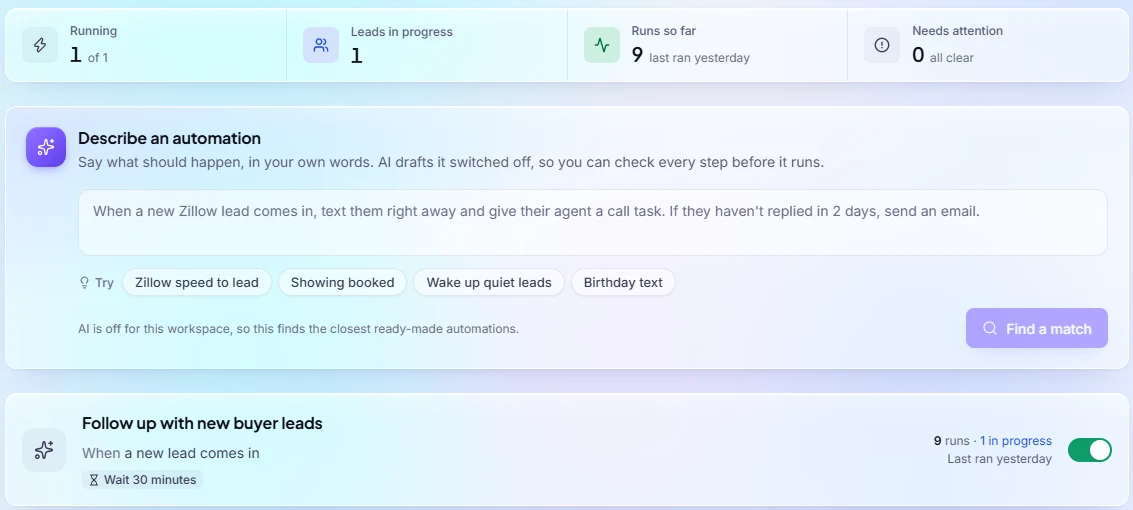
Use new inquiries, stage changes, missed calls, bookings, or dates to assign leads and create tasks. Add email or texts when your connected channel supports it.
Nurture campaigns are on Pro and up.
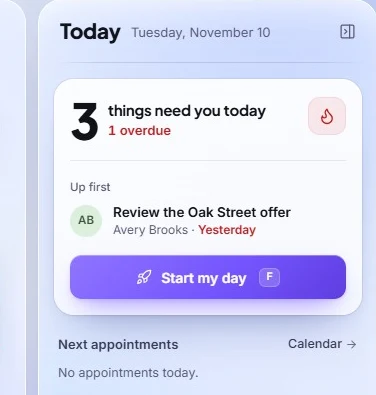
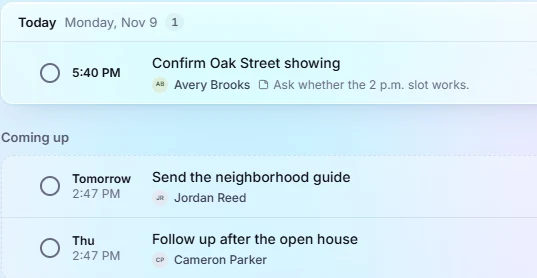
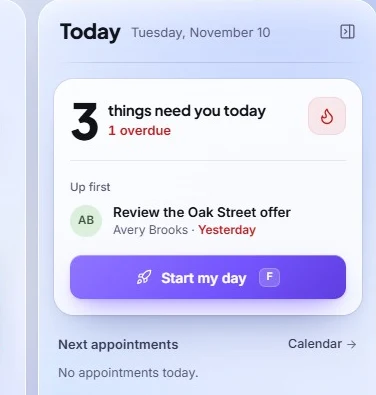
Assign callbacks with due times and reminders. Start my day takes you through appointments, untouched new leads, and overdue or due tasks, one item at a time.


ExampleA seller replies to a nurture campaign. The sequence can stop on that reply so your team can take over in the inbox.
04 / Deals & closings
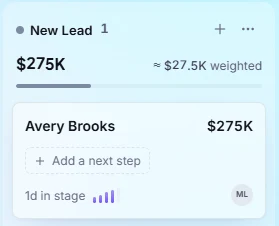
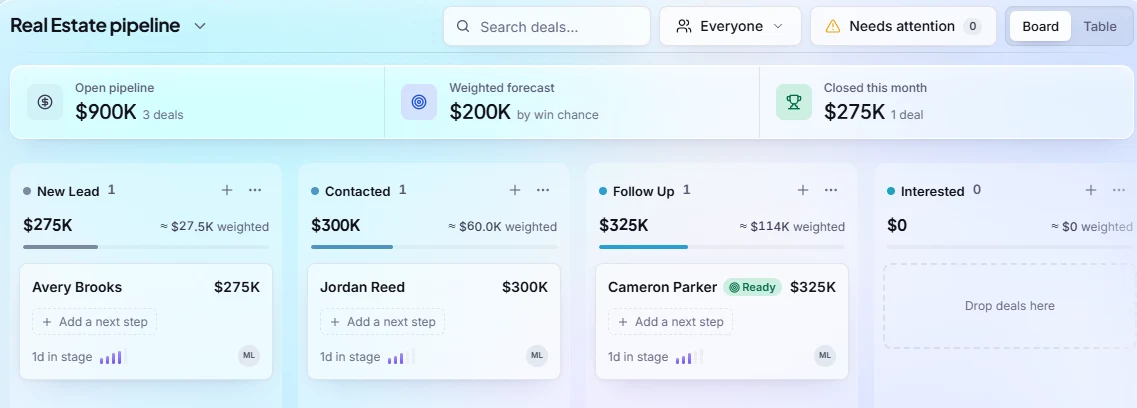
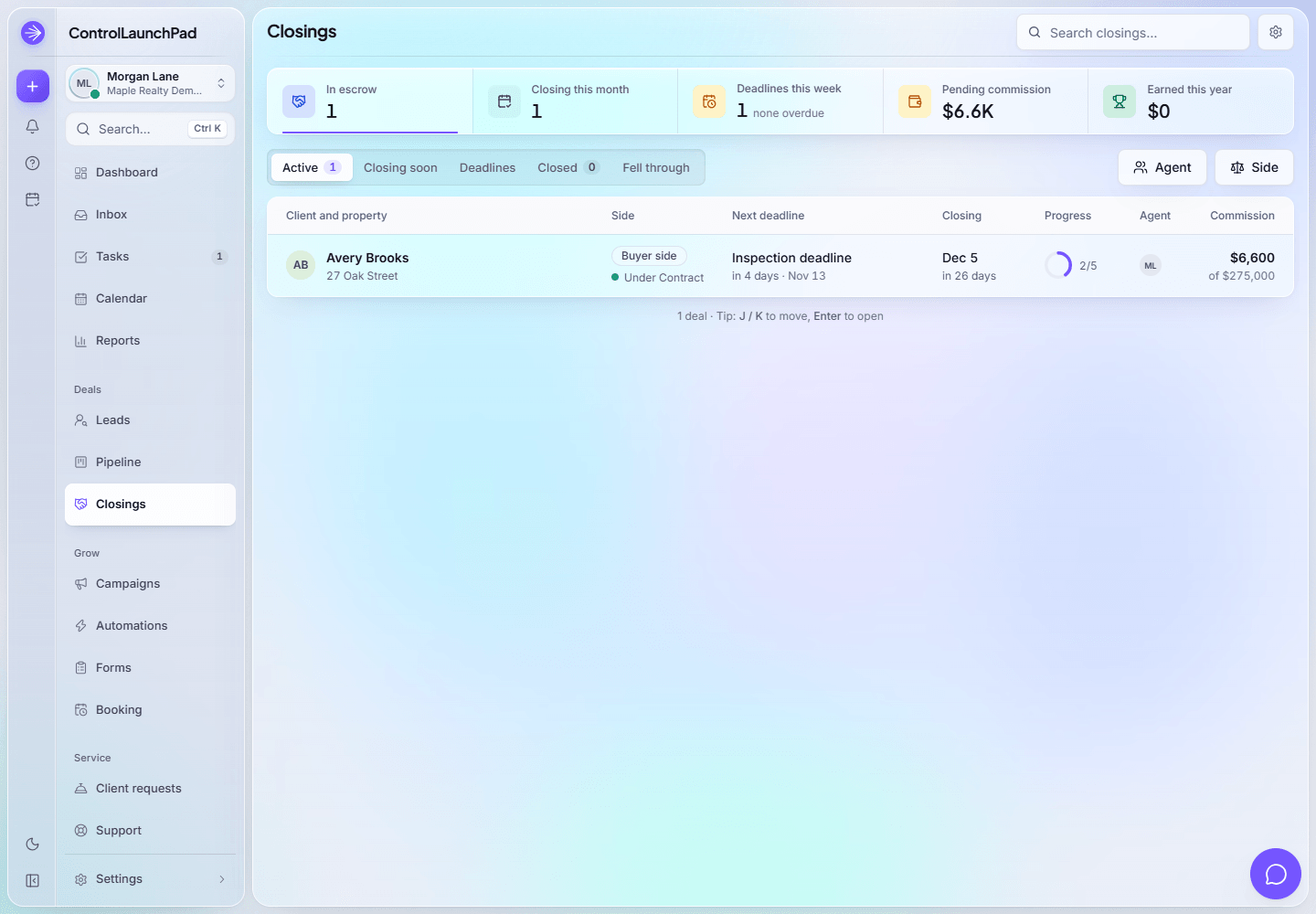
See offers by stage, then keep closing dates and checklist items with the deal when it goes under contract.
Set your own stages, from first contact to offer sent and under contract. Track deal values and expected close dates in one place.
Starter has one pipeline; Pro and up add more.
Move a deal into a closing stage to start tracking key dates and your team's checklist.
Send a client a secure upload link for the documents you need. Review each checklist item, then approve the upload or ask for a replacement.


ExampleMove a deal into a closing stage and use its checklist to track the work due before closing.
05 / Booking
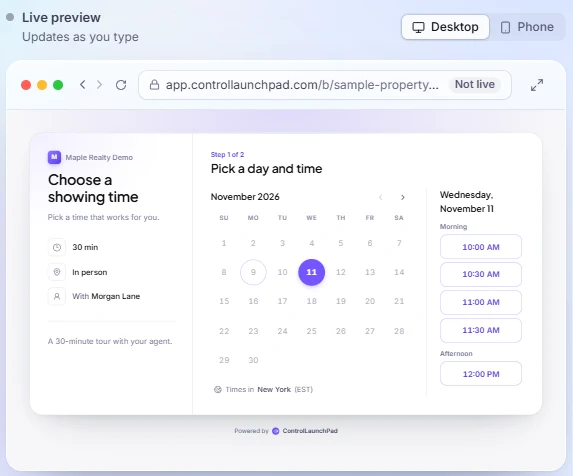
Offer a link for a seller call or property visit, and tie your availability back to your calendar.
Share a booking page for seller calls or property visits. Available times follow each teammate's working hours and time zone.

ExampleA seller chooses an open time for a walkthrough. Your calendar sync keeps busy times from being offered.
06 / Reporting
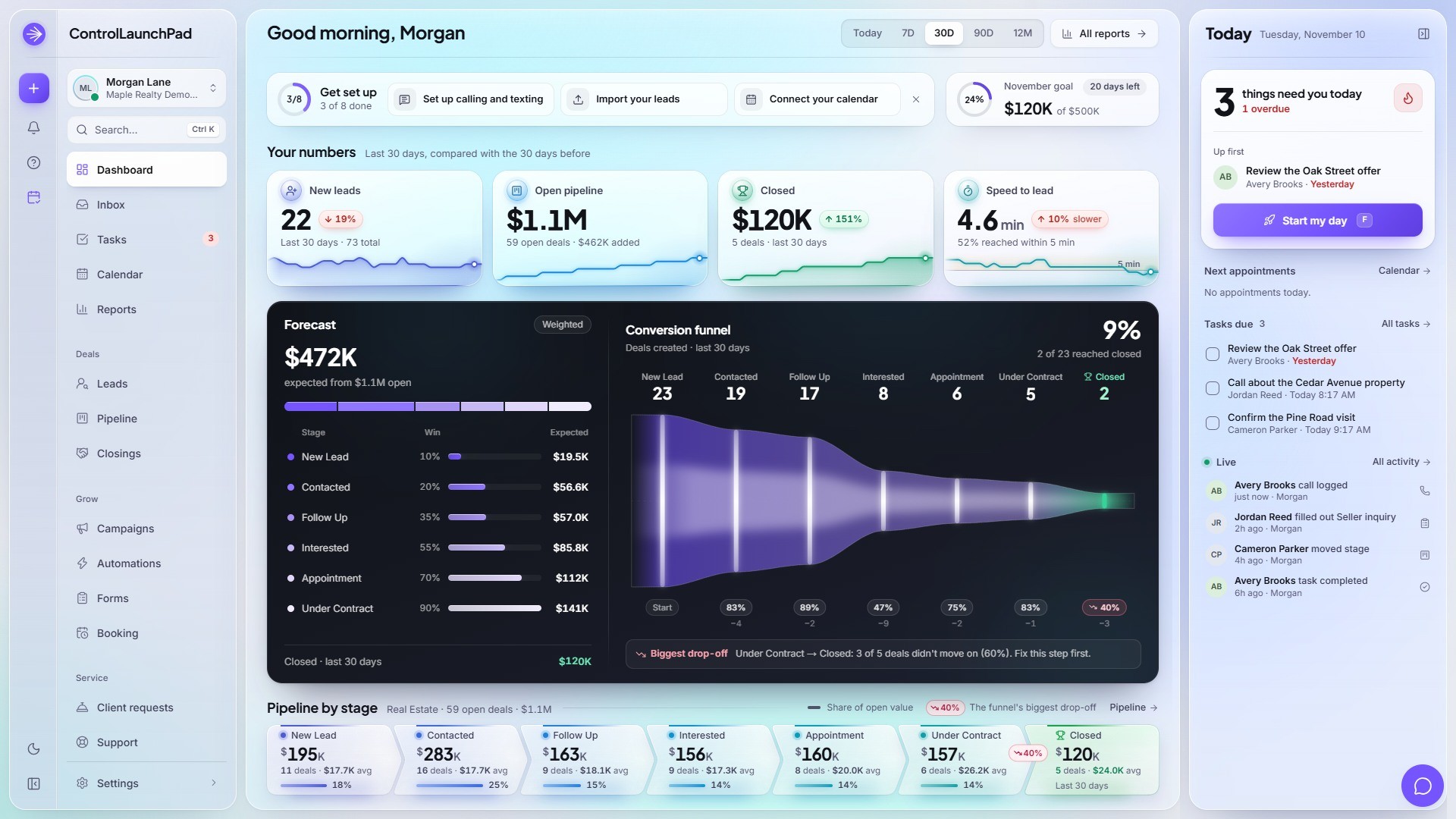
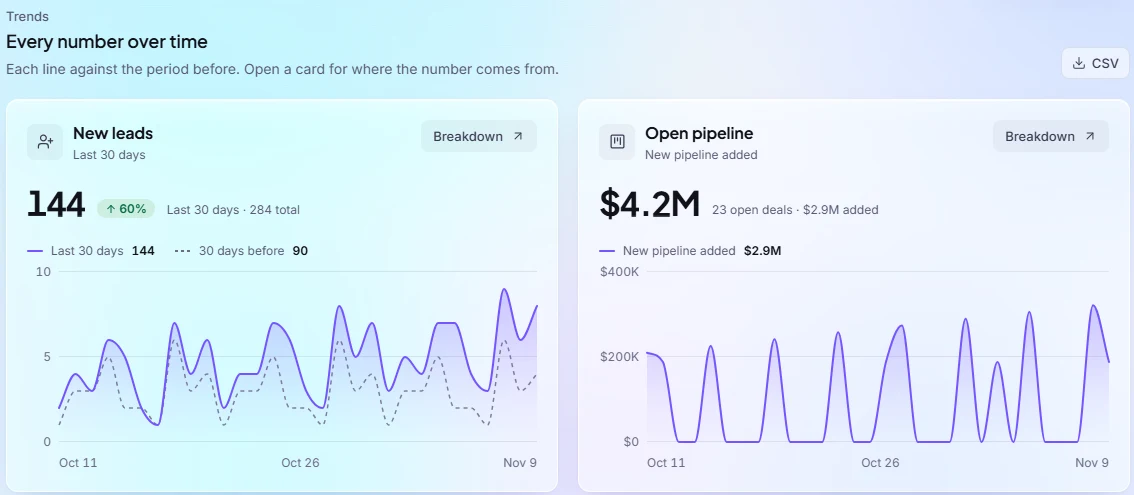
Review lead activity and response speed alongside pipeline performance and team goals.
See your team's activity today, review lead sources over time, and track progress against individual goals.
The custom report builder is on Pro and up.


ExampleCompare response times by lead source, then look at the pipeline to see where offers are moving or getting stuck.
07 / AI assistance
CLP helps you catch up on a lead, write a reply, and decide what to do next. You review drafts and workflow changes before they go out or turn on.
Background AI
Open a lead to see a short brief built from their record. Review their stage, recent activity, and suggested next step before you call.

All plansNo credits used within fair use
Background AI
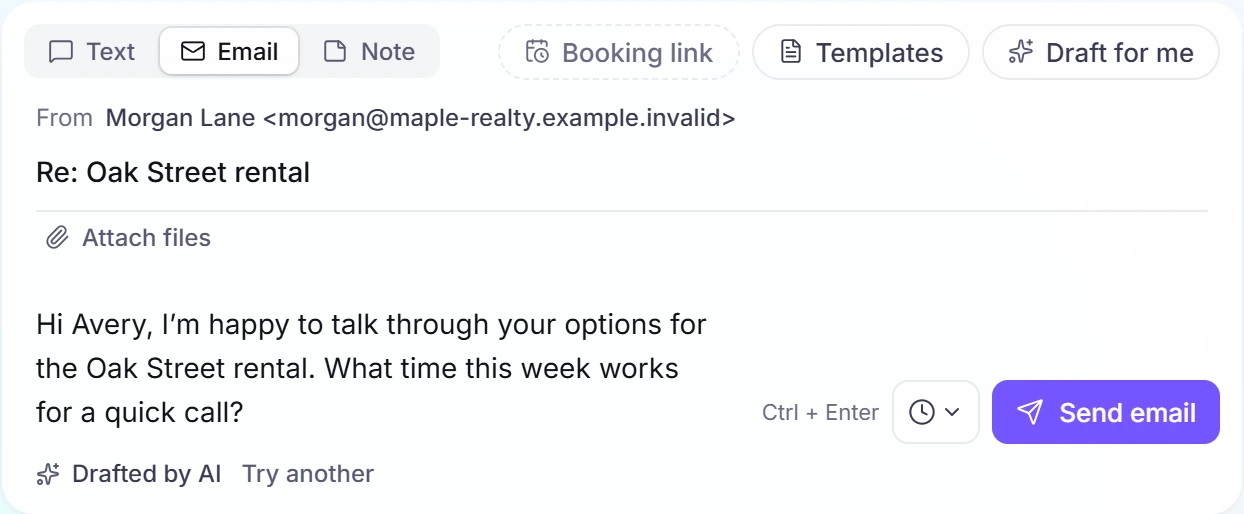
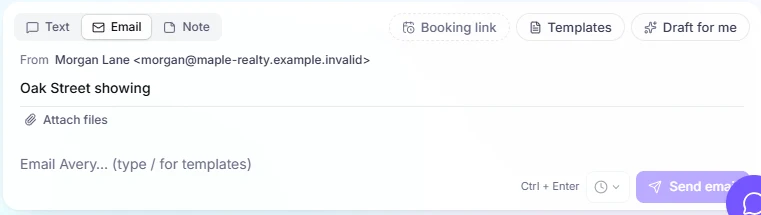
Draft a text or email from the conversation. Edit it in the composer and send it when you’re ready.

All plansReview before sending
Background AI
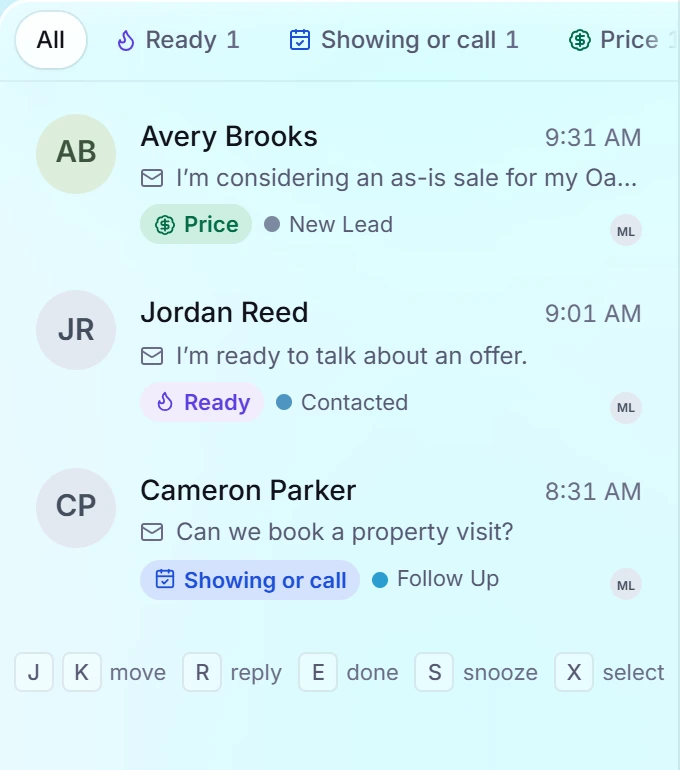
Spot questions and requests to stop in incoming messages. Filter the inbox by label when it’s time to triage.

All plansNo credits used within fair use
Background AI
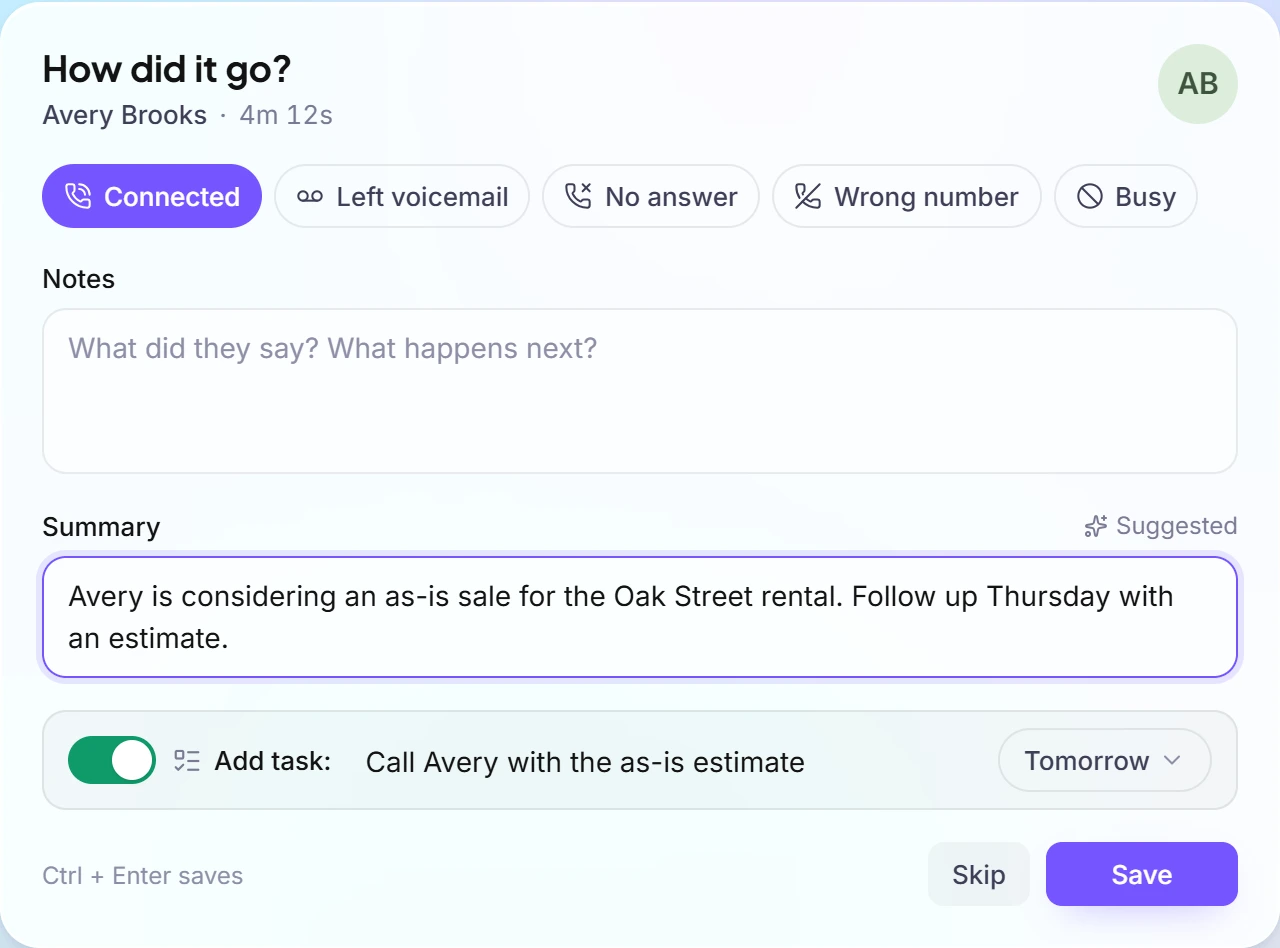
Review a suggested call summary and next task before saving. The outcome and recap stay on the lead’s timeline.

All plansNo credits used within fair use
The recap uses the outcome and notes recorded for the call. Call transcripts remain Coming soon.
Background AI
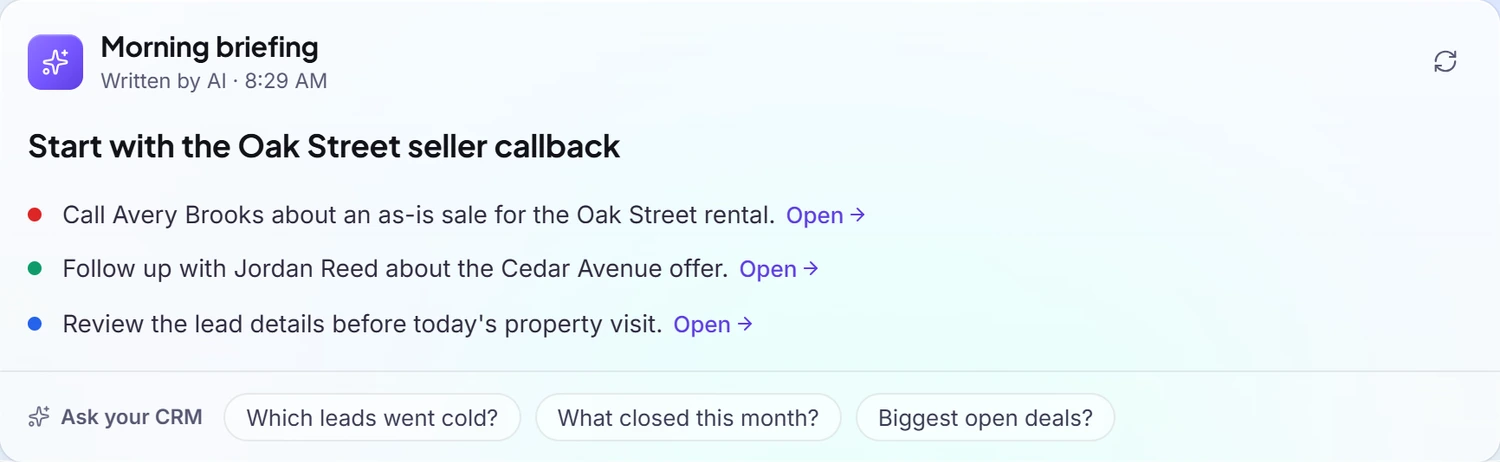
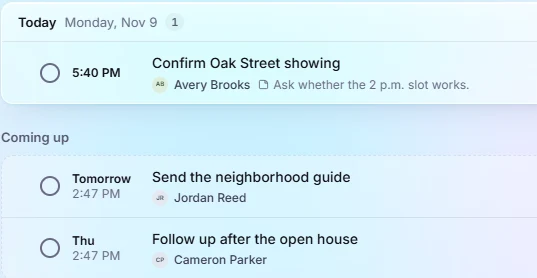
See new leads, overdue tasks, and appointments in one place. Open a priority to pick up the underlying work.

All plansNo credits used within fair use
Pro and up
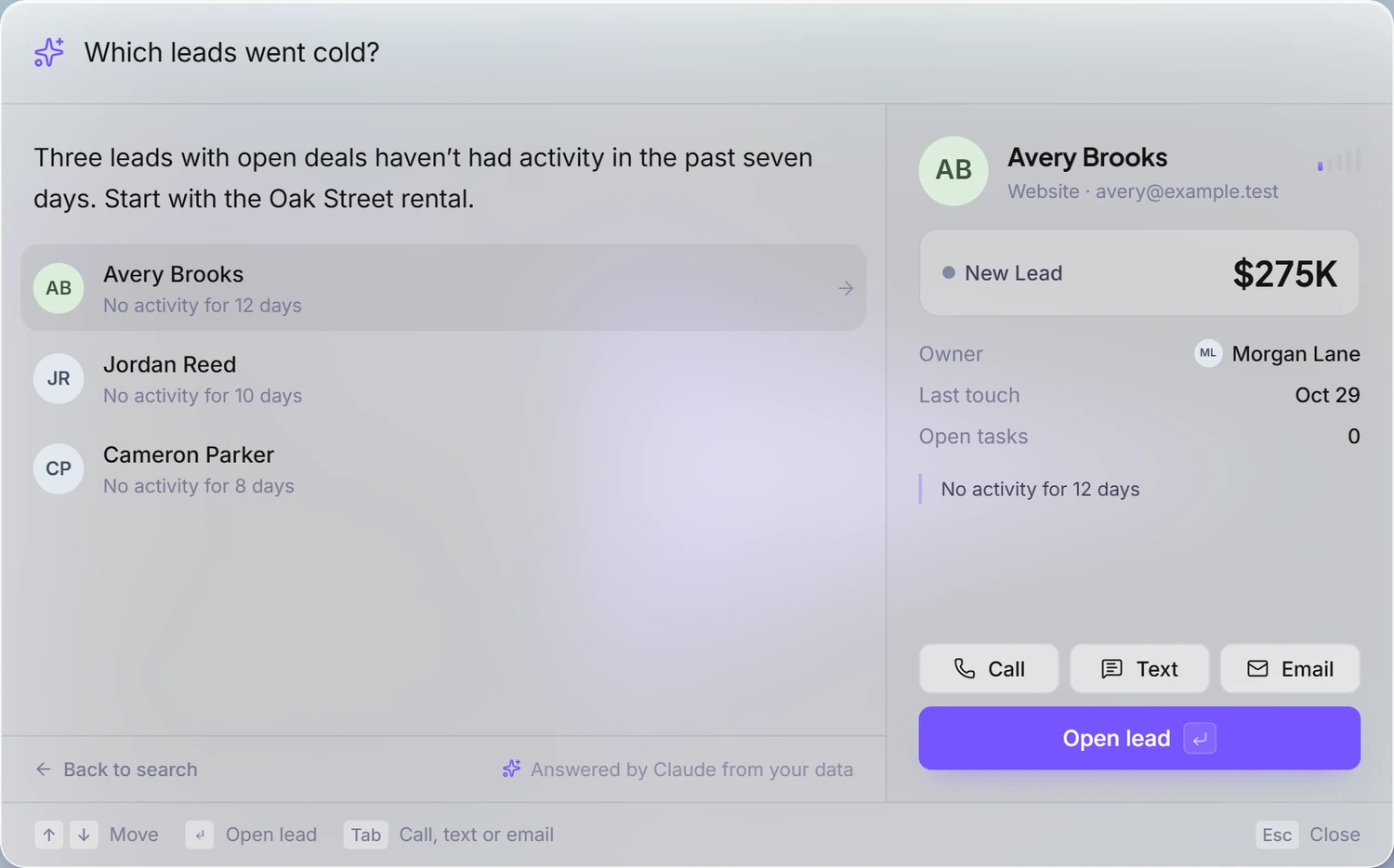
Ask a plain-English question about your records. Find cold leads, overdue tasks, or deal information you have permission to see.

Pro and upUses your CRM records
Pro and up
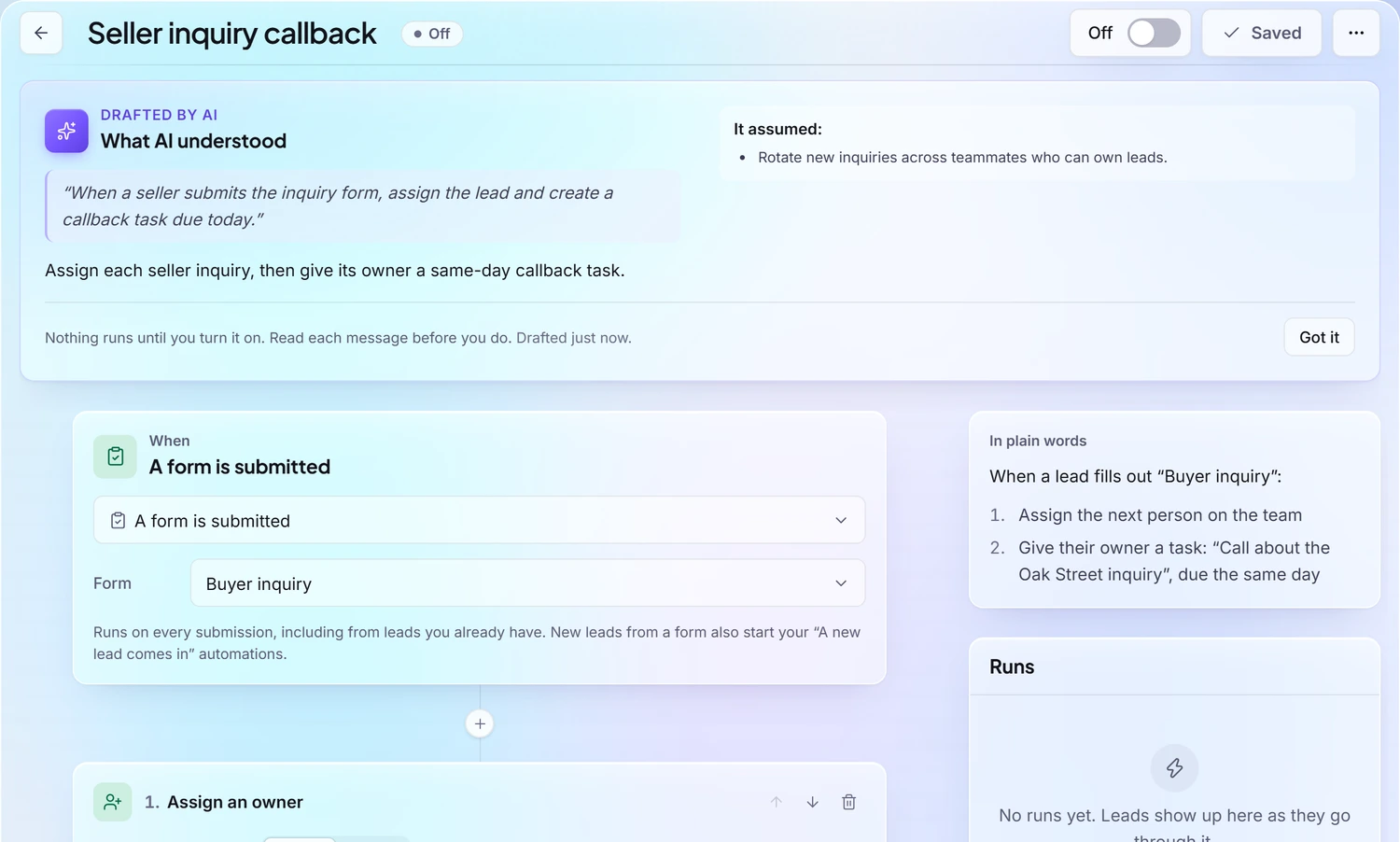
Describe a follow-up rule in plain English. Review the proposed trigger and actions before turning the workflow on.

Pro and upCustom drafts in preview
Lead briefs, reply ideas, inbox labels, the morning briefing and call wrap-ups use no credits, within fair use. AI reports, the automation builder and extra credits are on Pro and up. Coming soon: the AI Lead Assistant, which answers new leads for you.
08 / Workspace controls
Connect your existing channels, choose workspace roles, and stay on top of new leads while you’re away from your desk.
Opt-outs are honored everywhere, texts wait until carriers approve your registration, and registering your texting numbers with US carriers happens inside the app.
Add ControlLaunchPad to your home screen from the browser, with no app store needed, and get push alerts for new leads, replies, tasks and appointments.
Short product demos
Silent examples with fictional US investor data. Load a player when you want to watch; captions and transcripts describe each scene.

The video is not loaded. Load its controls when you are ready; playback remains under your control.
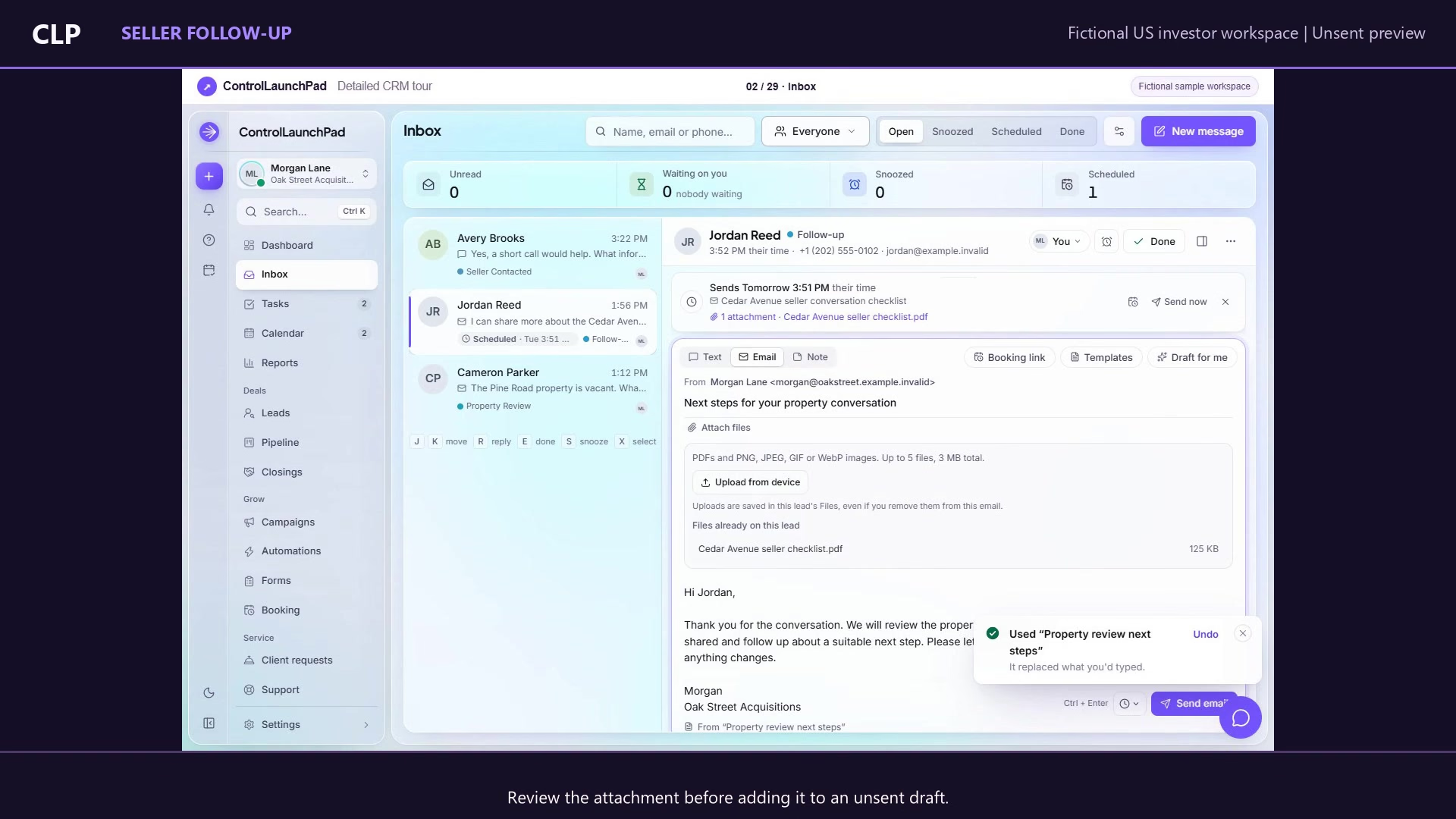
Read the conversation. Prepare a draft. Assign the follow-up.
Fictional workspace. No email is sent or scheduled.
Review the seller conversation, prepare a draft, then give the next action an owner.
1. Read the existing email thread and seller context before replying.
2. Choose a saved template, then edit the message for this seller.
Review the attachment before adding it to an unsent draft.
Check the proposed send time and time zone. Nothing is sent or scheduled here.
3. Review upcoming follow-ups, then open the linked task.
Use the task list to decide which lead needs attention next.
Confirm the responsible teammate, due time and notes.
Explore the full workflow and free seller email templates at controllaunchpad.com.

The video is not loaded. Load its controls when you are ready; playback remains under your control.
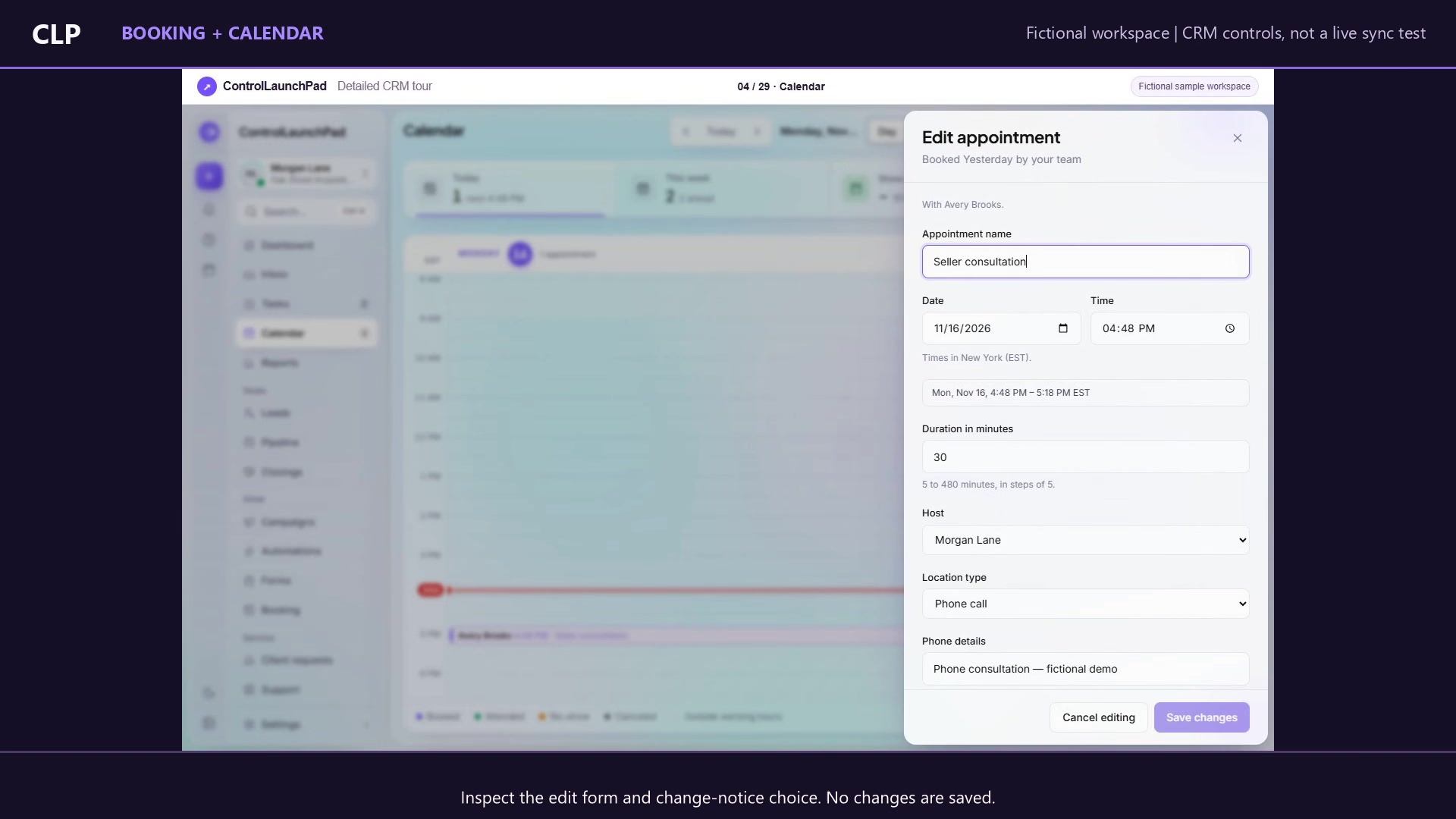
Review the booking setup, host and appointment details.
Fictional CRM controls. No booking draft is published, appointment change saved or live Google sync tested.
Review booking and appointment controls in a fictional CRM workspace.
1. Review a draft seller consultation and its setup.
Check the duration and appointment fields.
Review confirmation and reminder choices for connected channels.
Check hosts and working hours before sharing a booking link.
Inspect sharing options. This draft is not published.
2. Open Calendar to review the seller appointment.
Use the day view to place the appointment in context.
Review its host, seller, time zone and location.
Inspect the edit form and change-notice choice. No changes are saved.
Google sync needs a connected calendar. This clip previews CRM controls, not live provider sync.

The video is not loaded. Load its controls when you are ready; playback remains under your control.
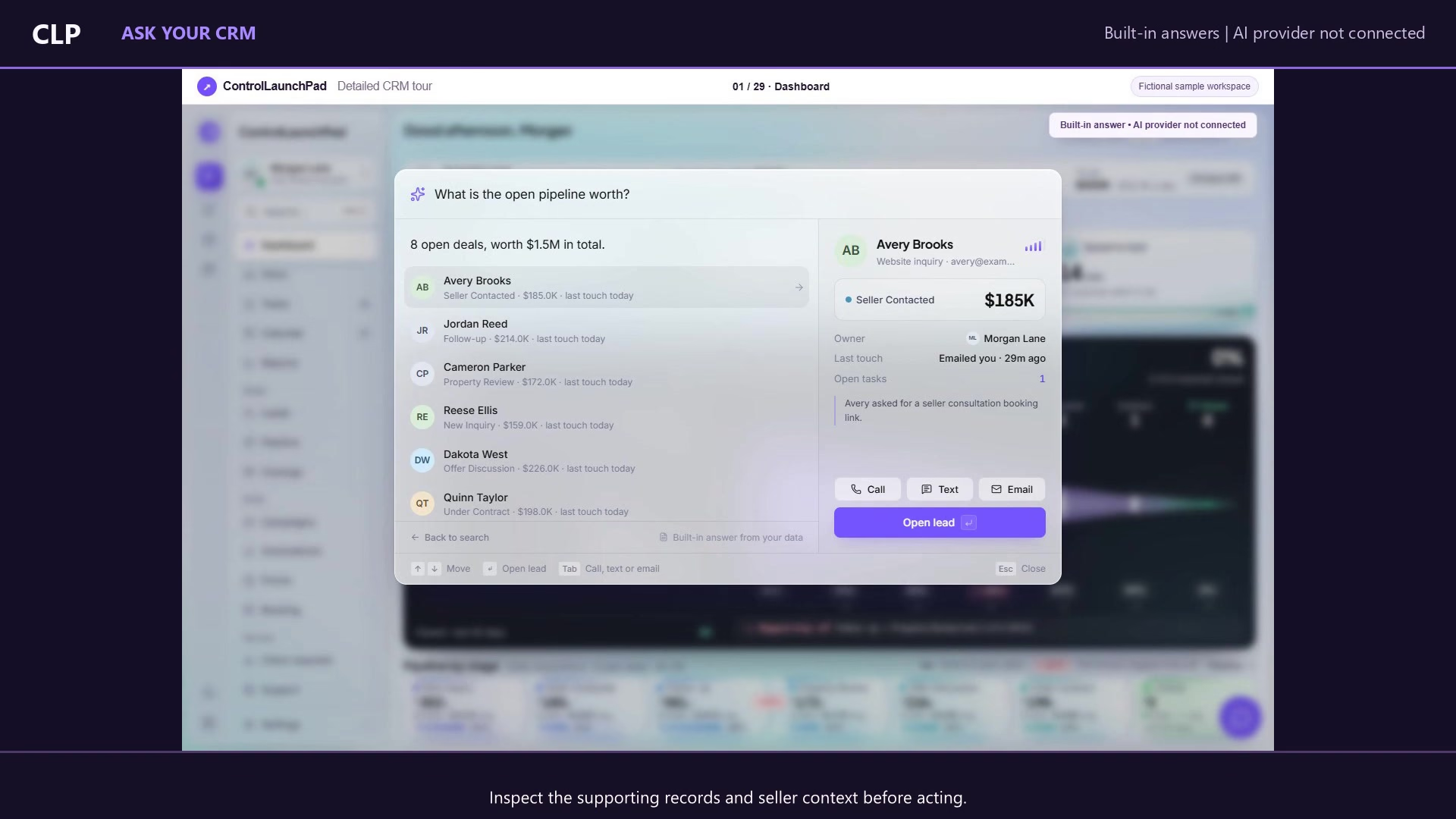
A record-backed built-in answer, followed by a reviewed draft.
Fictional records and built-in answers. The AI provider is disconnected; no message is sent.
See a record-backed built-in answer in a fictional investor workspace.
1. Start from Dashboard and ask about the open pipeline.
The built-in answer reports eight open deals from this fictional dataset.
Inspect the supporting records and seller context before acting.
2. Review a built-in reply draft. It is not sent, and no AI provider is connected.
Built-in answers are shown. Live model responses and investment results are not demonstrated.
Workflows for US real estate investors
Start with seller follow-up, the acquisitions pipeline, or appointment booking. The full library also covers intake, deal reviews, documents, texting, and team handoffs.
Build a seller follow-up workflow for US real estate investors. Assign owners, create callback tasks, and follow up through supported email and SMS.
Read the workflow for seller lead follow-upOrganize your real estate acquisitions pipeline in CLP. Track seller conversations, deal stages, next tasks, and closing dates for your US investment team.
Read the workflow for acquisitions pipelineSet up seller calls and property visits in CLP. Share booking pages, connect Google or Outlook calendars, and configure confirmations and reminders.
Read the workflow for seller appointment bookingCheck your tools, compare plans, or look up the details before you start.