Use AI with the seller context your team has recorded
A practical guide to CRM questions, lead briefs, message drafts and automation preparation for US real estate investors. Start with the record, check the answer and choose the next action yourself.
An AI CRM can help a real estate investor review recorded seller information, ask about the current acquisition pipeline and prepare follow-up drafts. CLP combines built-in rules with provider-assisted features when available. It does not turn incomplete seller records into verified property facts, and a draft still needs a teammate's review.
Know which kind of help you are using
Rules from CRM records
Built-in answers and drafts
CLP can use built-in rules when the AI provider is not connected, workspace AI is off or a provider answer is unavailable. The response identifies a built-in answer, brief, draft or workflow match. These fallbacks use no AI credits; feature and access limits still apply.
Availability and allowances apply
Provider-assisted features
When CLP's AI provider is available and workspace AI is enabled, eligible features can use it with CRM context. Included credits, background fair use, your plan and your permissions affect availability. The platform manages the provider connection; connecting Gmail or Calendar does not turn on AI.
Check the status displayed with a result. A provider-assisted response still needs review; a built-in result is not evidence that a model ran.
Find the help that fits the next action
The feature catalog keeps the individual tools, their supporting screens and the workflow details together. Open a tool below, then use this guide to check the result and its limits.
Lead briefs, reply ideas, inbox labels, call wrap-up and the morning briefing use background fair-use rules. Provider-assisted Draft for me requests use credits as shown below. Ask your CRM and custom automation drafts require Pro or above; custom drafts remain in preview. Call wrap-up uses recorded outcomes and notes, while call transcripts remain Coming soon.
Six CRM questions to start with
Ask one clear question about your current records. Add exact source, owner or stage names from your workspace when needed, and inspect the records supporting the answer.
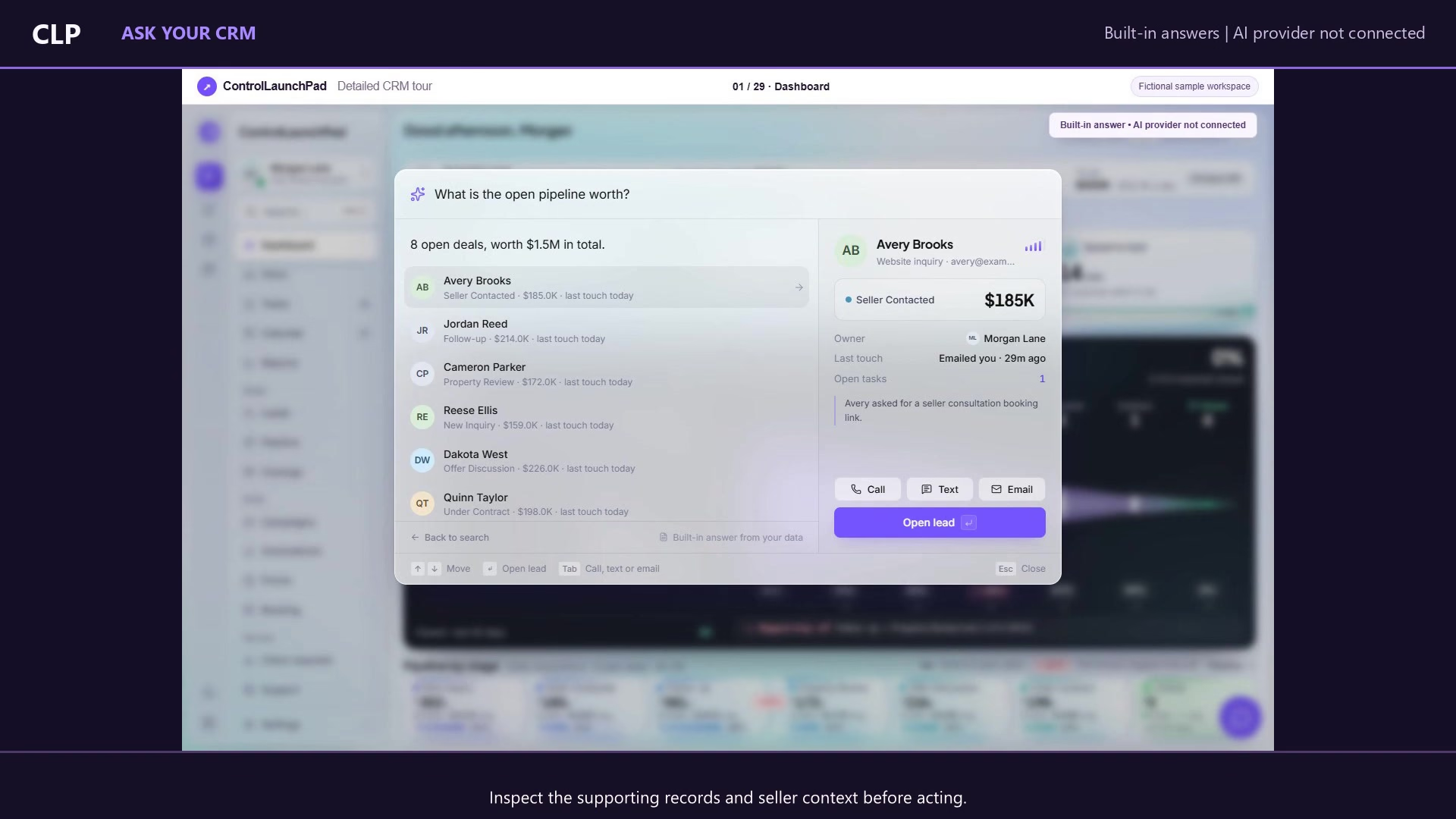
What is the open pipeline worth?
Review the current open-deal total and supporting records. Entered pipeline value is not a forecast of cash received or profit.
How many new leads came in this month?
Check the date period and workspace time zone. New leads are counted from their recorded creation dates.
Which leads are unassigned?
Review the owner on each visible record, then assign work through the normal lead controls.
Which tasks are overdue?
Open the task to check its due time, responsible teammate and whether the action is still needed.
Which leads are cold?
The supported built-in question finds leads with open deals and no recorded activity for more than seven days. It is not a historical lead-temperature report.
What are the biggest open deals?
Inspect the entered values and stages before deciding which opportunities need review. Deal size does not establish a closing probability.
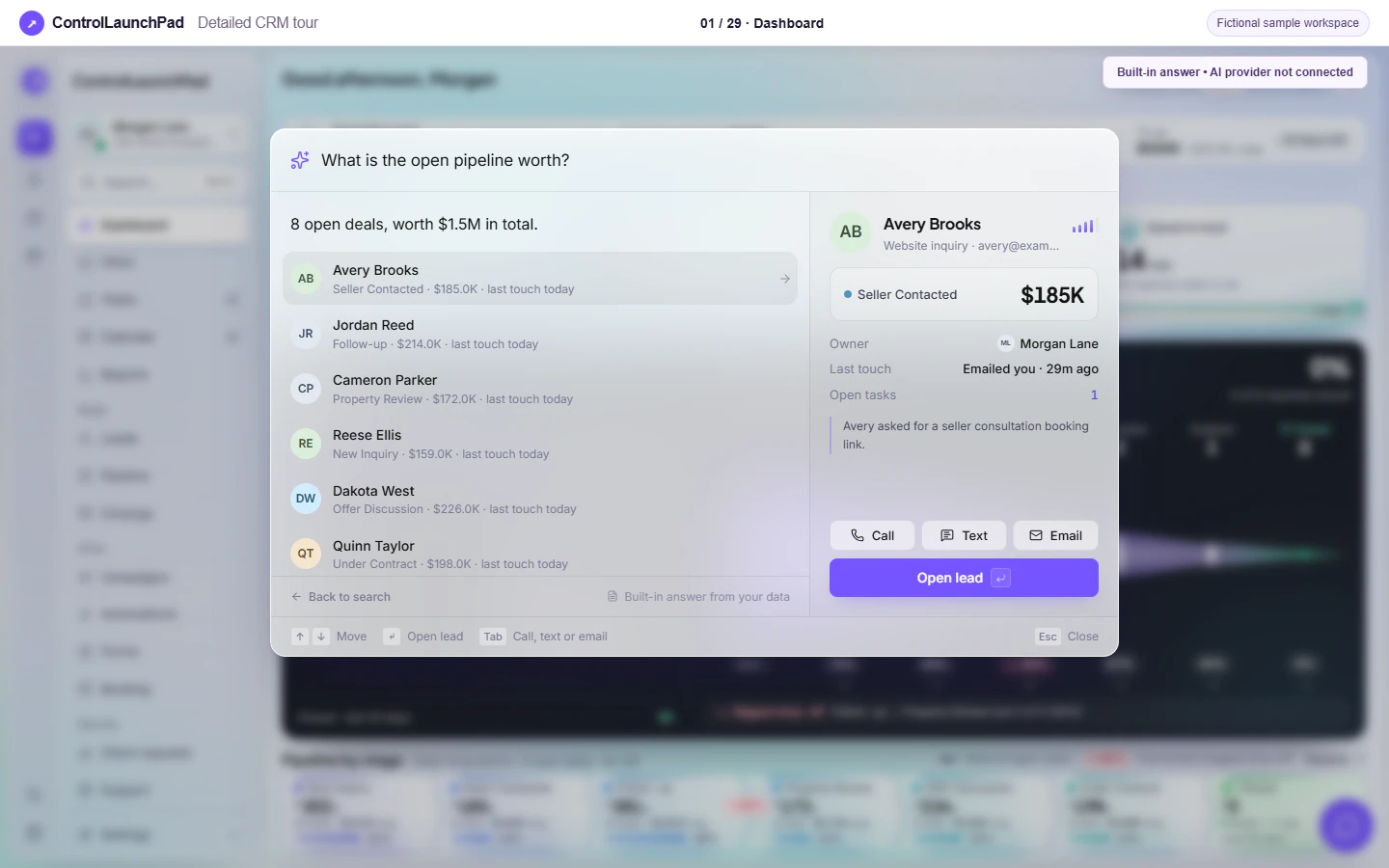
The actual built-in answer engine displays the fictional workspace's entered pipeline total. The AI provider is not connected. The displayed $1.5M is an illustrative CRM value, not a customer result. Explore the Dashboard chapter
Ask uses the records the signed-in user can access. Unsupported filters and historical questions may need a dedicated report. A short supporting list is a set of examples, not the full count of every matching record.
Three workflows with a person in control
Lead briefs
Prepare for a seller conversation
Open the seller record and review its short brief.
Check the latest recorded activity, qualification details and unanswered questions against the full record.
Choose the question to ask next and create or update the follow-up task.
Fictional example: Avery has mentioned a tenant move-out, but no date is confirmed. The team should ask for the date rather than treat the brief as confirmation.
A brief summarizes available context. Missing information stays missing; the property condition, ownership and seller timeline still need verification.
Draft for me
Prepare a reply your teammate can stand behind
Open the relevant seller conversation and choose email or an available texting channel.
Request a draft, then edit the subject, name, property details, promises and proposed next step.
Review the recipient, contact preferences and connected sending account before choosing Send.
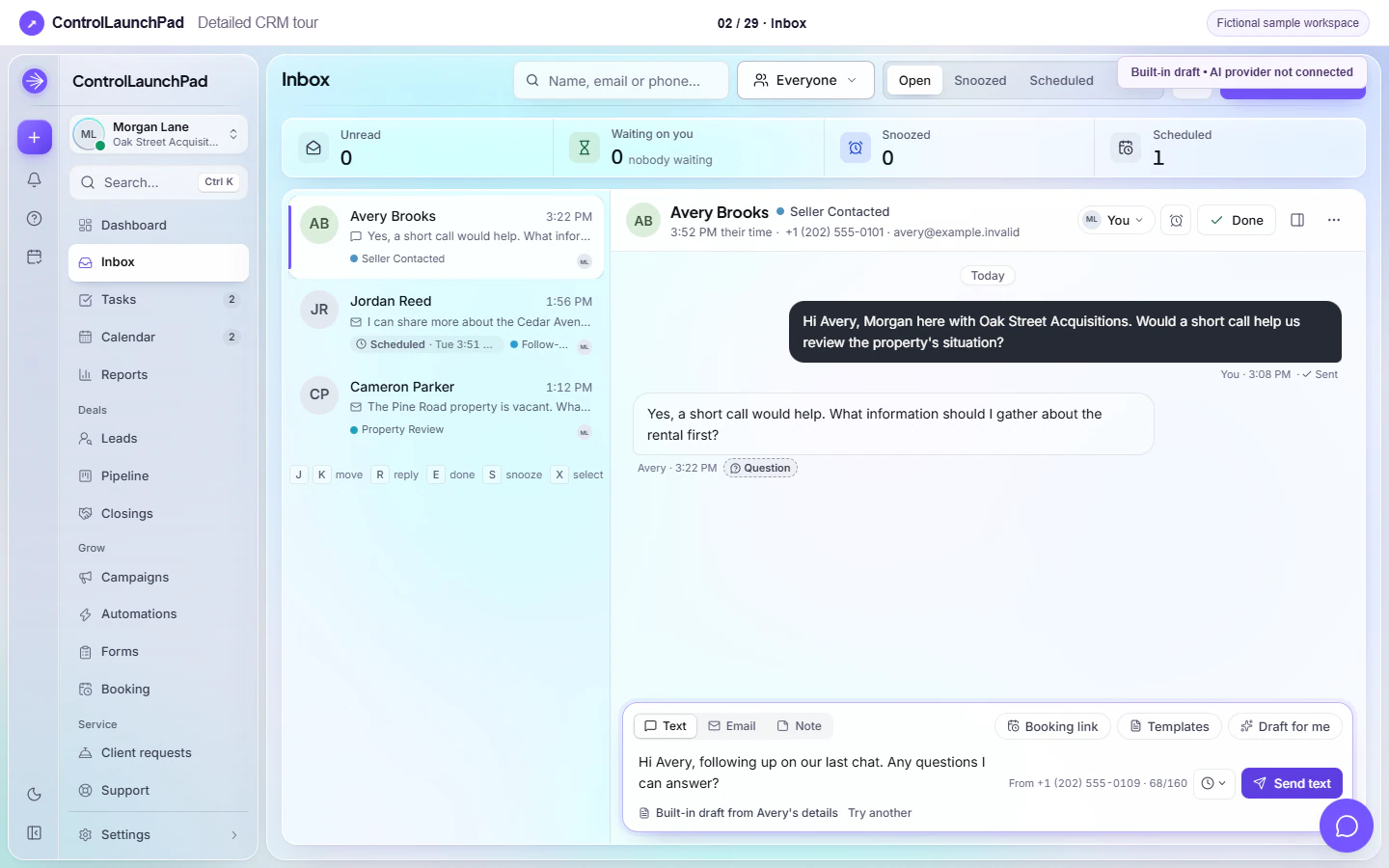
Fictional example: after Avery requests a short call, prepare a message asking for a suitable time. Keep unconfirmed tenant dates and offer amounts out of it.
A draft does not send itself or create permission to contact someone. Sending still depends on the selected channel and its readiness. Activated smrtPhone can send eligible manual, scheduled, campaign, automation and appointment SMS through a usable verified line; recipient consent, contact restrictions, plan limits and pacing still apply. The demo shows an unsent built-in draft, not a live model response or SMS delivery.
AI automation builder
Turn a repeated handoff into a reviewed workflow
Describe the trigger and next actions using your real workspace names.
Review the saved, switched-off draft when an eligible AI response is available. Otherwise inspect the closest ready-made matches.
Check the form, owner, actions, stopping rules and channel requirements before enabling or testing the workflow.
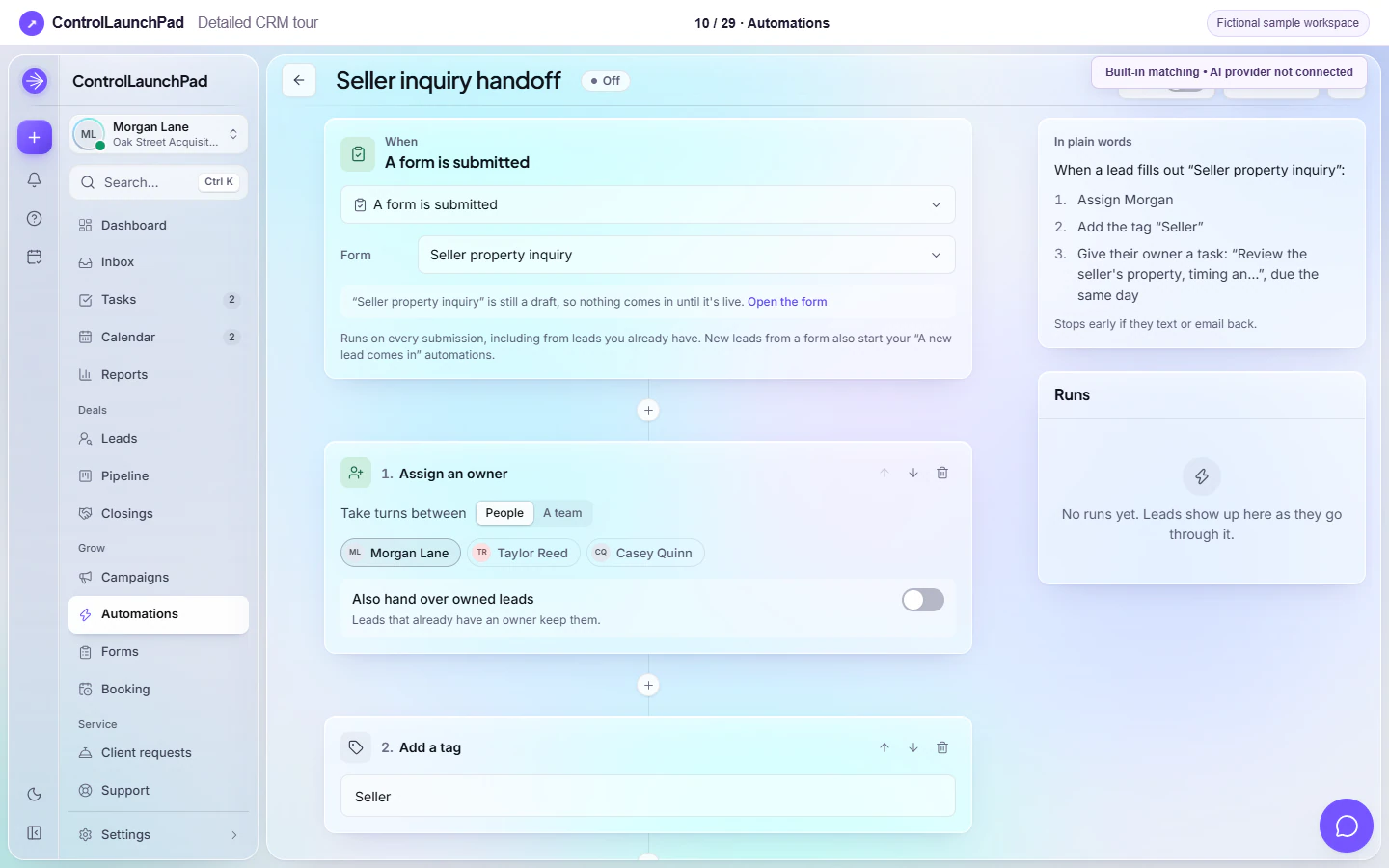
Example description to adapt: When a seller inquiry form is submitted, assign an owner and create a task to review the property details. Choose the actual form and teammate from your workspace.
Creating an AI automation draft can save a switched-off automation. It does not prove the workflow is ready to run. Built-in matching suggests existing recipes rather than creating an AI draft.
The fictional Inbox shows a built-in draft, not a live AI response or proof of delivery. Review the channel and message before sending. Explore the Inbox chapterThe fictional automation is off. This capture illustrates built-in matching and the review interface; it does not show a provider-generated draft or a running workflow. Explore the Automations chapter
Check the feature, plan and allowance
These are the standard feature rules at review. Plan availability and included monthly allowances are shown on the current pricing page; check Billing and AI status for your workspace.
Provider-assisted request weights and standard feature access
Feature
Allowance use
What to check
Draft for me
1 AI credit for a provider-assisted draft
Available across the standard plans, subject to AI status and the workspace's allowance.
Ask your CRM
3 AI credits for a provider-assisted answer
Requires the AI reports feature. The default catalog includes it on Pro and higher; the built-in fallback does not bypass this gate.
AI automation builder
3 AI credits for a usable provider-assisted draft
Included on Pro and higher in the standard catalog. Check automation limits and review the switched-off draft.
Lead briefs and reply ideas
No request credits; background fair use applies
Provider-assisted background features can fall back to built-in rules when unavailable or at their fair-use limit.
Monthly credits are shared by the workspace and do not roll over. Trial allowances are capped; background features have separate fair-use limits. When the app falls back to built-in rules, no AI credits are charged for that result.
Coming soon
AI Lead Assistant and call transcripts
These features remain marked Coming soon. Do not choose a plan expecting them to qualify leads automatically or transcribe calls today.
A review checklist before acting
Check the response's built-in or AI status before interpreting how it was produced.
Open the supporting lead, deal or task; confirm the source, date, owner and current status.
Keep unknown property details and unconfirmed seller statements explicit. Do not invent repairs, ARV or an offer amount.
Edit a draft's recipient, subject, wording and next step. Check contact preferences before sending.
Inspect automation actions and stopping rules while the draft is off, then test with a lead you control.
Keep valuation, repair estimates, contract terms and acquisition decisions in your normal review process. An answer or draft does not verify those facts or commit an offer.
AI CRM questions
How can an AI CRM help a real estate investor?
It can help an acquisition team review recorded seller context, ask supported questions about its current CRM data and prepare messages or automation drafts. The value depends on the information the team records and the review it performs. CLP does not promise a purchase, a closing or an investment return.
Do I need to bring my own AI API key?
CLP's provider connection is managed by the platform. Eligible provider-assisted features also need workspace AI enabled and sufficient allowance. A Gmail or Google Calendar connection serves that integration; it is not an AI provider connection. Check the AI status shown in your workspace.
Why does CLP say Built-in answer or Built-in draft?
That result came from CLP's rules rather than a live model response. This can happen when the provider is not connected, workspace AI is off, an allowance has been reached or the provider cannot supply a usable answer. Built-in results use no AI credits, and plan and access requirements still apply.
Can Ask your CRM answer every question about my data?
No. It supports questions such as current pipeline value, new leads, unassigned leads and overdue tasks, using records available to the signed-in user. Use exact workspace source, teammate and stage names when filtering. Unsupported tag totals and historical pipeline snapshots need a dedicated report; do not infer them from a few example records.
Will an AI message draft automatically email or text a seller?
No. Draft for me prepares text for review. Sending requires a separate action, a usable connected channel and the relevant contact permissions. An enabled campaign or automation is a separate workflow with its own sending rules; review those controls independently.
Are the AI Lead Assistant and call transcripts available now?
AI Lead Assistant and call transcripts remain labeled Coming soon. They should not be treated as current capabilities when evaluating the guide, the demo or a plan. Check the current pricing page and product availability before choosing a plan for a particular feature.