How can an acquisition teammate reply to seller texts in CLP?
Connect and activate smrtPhone, verify the relevant numbers and assign eligible team lines. Open the seller conversation in the Inbox, review its context and sender line, and send a manual reply. Check the outcome and record the next task or agreed appointment separately.
Open larger screenshot
Before you start
- A settings manager has connected the workspace's smrtPhone account and configured both incoming and status callbacks.
- Each sending number has passed its incoming test text, and smrtPhone is active for texting.
- An eligible conversation, assigned or default line, and the seller's current contact preferences.
Put the workflow into practice
Complete the number and callback setup
Connect the account in Phone & texting, configure Incoming SMS through the smrtPhone SMS Flow and configure the separate SMS status endpoint. Keep both workspace webhook links private.
Use the smrtPhone guide to review both callbacks and their matching settings.
Verify and activate the eligible lines
Send a fresh incoming test from a separate phone to each configured number. Once the setup is ready, activate smrtPhone and review any assigned teammate line and the verified workspace default.
Confirm the number is verified and available to the intended teammate.
Review the conversation before linking it
Open the incoming text in the Inbox and read the actual inquiry. Unknown numbers remain there until a teammate chooses Mark as lead. Check for existing seller context rather than assuming every unknown text is a new acquisition lead.
Decide whether the conversation should be linked to a seller lead.
Check the sender line and write a manual reply
For automatic sender selection, CLP prefers the conversation's last eligible smrtPhone line, then an assigned teammate line, then the default, with another eligible workspace line as a final fallback. Review the visible sender and the seller's request before sending an individual text-only response.
Confirm the recipient, eligible line and message, then send the manual reply.
Review the delivery outcome before another attempt
Check the message outcome and provider status updates. Accepted, sent and delivered describe different processing states; none proves the seller read the text. For an Unconfirmed result, look for the matching text in smrtPhone before retrying so an uncertain response does not create a duplicate. A saved draft or practice message is not proof the seller received it.
Confirm the outcome and record any delivery issue needing attention.
Record the next useful step
Use a task for a promised callback or missing property detail, or arrange an appointment the seller agrees to. The follow-up planner can help plan an agreed callback date without sending a text or creating a CRM task. Keep channel preferences current when deciding whether to continue by text or connected email.
Update the lead context and create the agreed next action.
Illustrative seller scenario
An incoming question about arranging a conversation
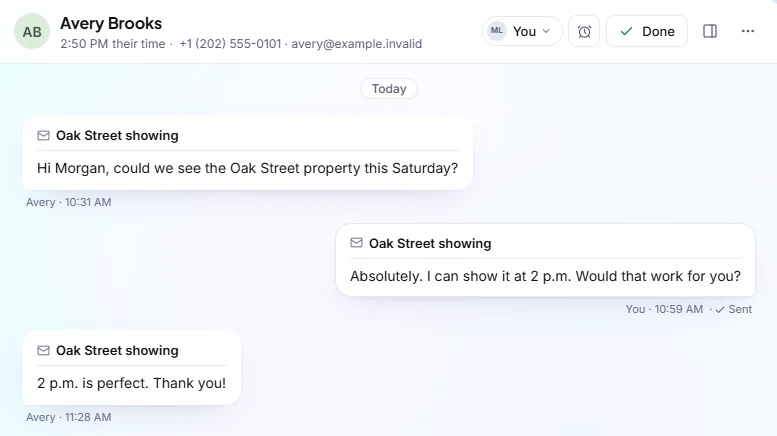
In this fictional example, Avery texts the verified acquisition line asking when Morgan can discuss the rental. Morgan reviews the Inbox conversation, sends one manual reply from an eligible line and checks its outcome. After agreeing on the next conversation, Morgan records the corresponding task or appointment.
Set up your workspace for this workflow
Review other texting workflows separately
This guide focuses on manual text-only Inbox replies. Activated smrtPhone also supports eligible scheduled, campaign, automation and appointment SMS, subject to each workflow's settings, consent and sending limits. MMS attachments and smrtPhone calling are not supported by this connection.
Use separate callbacks for incoming and status events
The incoming URL belongs in the SMS Flow's Trigger Webhook setup. The status URL uses Outgoing SMS and SMS Delivery Callback events. Review those settings when incoming or delivery updates are missing.
Common pitfalls and the next useful action
Trying to use an unverified extra number
Each additional line needs its own incoming verification. Complete that test and review its assignment before relying on it as a sender.
Retrying an uncertain send immediately
Check the saved outcome and callback state first. Review an unconfirmed attempt instead of assuming it failed and creating another copy of the text.
How this guide was reviewed
Reviewed the smrtPhone settings and Inbox workflow against the activation, sender routing, inbound handling and send eligibility source.
- Checked the separate incoming and status webhook routes, per-number incoming verification and active workspace texting requirement.
- Checked eligible conversation, teammate and default sender preferences, and that unknown incoming numbers remain Inbox-only until explicitly marked as leads.
- Checked the text-only Inbox route and the eligible scheduled, campaign, automation and appointment routes through the activated provider; MMS and smrtPhone calling are outside this connection.
No provider API, phone number or SMS delivery was tested during this review. Provider-reported acceptance or delivery does not prove a seller read a message. The linked recording uses older fictional UI and unsent drafts; it does not demonstrate current automated delivery. This guide does not establish smrtPhone calling or a browser dialer in CLP.
Texting setup and next actions
One-to-one seller texting questions
Can smrtPhone send campaign or scheduled texts in CLP?
Yes. An activated smrtPhone connection with a usable verified number can send eligible scheduled, campaign, automation and appointment SMS. Plan access, recipient consent and restrictions, sending windows, pacing and appointment settings still apply. A hold does not silently send through another provider, and a provider acceptance result does not guarantee delivery.
Can teammates use different smrtPhone numbers?
Yes. A settings manager can add and verify multiple numbers, assign eligible lines to teammates and choose one verified workspace default.
Does an incoming text automatically create a seller lead?
Unknown numbers stay in the Inbox until a teammate chooses Mark as lead. Review the inquiry and existing seller context before doing that.
Which number is used for a reply?
For automatic selection, CLP prefers the conversation's last eligible smrtPhone line, then the teammate's assigned line, then the workspace default, with another eligible workspace line as a final fallback. Review the sender shown for the conversation.
Does this workflow add smrtPhone calling in CLP?
No. This is a texting workflow. Calling uses the separately configured calling setup, and this guide does not describe a smrtPhone calling API or browser dialer.
Try this workflow with your next seller lead
Start a 14-day free trial, set up your channels, and walk through the steps with a test lead.